

If you have ever watched a video that looked choppy, played a game that felt sluggish, or noticed that scrolling on your phone looks smoother on a friend’s device, you have already experienced the effects of frame rate without knowing it. Frame rate is one of the most fundamental concepts in digital displays, gaming, and video, yet most people have never heard the term explained clearly.
This guide covers everything a beginner needs to know. You will learn what frame rate means, what FPS stands for, how it is measured using an FPS Test, how it relates to your monitor’s refresh rate, what numbers are considered good, and what you can do if your frame rate is lower than you would like. By the end, you will have a solid understanding of a topic that affects every screen you look at every single day.
What Is Frame Rate Test
Frame rate is the number of individual images, called frames, that a device displays on screen every second. Each of those frames is a still photograph of whatever is happening in that moment, whether it is a game world, a video, an animation, or even a scrolling webpage. When these still images are shown one after another at high speed, your brain perceives them as smooth, continuous motion. The faster they appear, the smoother and more natural the movement looks.
Frame rate is measured in frames per second, which is almost always shortened to FPS. A frame rate of 60 FPS means your screen is showing 60 unique images every single second. A frame rate of 30 FPS means it is showing 30. The difference in how those two feel to look at is enormous, and once you notice it, you cannot unsee it.
Think of an old-fashioned flip book. Each page is a single frame. When you flip through the pages slowly, the movement looks jerky and disconnected. When you flip through them fast, the character on the page appears to run, jump, or wave smoothly. Frame rate works on exactly the same principle. The more frames per second your system can produce and your screen can display, the smoother everything looks.
What Does FPS Test Stand For?
FPS stands for Frames Per Second. It is the standard unit used to describe frame rate in every context, whether you are talking about gaming, video production, film, animation, or browser performance. When someone says their game is running at 144 FPS, they mean the game engine is generating and sending 144 individual frames to their monitor every second.
You will also see FPS used as a genre abbreviation in gaming, where it stands for First-Person Shooter. The context always makes it clear which meaning is being used. In performance discussions, hardware reviews, and tools like a Frame Rate Test, FPS always refers to Frames Per Second.
What Is a Refresh Rate?
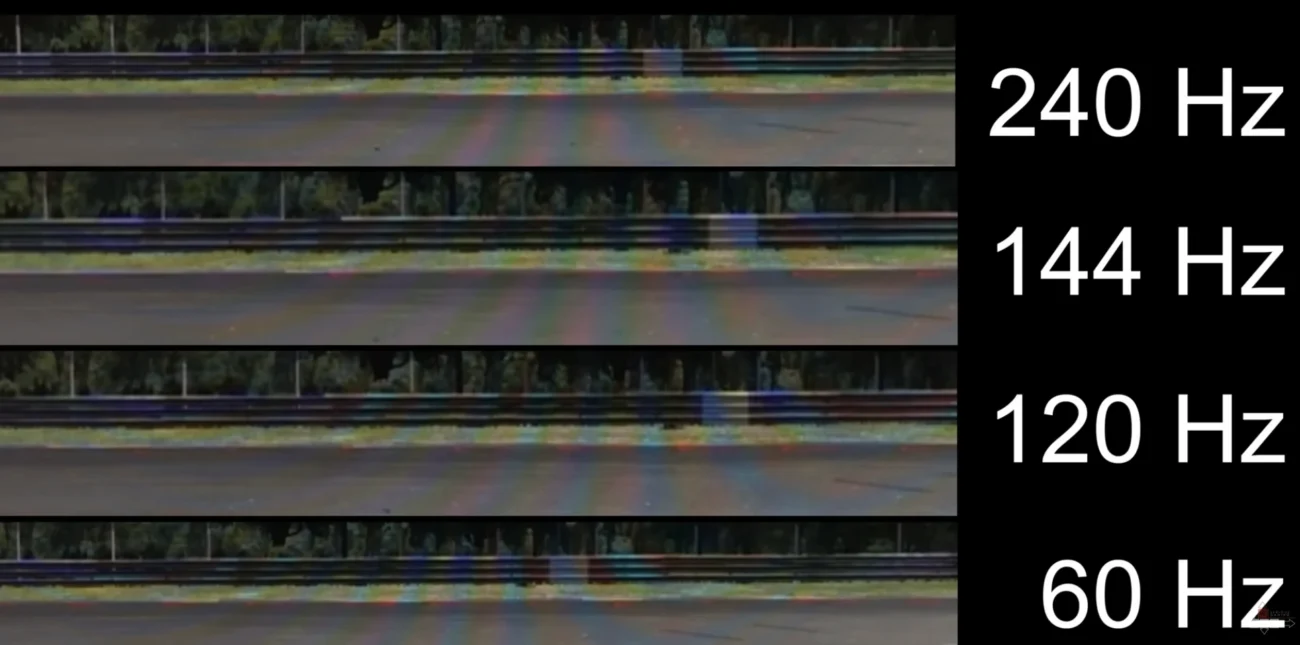
Refresh rate is a property of your monitor, not your computer. It describes how many times per second your display is physically capable of updating the image it shows. Refresh rate is measured in Hz, which stands for Hertz. A 60 Hz monitor can update its image 60 times per second. A 144 Hz monitor can update 144 times per second. A 240 Hz monitor updates 240 times per second.
This is a hardware limit built into the display panel itself. No matter how powerful your GPU is or how many frames your game produces, a 60 Hz monitor can only ever show you 60 frames per second. Everything above that ceiling is simply invisible on that screen.
Frame Rate vs Refresh Rate: What Is the Difference?
This is the question that confuses almost every beginner, and it is completely understandable because the two concepts are closely related and often discussed together. Here is the clearest way to think about it.
Frame rate is produced by your computer. Refresh rate is a limit set by your monitor. Frame rate is variable and changes depending on what is happening on screen. Refresh rate is fixed and stays the same no matter what.
Your GPU and CPU work together to render frames and push them to your monitor. How many frames they can produce per second depends on how powerful they are and how demanding the content is. Your monitor then displays those frames, but it can only do so as fast as its refresh rate allows.
When your frame rate matches your monitor’s refresh rate, everything is perfectly synchronized and the experience is as smooth as that display can possibly be. When your frame rate is lower than your refresh rate, you see fewer unique images than your monitor could theoretically show, which results in a less smooth experience. When your frame rate is higher than your refresh rate, the extra frames go unseen, though they can still reduce input lag slightly.
| Metric | What It Measures | Unit | Controlled By |
|---|---|---|---|
| Frame Rate | Images produced per second | FPS | GPU, CPU, software |
| Refresh Rate | Screen updates per second | Hz | Monitor hardware |
| Frame Time | Time to produce one frame | Milliseconds | GPU and CPU |
| 1% Low FPS | Average of worst 1% of frames | FPS | System stability |
| Input Lag | Delay from input to screen | Milliseconds | FPS, display, OS |
Why Does Frame Rate Matter?
Frame rate matters because it directly determines how smooth, responsive, and enjoyable your visual experience feels. This applies whether you are gaming, watching video, browsing the web, or editing a document. The effects of frame rate are felt even by people who have never heard the term.
For gaming, frame rate is one of the most critical performance metrics. A higher frame rate means the game updates more frequently, which makes movement feel more fluid, aiming feel more precise, and the overall experience feel more responsive. In competitive games like first-person shooters, racing games, and fighting games, the difference between 60 FPS and 144 FPS can genuinely affect your performance. A player at 144 FPS is seeing the game update 2.4 times more often than a player at 60 FPS. That extra information, delivered faster, translates into a real advantage.
For everyday use, higher frame rates make scrolling feel silky smooth, animations look polished, and the interface feel alive rather than mechanical. Anyone who has used a 120 Hz phone after years on a 60 Hz phone knows immediately what a difference it makes, even for tasks as simple as reading an article.
For video creators and streamers, stable frame rate ensures clean recording and broadcast output. Frames that drop or stutter during a capture session result in choppy footage that looks unprofessional.
What Is a Good FPS? A Beginner’s Benchmark Guide
Not all frame rates feel the same, and different situations call for different performance targets. Here is a straightforward breakdown of what each FPS range means in practice.
| Frame Rate | Experience | Best For | Verdict |
|---|---|---|---|
| Below 20 FPS | Unplayable | Nothing | Needs fixing immediately |
| 24 to 30 FPS | Cinematic | Films, casual video | Acceptable for passive viewing |
| 45 to 60 FPS | Smooth | Everyday use, single-player games | Good for most people |
| 90 to 120 FPS | Very smooth | High-refresh gaming, VR | Great for gaming |
| 144 FPS | Esports standard | Competitive shooters, racing | Excellent |
| 240 FPS and above | Professional level | Elite competitive gaming | Outstanding |
For most people who game casually or use their computer for general tasks, 60 FPS is a perfectly satisfying target. If you are getting into competitive gaming or own a high-refresh monitor, aiming for 144 FPS is the natural next step. If you are on a budget device, phone, or older laptop, maintaining a stable 30 FPS is still a reasonable baseline.
The key word in all of this is stable. A frame rate that bounces wildly between 40 FPS and 80 FPS will feel worse than a locked, consistent 60 FPS. Stability matters just as much as the raw number.
What Is Frame Time and Why Should Beginners Know About It?
Frame time is the amount of time in milliseconds that it takes to produce one single frame. It is the other side of the FPS coin. If your FPS is 60, your frame time is roughly 16.67 milliseconds. If your FPS is 144, your frame time is about 6.94 milliseconds.
Frame time matters because two systems can have the same average FPS but feel completely different to use. Imagine two systems both showing an average of 60 FPS over 10 seconds. System A delivers every frame at a consistent 16.67 ms interval. System B delivers most frames at 10 ms but occasionally takes 40 ms to produce a frame. Both average out to 60 FPS on paper, but System B produces visible stutters and hitches that System A never does.
This is why advanced FPS testing tools report frame time alongside FPS. Consistent frame time means smooth motion. Erratic frame time means visible judder even when the average FPS looks healthy.
What Is a 1% Low FPS?
When you run a Frame Rate Test or any FPS benchmark, you will often see a metric called 1% Low alongside the average FPS. This is one of the most useful numbers for understanding real-world performance, and it is frequently overlooked by beginners.
The 1% Low is calculated by taking all the FPS samples recorded during a test, sorting them from lowest to highest, and averaging the bottom one percent. It represents the worst moments your system experiences, the brief drops and hitches that feel most jarring even when your average FPS looks fine.
A system with an average of 90 FPS but a 1% Low of 20 FPS will occasionally feel terrible, despite the healthy average. A system with an average of 75 FPS and a 1% Low of 68 FPS will feel consistently smooth. When evaluating performance, always look at your 1% Low alongside your average. The gap between the two tells you how stable your system really is.
What Is an FPS Test and How Does It Work?
An FPS Test is a tool that measures your frame rate in real time. It counts how many frames your browser, GPU, and display system can produce and render per second, and reports that number along with supporting metrics like average FPS, minimum FPS, maximum FPS, 1% Low, and frame time.
Browser-based FPS Test tools work by using the requestAnimationFrame API, which is a built-in function in every modern web browser. This API fires a callback function once per display refresh cycle, synchronized to your monitor’s refresh rate. The FPS Test counts how many of these callbacks occur in a given time window, typically every 250 milliseconds, and converts that count into a frames-per-second reading.
At the same time, a realistic animation plays on screen to create an actual GPU workload. Without this visual stress, the browser would have almost nothing to render and the FPS reading would not reflect real performance. Moving objects, particles, and rotation effects simulate the kind of work a GPU does during actual use, making the result meaningful rather than theoretical.
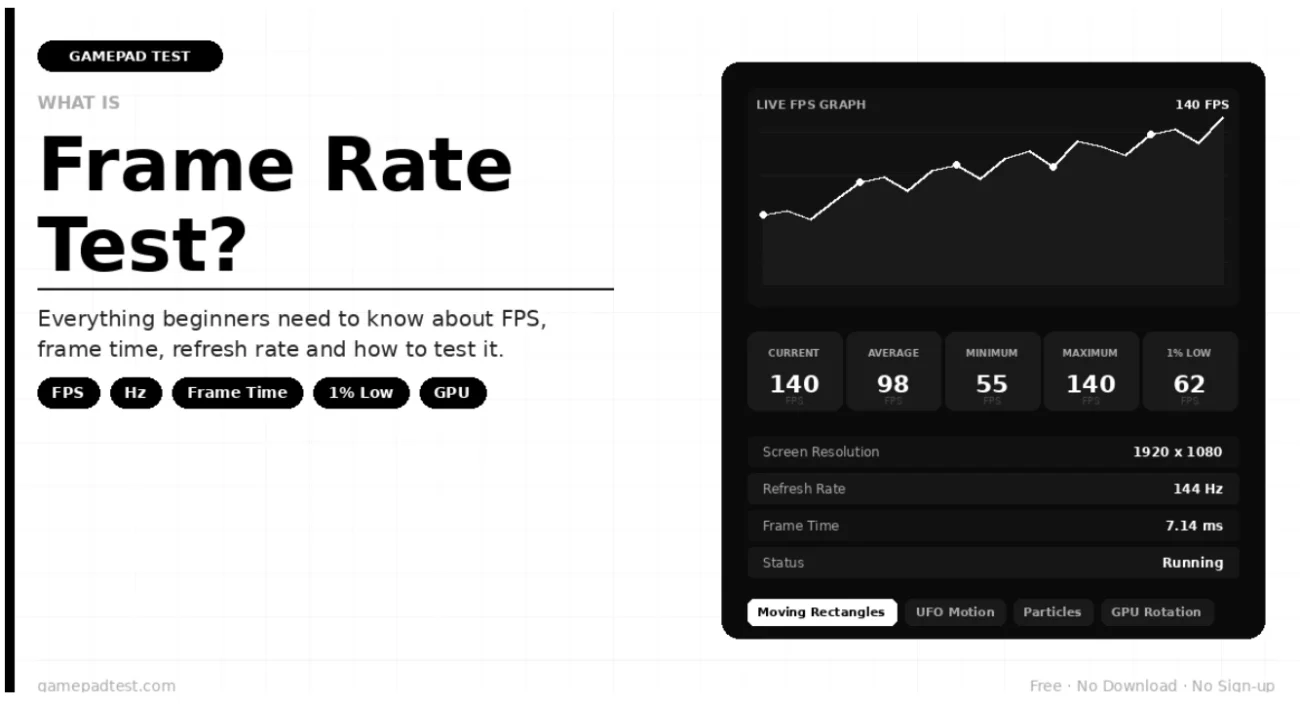
You can use the Frame Rate Test tool on Gamepad Test to measure your FPS right now, directly in your browser, with no download or sign-up required. It gives you a live readout of current FPS, average FPS, minimum FPS, maximum FPS, 1% Low, frame time, screen resolution, device pixel ratio, and estimated refresh rate, all updated in real time.
How to Use an FPS Test: Step by Step for Beginners
Using a Frame Rate Test tool is straightforward, but a few simple habits will help you get more accurate and useful results.
Before you start, close any applications you do not need. Background programs consume CPU, GPU, and RAM that would otherwise be available for rendering. Closing them gives you a cleaner baseline reading that reflects your system’s actual available performance rather than a cluttered real-world condition.
Make sure hardware acceleration is enabled in your browser. This setting tells the browser to use your GPU for rendering tasks rather than handling everything on the CPU. Without it, FPS results will be significantly lower than your hardware is capable of. In Google Chrome, you can find this option under Settings, then System, and then the toggle labelled “Use hardware acceleration when available.”
If you are on a laptop, plug it in and switch your power plan to High Performance before running the test. Battery-saving power plans deliberately limit CPU and GPU performance to extend battery life, which will drag your FPS results down.
Once you are ready, open the Frame Rate Test, click Start Test, and let it run for at least 20 to 30 seconds. Short tests do not collect enough samples for reliable average and 1% Low readings. A 30-second run gives the metrics time to stabilize and also reveals any thermal throttling effects on laptops, where performance drops as the device heats up.
Watch the live FPS graph as the test runs. A flat, horizontal line indicates stable performance. A jagged, bouncing line with sharp dips indicates instability. Both tell you something important about your system’s health.
When the test is complete, note your average FPS, your 1% Low, and your frame time. These three numbers together give you a complete picture of your rendering performance.
Frame Rate vs Refresh Rate: A Quick Reference
| Situation | Frame Rate | Refresh Rate | What Happens |
|---|---|---|---|
| FPS equals Hz | 60 FPS | 60 Hz | Perfect sync, smooth experience |
| FPS below Hz | 40 FPS | 60 Hz | Screen shows partial updates, less smooth |
| FPS above Hz | 120 FPS | 60 Hz | Extra frames wasted, possible screen tearing |
| With V-Sync | Capped to Hz | 60 Hz | No tearing, slight input lag increase |
| With G-Sync or FreeSync | Variable | Matches FPS | Best of both, smooth with no tearing |
Common Causes of Low FPS
If your Frame Rate Test or FPS Test results are lower than expected, several common culprits are worth checking.
Hardware acceleration being disabled in your browser is the single most common cause of low FPS on a browser-based test. Always verify this setting first before assuming your hardware is the problem.
Background applications eating up CPU and GPU resources are another frequent cause. Antivirus scans, software updates, browser tabs running video, and open games or applications all compete for the same resources your FPS Test needs.
Thermal throttling is particularly common on laptops. When a laptop’s internal temperature rises too high, the processor and GPU automatically reduce their clock speeds to generate less heat. This causes FPS to drop noticeably during a sustained test. If your FPS starts high and gradually falls, thermal throttling is likely the cause.
Outdated graphics drivers can prevent your GPU from performing at full capability. Check the website of your GPU manufacturer, either Nvidia, AMD, or Intel, and download the latest stable driver release.
High display scaling on Retina and high-DPI screens means the canvas is rendering significantly more pixels than it would at standard scaling. A 2x scale setting doubles the number of pixels rendered in both dimensions, quadrupling the total workload. Reducing display scaling can meaningfully improve FPS on high-resolution displays.
Tips to Improve Your Frame Rate
Getting better FPS is often less about buying new hardware and more about removing the things that are holding your current hardware back. Here are the most effective steps a beginner can take.
Enable hardware acceleration in your browser before running any FPS Test. This single change can double or triple browser-rendered FPS on many systems.
Close all unnecessary background applications before testing or gaming. Even a single video playing in another tab can take a meaningful amount of GPU resources away from your frame rendering.
Update your graphics drivers. GPU manufacturers release driver updates regularly that include performance optimizations for new games and applications. Running outdated drivers means leaving performance gains on the table.
On a laptop, always plug in before performance-intensive tasks. Plugged in and set to High Performance mode, a laptop can perform dramatically better than it does on battery saver.
Keep your device cool. Make sure ventilation is not blocked, clean dust from vents if the device is older, and avoid using a laptop on a soft surface like a bed or couch that covers the air intake at the bottom.
Restart your browser before a test. Long browsing sessions cause memory leaks in browsers that gradually consume more RAM and slow down rendering. A fresh browser start gives you a clean slate.
Disable browser extensions you do not need during testing. Ad blockers, password managers, and other extensions inject code into web pages that can interfere with rendering performance.
Frequently Asked Questions for Beginners
Is 60 FPS good enough?
For most people and most tasks, yes. 60 FPS is smooth, stable, and pleasant to look at for everyday gaming, browsing, and video. If you are playing competitive games where reaction time matters, upgrading to 144 FPS makes a noticeable difference. But for casual use, 60 FPS is a completely reasonable and enjoyable target.
Can the human eye see above 60 FPS?
Yes, absolutely. The idea that human vision is limited to 60 FPS is a popular myth with no scientific basis. Research has demonstrated that trained individuals can perceive differences well above 100 FPS, and fighter pilots have been shown to identify imagery flashed at 220 FPS. In practical terms, most people can clearly tell the difference between 60 FPS and 120 FPS, and many can notice the difference between 120 FPS and 144 FPS.
Does a higher refresh rate monitor automatically give me higher FPS?
No. A higher refresh rate monitor increases the ceiling of what can be displayed, but it does not make your GPU produce more frames. To benefit from a 144 Hz monitor, your system needs to actually produce 144 FPS. If your GPU can only manage 60 FPS, a 144 Hz monitor will still show you 60 FPS. The monitor and the frame rate are separate things.
What is screen tearing?
Screen tearing happens when your GPU sends a new frame to the monitor before it has finished displaying the previous one. The result is a visible horizontal line where two different frames are showing at the same time, one on top and one on bottom. It looks like the image has been sliced and offset horizontally. Tearing is most common when FPS is significantly higher than the monitor’s refresh rate. V-Sync, G-Sync, and FreeSync all help prevent tearing by synchronizing frame delivery to the display.
What is V-Sync?
V-Sync, short for Vertical Sync, is a setting that limits your GPU to producing frames at exactly the same rate as your monitor’s refresh rate. On a 60 Hz monitor with V-Sync enabled, your GPU will produce exactly 60 FPS, no more. This eliminates screen tearing because frames are always delivered in sync with the display. The trade-off is a slight increase in input lag and occasional stuttering when the frame rate drops below the monitor’s rate.
Why does my FPS drop sometimes during a test?
Occasional FPS drops are normal and expected. They happen when a background task briefly takes CPU or GPU resources, when the browser pauses for garbage collection, or when a more complex part of the scene is rendered. If drops are frequent and severe, check for thermal throttling, background applications, or driver issues.
Is browser FPS the same as game FPS?
No. Games use direct graphics APIs like DirectX, Vulkan, or Metal that communicate with your GPU at a much lower level than a web browser can. A browser-based FPS Test measures your browser’s rendering performance, which is affected by the browser’s own overhead. You will almost always see lower FPS in a browser test than in a native game. Browser FPS tests are best used to measure browser rendering health and monitor refresh rate confirmation, not as a direct stand-in for game performance benchmarks.
Final Summary
Frame rate and refresh rate are two sides of the same coin. Frame rate is how many images your computer produces per second. Refresh rate is how many of those images your monitor can display per second. When the two work together at high, stable values, the result is a smooth, responsive, and immersive visual experience. When either one is low or unstable, the result is choppiness, stuttering, and a display that feels sluggish no matter how powerful the hardware underneath it might be.
As a beginner, the most important things to remember are these. FPS stands for Frames Per Second and describes frame rate. Hz describes refresh rate and is a monitor hardware limit. The two numbers work best when they match. A higher, stable FPS is almost always better than a lower or unstable one. And the best way to know exactly where you stand is to run a Frame Rate Test and let the numbers tell you.
Use the free Frame Rate Test tool on Gamepad Test to check your current FPS, monitor your 1% Low, and see your frame time in real time, right now in your browser, with no download required.