


A good gaming setup is more than a fast controller and a sharp screen. The light around you changes how long you can play comfortably, how clearly you see dark scenes, and how easy it is to spot what your hands are doing on the pad. A smart floor lamp running on Matter is one of the simplest upgrades you can make here, because it pairs with almost any major smart home platform and responds quickly to voice and app control.
This guide walks you through the full setup, from preparing your network to pairing the lamp. It also covers building lighting scenes that suit gaming and keeping the lamp from causing trouble for your wireless controllers. If you have never set up a smart light before, you can still have everything running in about fifteen minutes.
Why Lighting Matters In A Gaming And Controller Setup
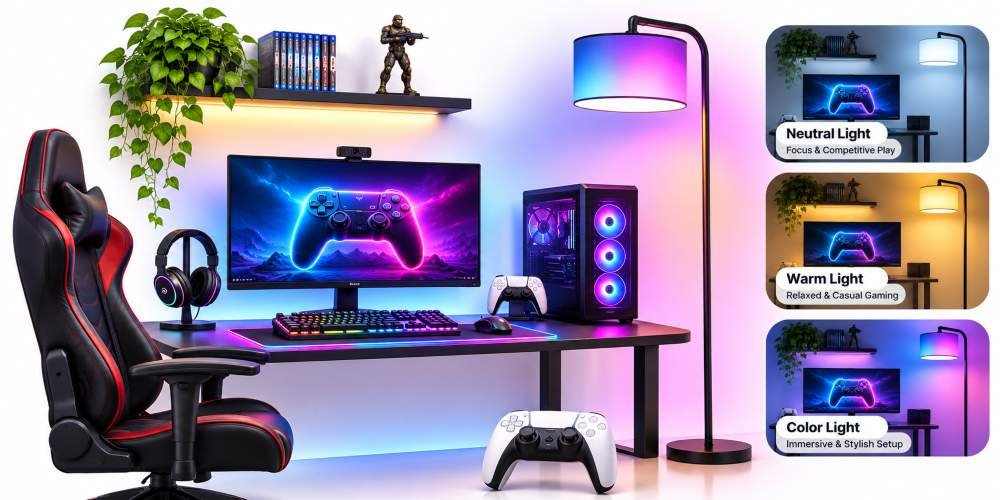
Most players game in one of two bad conditions. Either the room is pitch dark and the screen is the only light source, or a harsh ceiling light throws glare across the display. Both make long sessions more tiring than they need to be.
Playing in a fully dark room forces your eyes to adjust constantly between bright explosions and dark corridors. A soft light behind or beside your screen, often called bias lighting, gives your eyes a steady reference point. That reduces strain and can make dark scenes look more detailed, because your pupils are not working overtime.
A floor lamp is ideal for this because it sits outside your direct line of sight and lights the wall rather than the screen. Pick one with tunable white and color control, and the same lamp can work as a neutral bias light during competitive matches, a warm light for relaxed sessions, and a bright, clear light when you need to inspect or test a controller up close.
Prepare Your Smart Floor Lamp For Matter Setup
What Matter Does For Smart Lighting
Matter is a shared smart home standard supported by Apple Home, Google Home, Amazon Alexa, Samsung SmartThings, and other platforms. Instead of buying a lamp that only works with one app, you get a device that can join whichever ecosystem you already use. Matter devices can also be shared with more than one platform at once, so someone in your household on an iPhone and someone on Android can both control the same lamp.
Matter commands usually travel over your local network rather than through a distant cloud server. In practice, that means the lamp reacts faster when you switch scenes, which matters when you want the room to change the moment a match starts.
If you want a lamp built for this kind of room, a nova led floor lamp like the Nova Floor Lamp Pro combines Matter support with triple zone wall washing, 16 million colors, and tunable white from 2700K to 6500K. That range covers everything from a cozy warm glow to the cool neutral white that suits bias lighting.
Check Your WiFi, Phone, And Smart Home App
Before pairing, confirm a few basics. Small gaps here cause most setup failures.
- WiFi band: The Nova Floor Lamp Pro connects over 2.4GHz WiFi, with Bluetooth used to help during setup. Make sure your router broadcasts a stable 2.4GHz network.
- Phone: Update your phone’s operating system and your smart home app to the latest versions.
- Bluetooth: Keep Bluetooth switched on for the whole setup process.
- Platform support: Confirm that your chosen app supports adding Matter devices. Some platforms also need a hub or smart speaker that acts as a Matter controller.
- Permissions: Allow the app to access local network devices, or it may never find the lamp.
Choose The Right Spot In Your Gaming Room
Placement decides whether the lamp helps or hurts your screen. Place it beside or slightly behind your monitor or TV so the light washes the wall behind the display. Avoid placing it behind your chair, where it can reflect off the screen and create glare.
The Nova Floor Lamp Pro stands 1376.8 mm tall with a slim metal frame, so it fits neatly in a corner next to a desk or entertainment unit. Leave enough clearance around it for the wall washing effect to spread evenly. For the first setup only, keep it within reasonable range of your router so pairing is not fighting a weak signal.
How To Connect A Smart Floor Lamp To Matter
Step 1: Assemble And Power On The Lamp
Assemble the lamp using the included instructions and check that every section is secure and the base sits flat. Connect the power adapter, confirm the lamp is receiving its 12 volt supply, and switch it on.
Most smart lamps enter pairing mode automatically the first time they power up. If yours does not, press and hold the reset or power button as the manual directs until the status light shows it is ready to connect.
Step 2: Pair The Lamp With A Matter Platform
Open your smart home app and choose the option to add a new device. Scan the Matter QR code, which you will usually find on the lamp, the packaging, or the quick start guide. Keep your phone close to the lamp while the app works.
The app briefly uses Bluetooth to find the lamp, then hands it over to your WiFi network. This handoff can take a minute, so let it finish without closing the app.
Step 3: Name It For Fast Voice Control
Once connected, assign the lamp to a room such as “Game Room” and give it a short, distinct name like “Desk Lamp.” Short names make voice commands faster and reduce the chance your assistant confuses it with another light.
Test the basics before moving on. Turn it on and off, dim it, and switch between warm and cool white. If all of that works, the lamp is ready for scenes and automation.
Build Lighting Scenes For Gaming Sessions
Scenes let you save brightness, color, and white temperature together and recall them with one tap or one voice phrase. Here is a practical starting set for a gaming room.
| Scene Name | Color Or White | Brightness | Best For |
| Competitive | Neutral white near 6500K | Low, around 10 to 20 percent | Bias lighting during ranked matches and long sessions |
| Chill Play | Warm white near 2700K | Low to medium | Story games and late night sessions |
| Immersion | Deep blue, purple, or red | Low | Horror, sci fi, and atmospheric games |
| Controller Check | Cool white | High | Inspecting buttons and sticks, running controller tests |
| Stream Mode | Brand or theme color | Medium | Giving your background a consistent look on camera |
For the Competitive scene, a common rule of thumb is to keep bias light at roughly a tenth of your screen’s brightness and close to a neutral white. Too bright, and it washes out contrast. Too colorful, and it can shift how you perceive colors on screen.
The Nova Floor Lamp Pro adds more depth here, with over 100 scene modes, 10 music modes that react to sound, and AI generated lighting built from photos or voice commands. Music modes work well for party games or casual sessions. For competitive play, a steady scene is usually better, because a pulsing light at the edge of your vision can be distracting. Voice control works through Alexa, Google Assistant, and Matter, so “set Game Room to Competitive” can become part of your routine before every match.
Keep Your Lamp From Interfering With Wireless Controllers
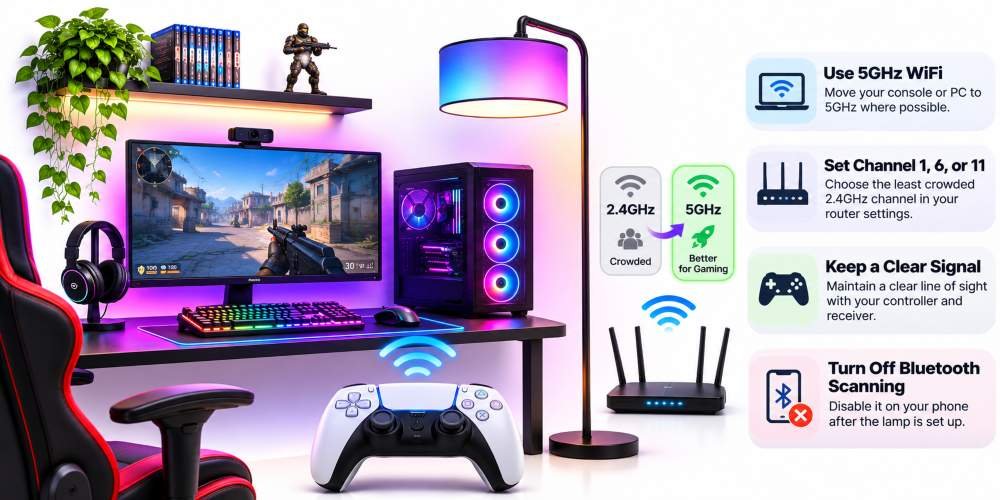
This is the part most smart lamp guides skip, and it matters to anyone who plays with a wireless pad. Bluetooth controllers, 2.4GHz wireless dongles, and smart devices on 2.4GHz WiFi all share the same radio band. One lamp uses very little bandwidth on its own, but a room full of smart plugs, bulbs, speakers, and a busy router can crowd that band and cause input lag, stutter, or random disconnects.
A few habits keep things clean:
- Move your console or PC to 5GHz WiFi where possible. That leaves more room on 2.4GHz for your controller and smart devices.
- Set your router’s 2.4GHz channel manually to 1, 6, or 11, picking whichever looks least crowded in your router’s settings.
- Keep a clear line of sight between your controller and its receiver, and do not tuck a wireless dongle behind a metal desk frame or right beside the lamp’s power supply.
- Turn off Bluetooth scanning on your phone after setup is finished, since the lamp does not need it once it is on WiFi.
After adding any new smart device to your gaming room, it is worth checking that your controller still behaves. A quick run of a connection stability test shows whether your pad is dropping inputs or disconnecting, and a latency test confirms that response times have not crept up. If both look the same as before, your lighting and your controller are sharing the airwaves without trouble.
Fix Common Matter Pairing Problems
Most pairing failures come down to the network, outdated software, or the lamp dropping out of pairing mode. Work through these in order.
- Restart everything. Power cycle the lamp, your phone, and your router, then try again.
- Confirm the network. Make sure your phone is connected to the same 2.4GHz network you want the lamp on.
- Check Bluetooth and permissions. Bluetooth must be on, and the app needs permission to find local devices.
- Move closer. If the app cannot find the lamp, bring your phone right next to it and confirm the lamp is still in pairing mode.
- Clear old attempts. Remove any half finished device entries from your app before pairing again.
- Update firmware. If control is unstable after pairing, update the lamp’s firmware and the app, then test from the same room as the router.
- Factory reset. When repeated attempts fail completely, a factory reset is usually the fastest fix.
Frequently Asked Questions
Does A Smart Floor Lamp Cause Controller Input Lag?
Not on its own. One lamp uses very little of the 2.4GHz band. Lag usually shows up when many devices crowd that band at once, so moving your console or PC to 5GHz and choosing a clean router channel normally solves it.
What Color Temperature Is Best For Gaming?
For competitive play, neutral white close to 6500K at low brightness works best as bias lighting. For relaxed or late night sessions, warm white near 2700K is easier on the eyes.
Can I Control The Lamp From More Than One App?
Yes. Matter supports sharing a device with several platforms, so the same lamp can appear in Apple Home, Google Home, and Alexa at once.
Where Should I Place A Floor Lamp In A Gaming Room?
Beside or slightly behind your screen, aimed at the wall. Avoid placing it behind your seat, where it reflects off the display.
Conclusion
A Matter smart floor lamp gives your gaming room reliable, fast lighting control without a complicated setup. Prepare your network and phone, pair the lamp in a few minutes, and then build scenes that match how you play, from low neutral bias lighting for ranked matches to bright light for checking your gear. Keep your 2.4GHz band uncrowded, run a quick check on your controller after adding new devices, and the lamp becomes a useful part of your setup rather than just decoration.