

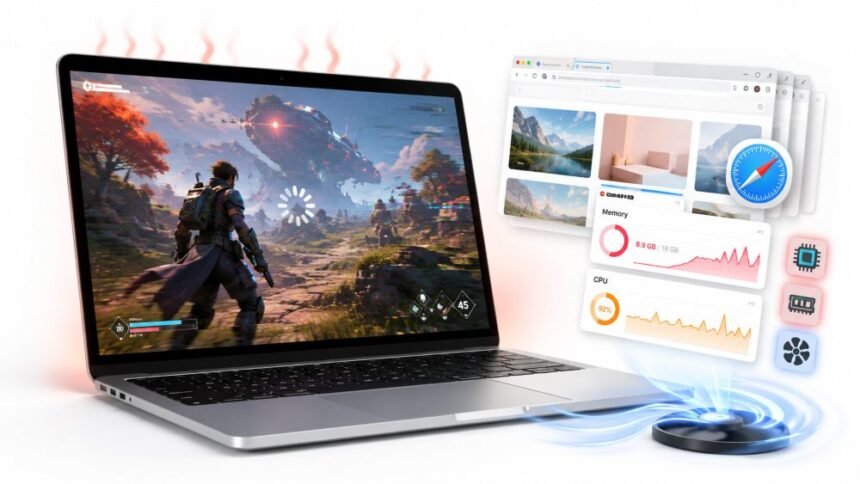
You’ve done everything right. You checked your graphics settings. You lowered the resolution. You even closed a few apps before launching the game. And yet, mid-session, your Mac starts to chug. The frame rate tanks. The fans spin up. The experience goes from smooth to frustrating in a matter of minutes.
If this sounds familiar, here’s something most gaming guides won’t tell you: the problem often isn’t your hardware, and it isn’t your game settings either. It’s what’s quietly running in the background while you play, and one of the biggest culprits is something most Mac gamers never think to check.
Their browser.
Macs are capable gaming machines when they’re given the space to perform. The issue is that macOS, by design, allows a lot of processes to run continuously in the background, syncing files, managing updates, and keeping browser sessions alive whether you’re gaming or not. Some of these are harmless. A few of them are actively eating the CPU and memory your game needs to run smoothly.
This guide breaks down why FPS drops happen on Mac, why your browser is more involved than you’d expect, and what you can actually do about it.
Why FPS Drops on Mac Feel Different
If you’ve ever run an FPS test on your Mac during a light session and then again mid-game, you’ve probably noticed a significant gap. This happens because gaming is one of the most CPU and GPU-intensive things a Mac can do, and it’s also the moment every background service decides to compete for those same resources.
On Windows, users have had years of practice trimming startup processes and disabling background services for gaming. On Mac, this feels less intuitive because macOS doesn’t advertise what’s running. Everything looks clean on the surface. Open Activity Monitor, though, and the picture changes quickly.
There are processes you’ll recognise: iCloud sync, Spotlight indexing, App Store updates. And then there are ones that sit silently near the top of the CPU column with no obvious reason to be consuming that much power while your game is open.
One of the most common culprits? Safari.
Browser Problem Nobody Talks About
Most Mac gamers close their visible apps before launching a game. What they don’t do is fully quit their browser, and there’s a meaningful difference between minimising Safari and actually closing it.
Safari is not an idle process when it’s open in the background. Even with no active tab being viewed, it maintains live sessions, prefetches content, runs extension scripts, and periodically syncs browsing data. On a Mac that’s already under load from a game, that background browser activity adds up, competing for CPU cycles and memory that your game is trying to claim.
The problem gets worse the more accumulated data Safari is carrying. A browser that hasn’t been maintained in months one with a bloated cache, dozens of cookies, years of autofill entries, and a handful of extensions running in the background is a very different performance burden than a freshly cleaned one.
If your game sessions have been inconsistent with good performance some days, frustrating frame drops on others, and you’ve been leaving Safari open or using it heavily before gaming, your browser’s state is one of the first things worth investigating. A thorough guide on how to speed up Safari on Mac covers exactly what builds up over time and how to clear it out, including cache, cookies, autofill data, broken preferences, and extension conflicts.
The short version: a Safari that’s been cleaned up and fully quit before a gaming session is meaningfully less of a drag on your Mac’s resources than one that hasn’t been touched in months.
Startup Problem Nobody Talks About
Beyond Safari specifically, there’s a broader issue that affects Mac gaming performance: too many applications set to launch at startup.
Every time you turn on your Mac, a queue of processes launches alongside macOS. Each one claims a slice of CPU and RAM before you’ve even opened a game. Some of them you added yourself. Many were added automatically by software installers and never cleaned up.
Here’s how to see what’s running at startup:
- Click the Apple menu and open System Settings
- Go to General, then Login Items
- Look at everything listed under Open at Login and Allow in Background
What you’ll find there is often surprising. Video conferencing apps, cloud storage clients, creative software launchers, software update daemons all of them waiting to run from the moment your Mac wakes up. For gaming, this is a significant drag. Every process that loads at startup is one more thing competing with your game for system resources.
The rule of thumb is simple: if you don’t need it running in the background while you play, remove it from the startup list. You can always open these apps manually when you need them. For gaming sessions, a lean startup means more headroom for the game itself.
iCloud Sync: The Silent Frame Rate Killer
Here’s one that catches people off guard. If you game on a Mac and have iCloud Drive enabled with Desktop and Documents syncing turned on, iCloud can cause unexpected CPU and disk activity spikes during your session, especially if you’ve recently added, changed, or deleted files.
The iCloud sync daemon picks its own moments to run. Sometimes that moment is right in the middle of a game. When it does, it consumes disk I/O and CPU simultaneously, which can cause stuttering that looks completely random and hardware-related but is actually just your Mac uploading your files.
To check whether iCloud is running actively while you game, open Activity Monitor and look for Bird in the process list; that’s the internal name for the iCloud sync process. If it’s consistently high during your gaming sessions, consider pausing iCloud sync manually before playing by going to System Settings > [Your Name] > iCloud > iCloud Drive and toggling Sync this Mac off during sessions.
Spotlight Indexing After macOS Updates
If you’ve recently updated macOS or connected an external drive, Spotlight may be quietly indexing files in the background. Spotlight indexing is extremely CPU- and disk-intensive, and it runs at low priority, meaning macOS will try to throttle it when you’re doing other things. Still, on older Macs or during heavy gaming loads, even low-priority indexing can pull down your frame rate noticeably.
You can check whether Spotlight is indexing by looking for mds_stores in Activity Monitor. If it’s showing high CPU usage, it’s still working through its index. The good news is that Spotlight indexing is temporary; once it’s finished, it stops. The bad news is that it can take several hours after a major update.
If you need to game while indexing is happening, the workaround is to add your main drive to Spotlight’s Privacy list temporarily:
- Open System Settings and search for Spotlight
- Click Search Privacy
- Drag your main drive into the list to pause indexing
- Remove it after your gaming session to let Spotlight resume
Memory Pressure: What It Means and Why It Tanks FPS
Macs don’t have traditional RAM limitations in the same way older systems did. macOS uses a system called memory compression to fit more into your available RAM. But there’s a limit to how much compression can help, and when you cross it, performance degrades quickly.
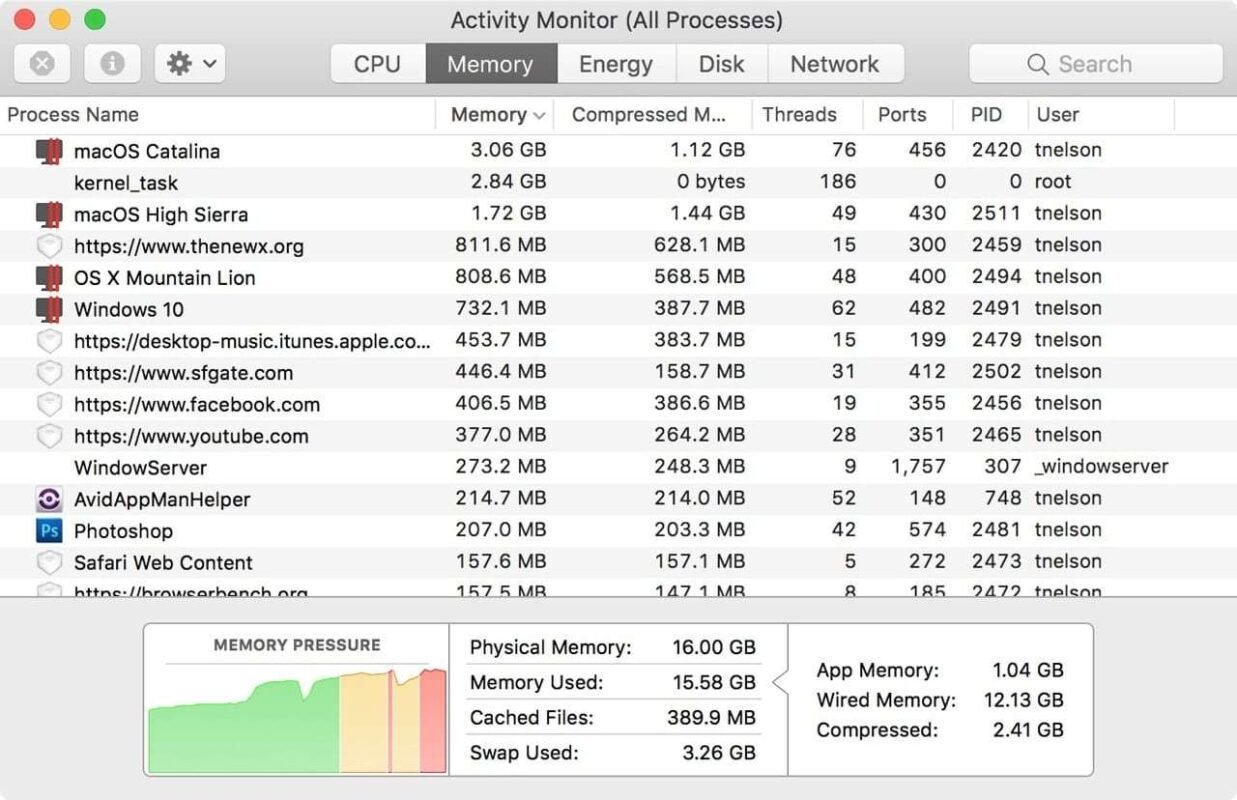
You can see how your Mac is handling memory by opening Activity Monitor and clicking the Memory tab at the bottom. The Memory Pressure graph shows you a real-time view of how hard your system is working to manage RAM.
- Green = comfortable, plenty of headroom
- Yellow = starting to feel the pressure, performance may dip
- Red = memory is significantly stressed, expect frame drops and stuttering
For gaming, keeping that graph in the green zone requires closing everything you don’t need before launching. That means browser tabs, video apps, messaging apps, and anything else sitting open and consuming RAM. On Macs with 8GB of unified memory especially, this matters enormously; games frequently want 4–6GB for themselves, leaving very little room for background processes.
A Pre-Gaming Checklist for Mac
If you want consistent, predictable frame rates while gaming on a Mac, the habits that make the most difference aren’t about hardware; they’re about what you do before you launch the game.
- Fully quit Safari; don’t just minimise it. Use Command+Q to close it completely. A minimised browser is still running, still using memory, still maintaining sessions and running extensions. A properly quit browser uses nothing.
- Clear Safari’s cache and cookies periodically. Accumulated browser data slows Safari down in general, and a slow browser process competing with your game makes things worse. Making this part of your routine even once a month keeps the overhead down.
- Check Activity Monitor before you launch. Sort by CPU usage and look for anything using more than 10–15% when your Mac should be idle. Address whatever’s at the top before opening your game.
- Plug in if you’re on a MacBook. Battery-saving mode limits CPU performance significantly. Gaming on battery means your Mac is deliberately holding back to preserve charge. Plugged in with a High Performance mode active, you’ll see noticeably better frame rates.
- Keep your Mac cool. If you’re gaming on a surface that blocks the ventilation at the bottom of your MacBook, thermal throttling will hit faster and harder. A flat, hard surface or a laptop stand with airflow makes a genuine difference during long sessions.
- Restart before a long gaming session. A Mac that’s been running for several days accumulates memory pressure, background processes that have drifted, and software that’s quietly leaked resources. A fresh boot clears all of that and gives you a clean starting point.
When the Problem Is Deeper Than Background Processes
Sometimes even after you’ve closed everything, cleaned up your startup items, and quit Safari properly, the FPS still isn’t where it should be. In those cases, it’s worth checking whether you have malware on your Mac.
Browser hijackers and certain types of adware are specifically designed to run silently in the background and consume system resources. They’re often installed alongside free software, tucked into browser extensions, or downloaded through deceptive pop-up alerts that look like system notifications. Safari extensions are a particularly common delivery mechanism, which is another reason to audit your browser extensions regularly and remove anything you don’t actively use.
The symptoms of malware on a Mac look a lot like the symptoms of too many background processes: excessive CPU usage, overheating, fans running constantly, and unexplained sluggishness. The difference is that closing your apps won’t fix a malware problem the way it fixes a background process problem.
If you’ve gone through the checklist above and your Mac is still struggling during gaming sessions without an obvious explanation, running a malware scan is a reasonable next step before assuming the hardware is to blame.
Bottom Line
Mac gaming performance is more manageable than most people think, but it requires a different approach than simply turning down graphics settings or buying more RAM. The ceiling your hardware can reach depends heavily on how much headroom you give it, and the biggest things standing between your Mac and its best frame rates are usually background processes and a browser that’s been left running without maintenance.
Check Activity Monitor. Audit your Login Items. Quit Safari completely before you play. Keep your browser clean. And if something keeps appearing at the top of the CPU list when your Mac should be idle, take the time to understand what it is and whether it needs to be there.
The frame rate you’re looking for is probably already possible with your current hardware. It’s just waiting for you to get out of its way.