

At one time, I expected FPS drops whenever I played games on PC. I’d load into a game and get good performance. But then combat would start, more stuff would be happening on-screen, and my frame rate would stutter.
Mouse movements felt sluggish. Textures would load late. The picture would freeze for half a second sometimes. I didn’t enjoy it. I blamed my graphics card at first. After that, I spent months blaming Windows itself. I tried different in-game settings. I quit background apps and lowered my resolution.
Some solutions worked. Others were Band-Aids. And nothing stopped the problems from coming back. Turns out the issue was much simpler than I thought. My PC just had old drivers.
Finding the Culprits With Driver Booster
I fired up Driver Booster and was immediately notified I had several drivers needing my attention. Right off the bat, I knew I wasn’t dealing with one bad driver. Updating just a few key drivers fixed a lot of the stuttering issues I faced when gaming. After using Driver Booster’s Game Boost tool too, games just ran smoother.
Now, I don’t expect every game to run at 300+ FPS all the time. But sharp frame rate drops, random stuttering, and weird dips in speed used to happen far too often. Here’s what my FPS problem looked like.
My games were smooth until they weren’t. I didn’t notice problems while using Windows for normal stuff. Web pages opened in the blink of an eye. Videos streamed smoothly. Work tasks didn’t chop up if I wasn’t being super demanding.
These problems only happened when I booted up a game. I’d open a match and have decent FPS. Then I’d drive to a crowded area of the map or start a fight. Suddenly my frames would drop. Sometimes it was just for a second. Other times, my frame rate would bottom out until I lost and wanted to scream.
Common Signs:
- The gameplay would run smoothly for a bit. Then, it would start stuttering or skipping.
- My FPS would take a hit when there was a lot going on-screen.
- The screen would freeze for a second or two after opening the in-game menu.
- My controller or mouse input felt delayed.
- Game textures took too long to load into view.
- Games would crash after updating.
Game stuttering can come from many different things. Your PC may be overheating. You might not have enough RAM or set your game settings too high. If you game online, a poor internet connection can also cause lag.
Drivers can be one of the bigger issues people overlook. Drivers are what allow Windows to communicate with the hardware inside your PC. They tie into your graphics card, sound device, network card, chipset, and more. If any of those drivers are out-of-date, corrupt, or missing, games may not run properly.
Why I Needed Driver Booster
I knew I could search for each driver manually. Years before, I’d done this. It was time-consuming and tedious. I wasn’t sure I had the right file. I also didn’t want to download drivers from sketchy websites. Those seem like they’ll cause more problems than I started with. Random drivers, wrong file versions, and potentially harmful programs seemed more likely.
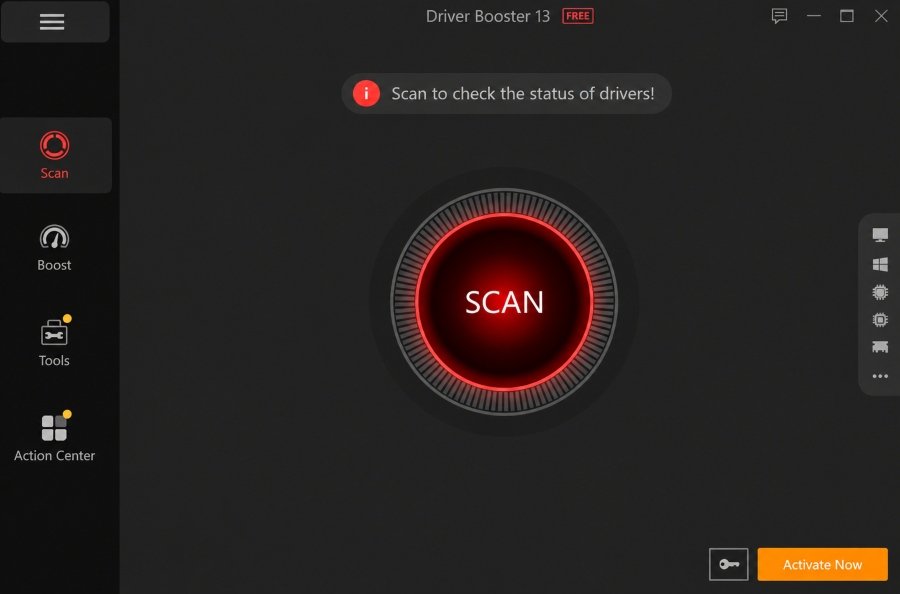
Driver Booster offered an easier solution. The program scans your PC, then shows you a list of drivers that need updates. All I had to do was open Driver Booster, run the scan, and wait.
The first thing I noticed was how clean it looked. I didn’t need to be a computer technician to understand what I was seeing. Driver Booster showed me which drivers were old and gave me a simple option to update.
Driver Booster 13 scans for outdated drivers and automatically identifies the appropriate driver versions from a huge driver database of over 18 million drivers and game components, according to the product details I checked. Driver Booster 13 also supports Windows 10 and Windows 11, including many ARM64 devices.
I cared most about my display driver, but that wasn’t the only thing I needed. My network driver could use an update too. My audio driver was out of date. I also had a few system drivers I could update.
What Drivers I Updated First
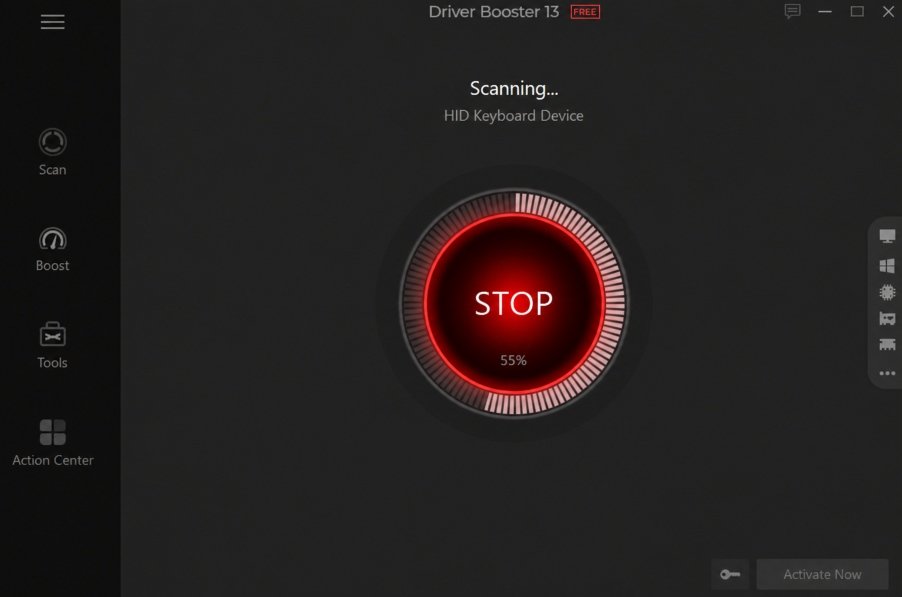
I wanted to make sure I did this right. I didn’t rush to hit the update button for everything I saw. I started with drivers most attached to gaming performance. The first driver I updated was my graphics driver. This was priority number one for me. Graphics drivers help my PC and GPU communicate with each other. A newer driver can help support new games, fix bugs, or expand on new features.
Next, I installed my chipset-related drivers. Lots of important parts of my system communicate through the chipset, so these drivers were important too. I also installed my updated network driver because I play online games quite a bit. While a bad driver won’t directly lower my PC’s actual FPS, it can make games feel terrible.
Latency, lag spikes, and disconnects are all caused by poor or outdated network drivers. I installed my audio driver too. Audio drivers don’t directly impact FPS, but I noticed some sound pops and cutouts while gaming. After the update, those were fixed.
I liked that Driver Booster told me I could back up drivers before updating. There was a restore section that let me create a system restore point too. If my new driver caused problems, I knew I had a way to reverse the update.
Boosting Game Performance With Game Boost
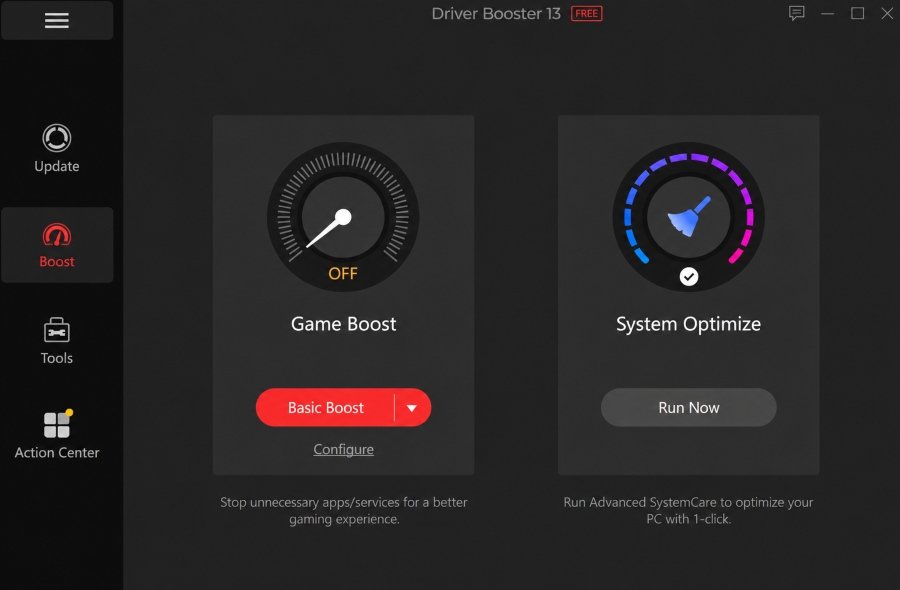
I gave Game Boost a try after I finished updating my drivers using this driver updater. The idea of Game Boost is that it frees up resources while gaming. Basically, Game Boost stops unnecessary background tasks and services from running. This allows the game to use more of your PC’s CPU, RAM, and other resources.
Game Boost won’t magically fix your PC or turn it into a gaming beast you dreamed about last night. Game Boost cannot fix poorly optimized games or bad graphics cards. If your system isn’t meeting a game’s minimum requirements, Driver Booster can’t do miracles. But it can still help. It helped me.
I usually had too many programs open when I played games. Browsers loaded with dozens of tabs open were running in the background. Cloud services were syncing. Chat programs popped up. Windows Updates were downloading in the corner. None of that was heavy by itself. But together they added up to more strain on my system than I realized.
Game Boost closed those tasks so I could play games. The most obvious change wasn’t my average FPS going up by leaps and bounds. It was how smooth everything felt. Scenes that used to cause sharp frame rate drops felt so much better.
Results Impressed Me
I played around with a few games after completing my driver updates. I kept my in-game settings the same so I could clearly see if there was any difference. Not every game I played looked amazing afterward. That’s an important thing to note. If your GPU is already being pushed to its limits, a driver update may not give you lots of new frames. But here’s where it improved for me:
- FPS dips became far less common during busy scenes.
- Games just felt more stable when I moved around large maps.
- Menus popped open without delay.
- Textures finally loaded in some games.
- My games didn’t freeze for half a second after I loaded into a match.
- Online games ran more consistently after updating my network driver.
- I spent less time searching for drivers on my own.
I no longer spent hours tweaking settings in an attempt to make games run better. Driver Booster let me identify my problems and fix them in minutes. The Time Boost feature was great too when I wanted Windows to focus on games over background tasks.
Wrapping Up My FPS Problems
Stuttering FPS can kill my enjoyment of an otherwise amazing game. Through this process, I learned driver issues aren’t always the game’s fault or my graphics card. Drivers were part of my PC game stuttering problem. Driver Booster helped me identify drivers I’ve avoided updating for way too long.
Sure, updating my drivers didn’t suddenly give me the gaming PC of my dreams. But my games did run better. They feel smoother. And Driver Booster’s Game Boost option helped me go from distracted to focused when I turned my games on. So, if your games have started stuttering, freezing, or don’t feel as smooth as they once did. Check your drivers. See if there are updates you’ve been putting off. It helped me and could help you avoid messing around with useless settings.
Disclaimer
This article describes my own experience with Driver Booster on my own PC. Results will vary depending on your hardware, your existing drivers, and your game settings, and no driver updater can guarantee higher frame rates. Back up your drivers or create a restore point before installing updates, and only download drivers from the hardware manufacturer or a trusted source.