

If you play games on a PC, whether that means ranked matches every night or a slow campaign on the weekend, you know how fast a good session can fall apart. A frame drop in the middle of a fight, a ping spike just as you pull the trigger, a stutter every time some background app wakes up. None of it is fun, and most of it has nothing to do with your skill.
This is where a game booster can be useful. Smart Game Booster is one of the better-known names in this category. It promises to manage system resources, cut lag and put a set of gaming tools in one window. Promises are easy to write, though. The real question in 2026 is whether it gives you something that Windows and a bit of housekeeping cannot, and whether the paid plans are worth the money.
This guide covers what Smart Game Booster is, what each feature does, where it helps, where it does not, and how to set it up without breaking anything.
What Is Smart Game Booster?
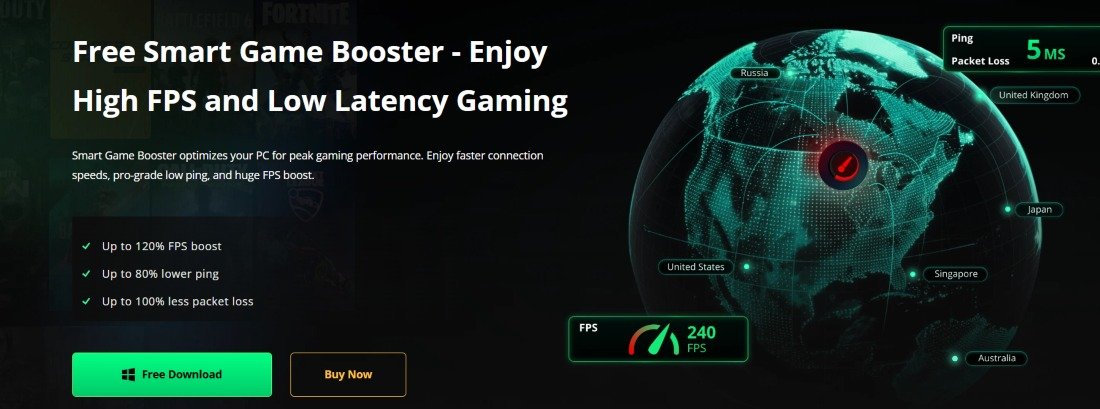
Smart Game Booster is a Windows optimization program for PC gamers made by iTop Inc. The company pitches it as a fix for frame drops, lag, high latency, compatibility errors and security risks. Recent hands-on reviews list version 6 as the current release, running on Windows 7 through Windows 11, with an installer of about 88 MB.
The main idea is simple. When you launch a game, your PC is still running plenty of other things: chat apps, launchers, updaters and browser tabs you forgot about. Smart Game Booster tries to move those out of the way so more of your CPU, memory and network go to the game. Around that core, it adds a hardware monitor, a driver updater, a game compatibility checker and a set of security tools.
Here is a quick overview:
- Developer: iTop Inc.
- Supported systems: Windows 11, 10, 8.1, 8 and 7
- Minimum requirements: a 1 GHz processor, 512 MB of RAM and a screen resolution of 1400 x 990 or higher
- Plans: Free, VIP and SVIP
The light requirements are a good sign. A booster that eats a lot of resources itself would defeat the whole point.
It also helps to be clear about who gets the most from it. Beginners who do not want to dig through Windows menus will find the one-window approach useful. Experienced users can do a lot of this by hand, so for them the draw is convenience, per-game setups and the network feature.
Features That Make Smart Game Booster Ideal For PC Gaming
Smart Game Booster packs a lot into one program. Here is what each main feature does in plain terms, along with what you can realistically expect.
- Eliminate Latency: High ping, packet loss and peak-hour congestion can ruin online matches even on a powerful PC. The Network Acceleration feature sends your game traffic through more than 500 game servers around the world, aiming to shorten the path your data takes to reach the game server. Before you switch it on, you choose a region and a network node, and the app shows live latency and packet loss figures right under the toggle.
- Two honest points matter here. First, Network Acceleration is only included in the top SVIP plan. Second, it can help with routing problems, not with a weak connection. Raw speed is rarely the issue for gaming. The FCC’s Broadband Speed Guide lists 4 Mbps as the minimum download speed for online multiplayer. Latency, the delay between your action and the server receiving it, matters far more.
- How much latency hurts depends on the game. In research published in Communications of the ACM, Mark Claypool and Kajal Claypool of Worcester Polytechnic Institute explained that the actions most affected are the ones needing high precision and tight timing, such as shooting a moving target. The studies they reviewed found racing lap times getting noticeably worse above roughly 50 ms of latency, while rushing yards in Madden NFL did not drop sharply until after 500 ms. So a shooter or racing fan will feel a routing fix far more than someone playing strategy games.
- FPS Booster: Low or uneven frame rates make games feel choppy. PC Boost, which comes with every plan, temporarily suspends programs the game does not need so more CPU and RAM can go to the game. You choose what gets closed in the Configuration window, and iTop’s own manual tells you to save your work first and warns that closing explorer.exe can make Windows unstable. An Auto Boost option can also switch your PC into gaming mode as soon as a game starts.
- Super Boost goes further by overclocking your GPU and video memory. Reviews repeat a claimed gain of up to 30 percent on supported hardware, and the feature requires a VIP or SVIP plan. Treat that figure as a best case. Overclocking raises heat and power draw, and every graphics card has its own limit, so keep an eye on temperatures the first few times you use it.
- Real-world results are more modest but still useful. One July 2026 review recorded Valorant moving from about 140 FPS to a steadier 165 to 170 FPS with fewer dips, and the reviewer described it as a genuine gain rather than a dramatic one.
- Research helps explain when extra frames matter. A 2026 study by Tokey and colleagues on frame rates up to 500 Hz tested shooter players at rates from 7 to 500 FPS. Scores and accuracy rose sharply at the low end but flattened out after around 90 FPS, while players kept noticing smoother motion across the full range. In plain words, if your PC struggles at 40 or 50 FPS, a boost can change how well you play. If you already run well above 90 FPS, extra frames mostly change how smooth the game feels.
- Intelligent Game Compatibility Check: The Can I Run It tool compares your PC with a game’s minimum and recommended requirements, and a “What Games Can I Run?” option lists every game your system should handle. Its database is reported to cover over 160,000 games, more than 3,000 GPU models and more than 9,000 CPU models. This is handy before buying a new game, especially on a laptop or an older desktop. Just remember that meeting the minimum spec usually means low settings, not a smooth high-settings experience.
- All-Round Game & System Security: The Guard section includes Security Guard, Account Guard and a Diagnosis tool, which iTop says protect your games and find and fix PC issues. That is a helpful extra for players worried about account theft, but it should sit alongside your main protection, not replace it. The US Federal Trade Commission’s guide to protecting against malware recommends using security software that updates automatically and warns that scammers even run fake ads for software. The same advice applies to game boosters themselves: only install them from the official source.
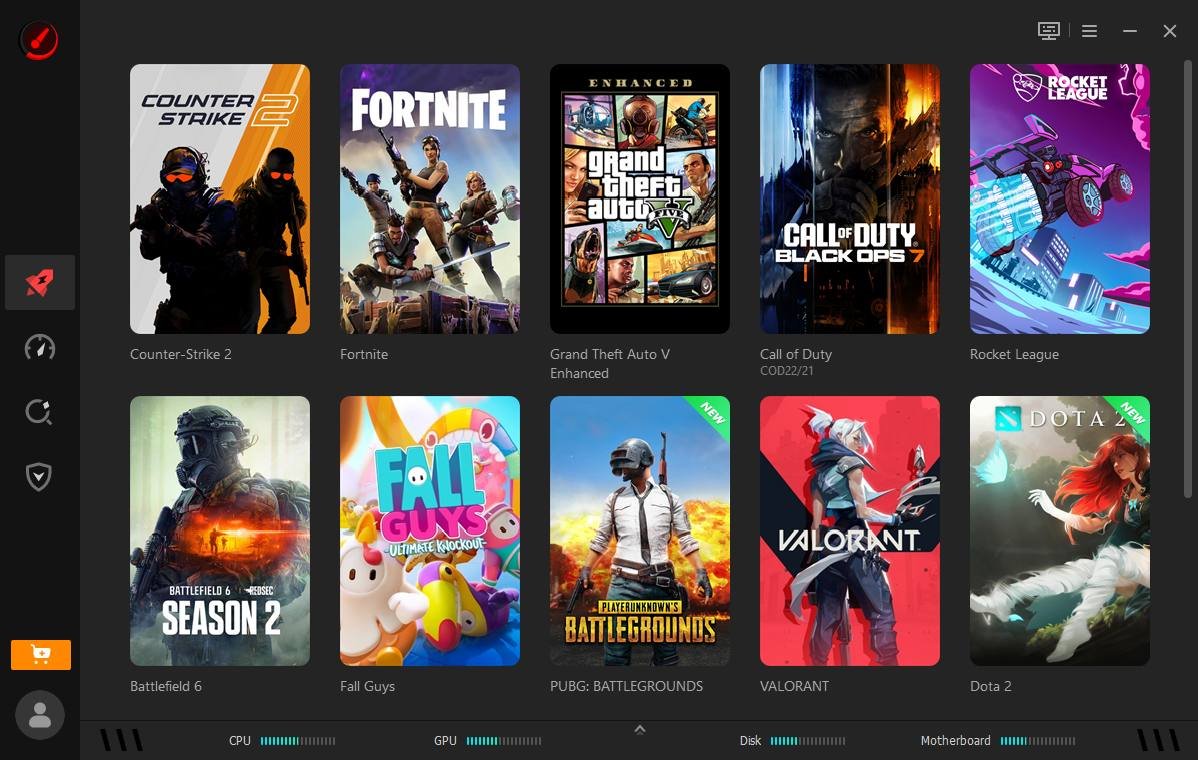
- Intuitive Interface: The layout is one of the program’s strongest points. It opens straight onto your game list, which shows installed games plus titles that support Network Acceleration, and picking a game brings up the network and PC Boost toggles side by side. A status bar along the bottom shows live hardware readings, you can turn on alarms for overheating parts, and an in-game HUD can display FPS and temperatures while you play. The Performance tab adds one-click cleaning and tweaking, graphics and audio driver updates, game file defragmenting and hotkeys for capture and recording.
- One note on that defrag tool: it mainly helps games stored on older hard drives. Microsoft’s page on how Windows optimizes drives explains that solid-state drives get a trim-based cleanup rather than a classic defrag, and that Windows already optimizes drives on a weekly schedule by default. If your games live on an SSD, you can skip that button.
Pros And Cons Of Smart Game Booster In 2026
Smart Game Booster has real strengths, but it also has limits that a fair review should spell out. Here are the main benefits and drawbacks.
Pros
- Brings file cleaning, startup management, driver updates and hardware monitoring into one place, so you are not jumping between several Windows menus.
- PC Boost is free and can free up CPU and memory on systems that run lots of background apps.
- Keeps graphics and audio drivers current from inside the app, with manual driver updates included even on the free plan.
- The real-time monitor tracks CPU and GPU temperatures as you play, with optional overheating alerts.
- A Restore button returns your PC to its normal state when you finish playing.
- Light system requirements mean the tool itself does not drag your PC down.
- Network Acceleration can help when your problem is poor routing or peak-hour congestion.
Cons
- It cannot replace old CPU or GPU hardware. If your PC is below a game’s minimum spec, software will not close that gap.
- Network tools cannot solve every internet problem, including a slow plan, weak Wi-Fi or a crowded home connection.
- The two headline features cost money: Super Boost needs VIP, and Network Acceleration needs SVIP.
- Gains on high-end PCs are often small, because there is less for a booster to free up.
- Some background features run automatically, and one reviewer had to switch several of them off by hand.
- Overclocking through Super Boost adds heat and can cause crashes if your card does not handle it well.
- A few tools overlap with features Windows already has for free.
That last point deserves a closer look. Windows Game Mode is switched on by default, blocks Windows Update from installing drivers or showing restart prompts during play, and aims for a steadier frame rate. You can also turn off startup apps in Windows through Settings or Task Manager, and Task Manager even shows how heavily each app affects startup. Smart Game Booster’s value is not that it does the impossible. It is that it groups these jobs together, saves settings per game and adds a network layer that Windows does not have.
| Problem | Can Smart Game Booster Help? | What Else To Check |
| Background apps eating CPU and RAM | Yes, through PC Boost on any plan | Startup apps in Windows Settings |
| Ping spikes at busy times of day | Possibly, with SVIP Network Acceleration | Wired connection instead of Wi-Fi |
| Slow or overloaded home internet | Not really | Your plan and other devices on the network |
| Outdated graphics or audio drivers | Yes, through the driver updater | Your GPU maker’s official driver page |
| PC below a game’s minimum spec | No | Lower settings or a hardware upgrade |
| Hardware running too hot | It warns you through alarms | Dust, fans and case airflow |
How To Use Smart Game Booster For PC Gaming
Smart Game Booster is easy to set up, and the whole process takes a few minutes. Here is how to do it safely.
- Download it from the official site. Go to the official Smart Game Booster website and download the latest version, rather than grabbing it from a random download portal or a social media ad. Run the setup file and follow the on-screen instructions to finish installing.
- Sign in if you plan to upgrade. Click the profile icon in the bottom-left corner to log in with an iTop account, or with a Google or Microsoft account. If you buy a paid plan, the account you ordered with is upgraded to VIP or SVIP automatically.
- Choose your game. The main window lists your installed games. If a game does not show up, click Add Local Game and point the program to it.
- Set up PC Boost. Click the gear icon beside the PC Boost toggle to decide which processes get closed and, on paid plans, how Super Boost behaves. Save any open work before boosting, and leave explorer.exe off the close list.
- Pick a network node (SVIP only). Choose your region and a network node before starting Network Acceleration. Watch the latency and packet loss numbers below the toggle, and try a second node if the first one does not improve anything.
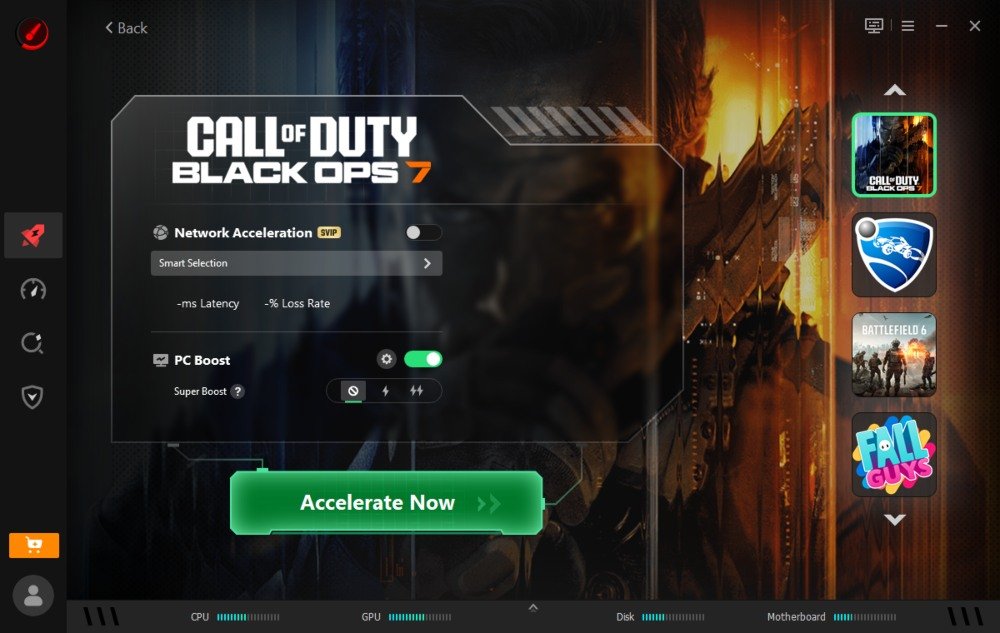
- Accelerate and play. Click Accelerate Now so the program can scan your PC and apply your chosen tweaks to the network and hardware in one step. Then click Launch Game to start playing, and use Restore when you are done to put your PC back to normal.
Before you pay for anything, run a simple test of your own. Numbers in reviews, including this one, come from other people’s PCs.
- Pick one repeatable scene, such as a built-in benchmark, a training map or the same stretch of track.
- Play it three times with boosting off and note your average FPS and the lowest dips on the HUD.
- Turn boosting on and repeat with the exact same game settings.
- For online games, record ping and packet loss at the same time of day for both runs, since evening traffic can skew the results.
If your numbers barely move, your PC probably was not being held back by background apps, and you can keep your money.
FAQs Related To Smart Game Booster
Is Smart Game Booster Free To Use?
Yes, but with clear limits. The free version gives you basic boosting and manual driver updates, VIP adds everything except Network Acceleration, and SVIP includes the full set. Here is how the key features split across the plans, based on iTop’s official user manual:
| Feature | Free | VIP | SVIP |
| PC Boost | Yes | Yes | Yes |
| Manual driver updates | Yes | Yes | Yes |
| Super Boost | No | Yes | Yes |
| Max Mode and custom Super Boost settings | No | Yes | Yes |
| Network Acceleration | No | No | Yes |
So you can optimize PC performance without spending anything, but the network feature that most players associate with the program is only in the top plan.
Is Smart Game Booster Worth Trying?
If you are looking for a simple way to optimize your PC for gaming, Smart Game Booster is worth considering, and the free version costs nothing to test. Paying for SVIP makes the most sense if your main problem is ping or packet loss, you have already tried a wired connection, and your frustration shows up at busy times of day. If your only issue is low FPS on an older graphics card, save the money for hardware instead.
Does Smart Game Booster Work On Windows 11?
Yes. It supports Windows 11 as well as Windows 10, 8.1, 8 and 7, and its minimum requirements are low enough for most gaming PCs and laptops.
Can Smart Game Booster Fix Lag On A Slow Internet Connection?
Not fully. Network Acceleration can find a better route to the game server, but it cannot make a weak plan or a crowded home network faster. If several people are streaming video while you play, the bottleneck is at home, not on the route to the server.
Is Smart Game Booster Safe To Use?
For most people, yes, as long as you install it from the official site and use the settings carefully. Stick to the default close list if you are unsure, never close explorer.exe, and increase Super Boost gradually while watching temperatures. The Restore button makes it easy to undo a session’s changes.
Final Thoughts
If you are dealing with high ping and packet loss, Smart Game Booster is one of the easier options to try, especially because you can test the free version before paying. The tool brings several useful features into one clean window: it can free up system resources, update drivers, watch your hardware temperatures and cut unnecessary background activity, while the SVIP plan adds a network layer that Windows does not offer.
It is not a miracle fix, and it works best when you know what problem you are trying to solve. Low-end PCs and players with routing issues stand to gain the most. Owners of powerful rigs on stable connections may see little change. Test it with your own games, compare the numbers, and let those results decide whether an upgrade is worth it.
Disclaimer
This review is for general information only. Features, plan contents and prices can change with updates, so check the official Smart Game Booster website before buying. Performance results depend on your hardware, games, drivers and internet provider, and figures quoted from other reviews may not match your own experience. Overclocking and closing system processes carry some risk of instability, so save your work and back up important files before making changes. Product names and trademarks belong to their respective owners.