Starting A Gamepad Blog On WordPress? Don’t Forget These HostGator Coupons
Plenty of controller blogs start the same way. You fix your own stick drift, write up what worked, and realize you…

I'm in Desktop Mode on my Steam Deck trying to check my sticks with your stick drift test. The page just says press any button, but the buttons move the mouse and type instead. I'm using Firefox from the Discover store. Is the Deck not supported?
In Desktop Mode, Steam maps the Deck's controls to mouse and keyboard, so the browser never sees a gamepad. Add the browser to Steam as a non-Steam game and launch it from Steam, so Steam presents the controls as a gamepad. Steam's own controller test in Game Mode also shows live stick positions.

The Deck is supported, but Desktop Mode hides its controls from the browser by design. In Desktop Mode, Steam runs a desktop configuration that turns the sticks, trackpads and buttons into mouse and keyboard input so you can use the desktop. The browser receives mouse movement and key presses, never a gamepad, which is why the page waits for a button press that never comes.
The reliable fix is to launch the browser through Steam. When a program starts from Steam, Steam Input applies a gamepad configuration instead of the desktop one and presents the Deck's controls as a standard gamepad that browsers can read.
There is a quicker way to answer your actual question too. If all you want is to check the sticks, Steam's controller settings in Game Mode include a test screen with live stick positions. Our browser test adds exact numbers and a drift log, which is handy for tracking a stick over time, but for a quick health check Steam's screen is fine.
One note on readings: the Deck's thumbsticks have capacitive touch sensing, so keep your thumbs fully off them during a drift test for a fair resting value.
Tested on: Applies to Steam Deck LCD and OLED in Desktop Mode with Firefox from the Discover store. Behaviour per Valve's Steam Input documentation on configurations.
Checked by Simon Fletcher on . How we verify answers
Linux And Input Subsystem Engineer at Gamepad Tester
Lucas works on the Linux input subsystem. He follows how evdev registers a controller, how Steam Input sits on top of it and where the two disagree with the browser's view of the same device, which is the usual reason a pad behaves differently on a Steam Deck or a Linux desktop than on Windows. His testing targets parity: the same controller should produce the same reading on every operating system, and where it does not, the difference should be documented. On Gamepad Tester he handles the Linux and Steam Deck questions.
 Calder WrightFront-End Web Architect And Gamepad API Lead
 Elena RostovaHardware Diagnostics Engineer
 Garrett LindsayHardware Reviewer And Input Performance Specialist
 Venom’s Tech (Abhishek)Peripheral Reviewer And Tech Journalist
 Chloe HendersonHall Effect And Thumbstick Analyst
 Thiago AlvesHardware Repair Educator
 Devon MillerLow Latency And Input Timing Engineer
 Liam DaviesBluetooth And Wireless Test Engineer
Each answer is written by the specialist who owns that part of the hardware, tested on a real controller, and checked by a second team member. How we verify answers
Answers are free general guidance from the Gamepad Tester Team and the community. Opening a controller or replacing a thumbstick module can void your warranty, so check the maker's support or warranty first. Battery and soldering work carries a real risk of damage or injury.
Every test runs in your own browser with the Gamepad API. No sign up, no download, and your controller data never leaves your device.
Plenty of controller blogs start the same way. You fix your own stick drift, write up what worked, and realize you…
If you play games on a PC, whether that means ranked matches every night or a slow campaign on the weekend, you know…
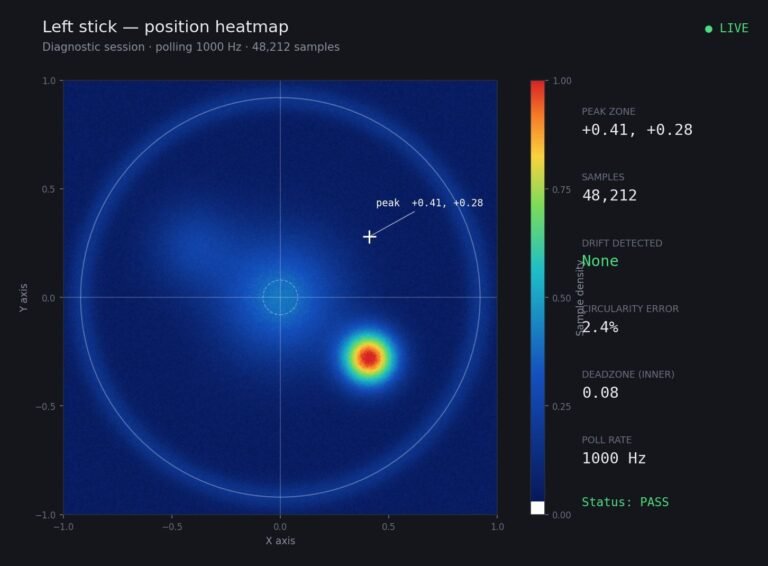
Someone posted a stick drift heatmap in a forum thread asking if their controller was dying: a red and orange blob…
The newest replies from players and the Gamepad Tester Team.