

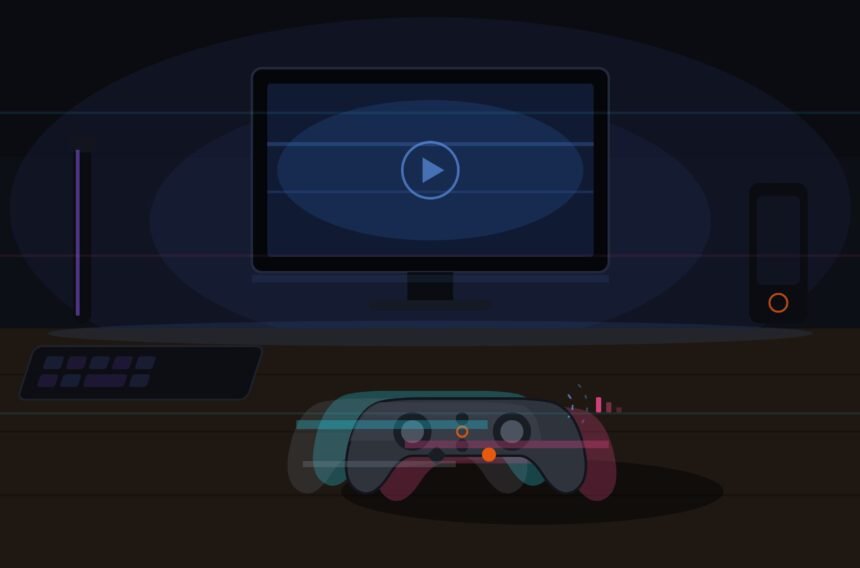
Every button test came back clean, every stick calibration passed without a single flag, and yet every fifteen or twenty minutes my camera would freeze for a fraction of a second before snapping back to where it should have been. Bluetooth micro-stutters do not show up in any standard diagnostic because they are too brief and too intermittent for a button test to catch, and I spent weeks blaming my game before I finally isolated the actual cause.
What Bluetooth Micro-Stutters Actually Are
A micro-stutter is a very brief interruption in the wireless connection, often lasting only a few dozen milliseconds, just long enough to drop or delay one or two polling cycles without fully disconnecting the controller. It is too short to register as a disconnect, too short for most diagnostic tools to flag as an error, and too intermittent to reliably reproduce during a controlled test, which is exactly why it survives every calibration and button test you run while still being genuinely disruptive during actual play.
Bluetooth input lag in general tends to be higher and less consistent than a dedicated 2.4GHz wireless connection, and micro-stutters are really an extreme, brief spike within that broader inconsistency rather than a separate phenomenon entirely. This is really just baseline Bluetooth input lag showing up in its most noticeable form. Standard Bluetooth was never designed with competitive gaming input timing as a primary goal, prioritizing broad compatibility and power efficiency over the kind of consistent, low-latency polling a dedicated gaming receiver targets specifically.
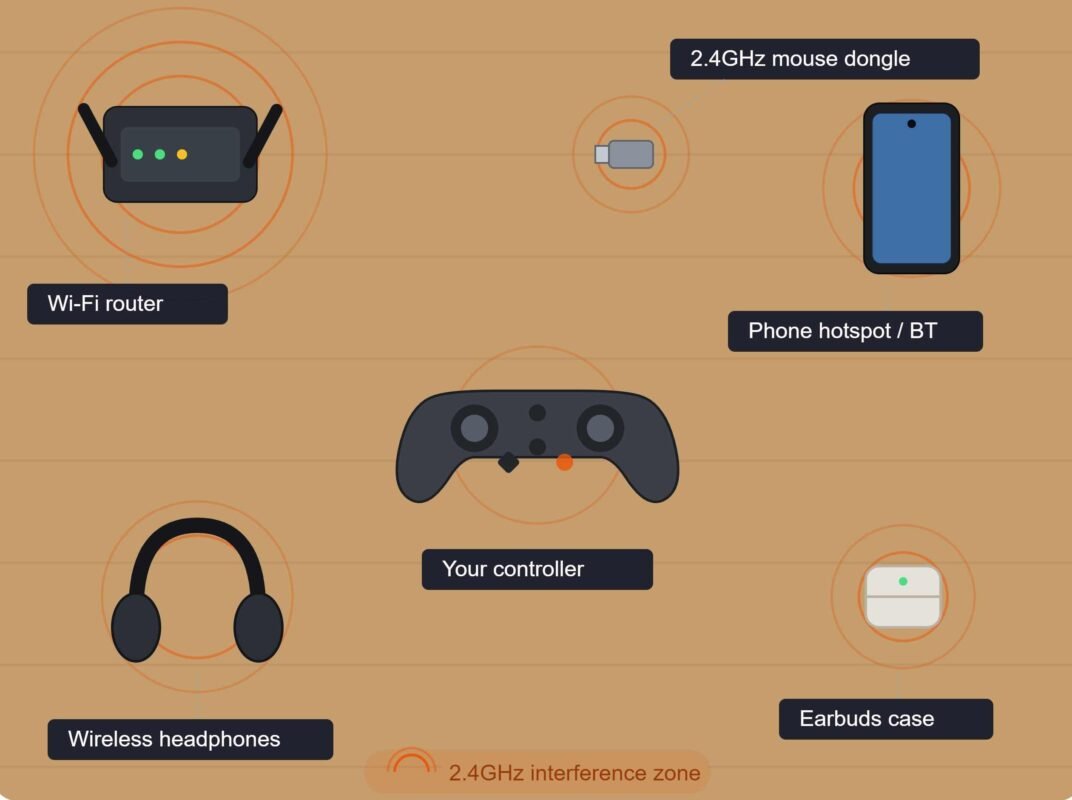
Controller connection interference is the direct cause in the large majority of cases, not a flaw in the controller itself. Bluetooth operates in the crowded 2.4GHz spectrum alongside WiFi routers, other Bluetooth devices, microwave ovens, and a wide range of other consumer electronics, all competing for the same limited frequency range. A brief, unpredictable collision between your controller’s signal and any of these other sources produces exactly the kind of momentary interruption a micro-stutter represents.
A useful way to picture this: your controller is normally sending an update roughly every four to eight milliseconds depending on its polling rate. A micro-stutter is simply one or two of those updates arriving late or getting dropped entirely because something else briefly used the same slice of spectrum first. The game receives no update for that brief window, so it either freezes your last known input state or extrapolates incorrectly, producing the hitch you actually see on screen.
Why Button Tests Never Catch This Problem
Button and stick calibration tests check whether an input, once it arrives, is reported accurately. They are not designed to continuously monitor a wireless connection’s consistency over an extended period, and a fifteen-minute gap between stutters means a thirty-second calibration test has essentially no chance of catching the problem in progress. You could run a perfectly clean calibration test and still have a controller genuinely suffering from intermittent controller lag that only manifests during much longer real play sessions, the same category of problem covered by ruling out software causes before blaming the wireless connection when the source is not immediately obvious.
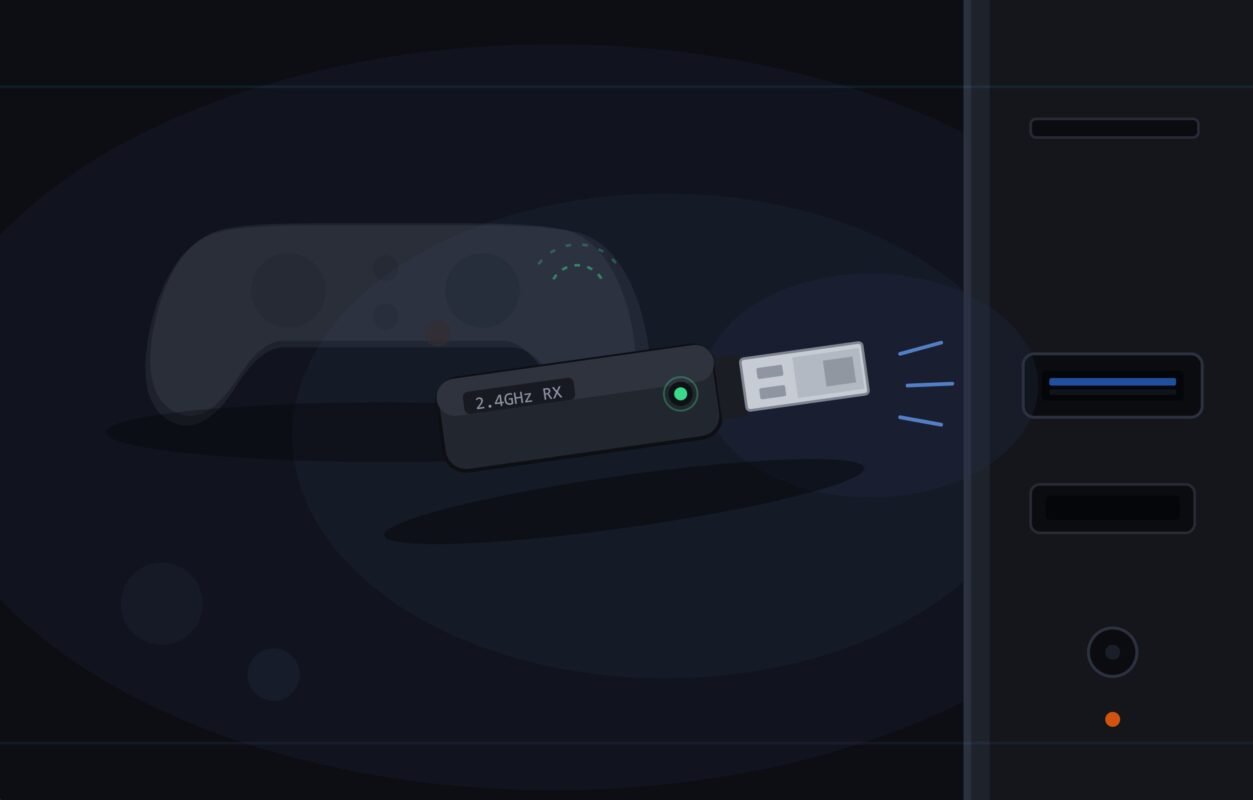
2.4GHz vs Bluetooth controller connections behave completely differently under this kind of interference specifically because of how each protocol handles interference and channel switching. This is the core difference in 2.4GHz vs Bluetooth controller behavior under interference. A dedicated 2.4GHz gaming receiver typically uses frequency hopping optimized specifically for consistent low-latency polling, actively avoiding congested channels in real time. Generic Bluetooth, built for broad compatibility across many device types rather than gaming specifically, does not prioritize this the same way, which is part of why the same physical environment can produce stutters on a Bluetooth connection while a 2.4GHz connection sitting right next to it stays clean.
This is also why the problem is so hard to describe to someone else or search for effectively. Any wireless controller stutter fix discussion online tends to be full of people describing the same symptom in wildly different ways: a freeze, a skip, a hitch, a lag spike, because the actual experience is brief and disorienting enough that it defies precise description in the moment it happens.
How to Actually Fix Bluetooth Micro-Stutters
The most reliable fix is switching away from generic Bluetooth to a manufacturer’s dedicated 2.4GHz USB receiver, when your controller supports one, since this sidesteps the entire class of problem rather than trying to manage interference on a protocol not built to prioritize consistent gaming input. As a wireless controller stutter fix, this single change resolves the large majority of micro-stutter complaints I have seen reported, more reliably than any Bluetooth-specific troubleshooting step.
If a dedicated receiver is not available for your specific controller, reducing the number of other 2.4GHz and Bluetooth devices active nearby during play meaningfully helps. Move your WiFi router further from your play area if physically possible, disconnect Bluetooth peripherals you are not actively using during a session, and keep the controller within clear line of sight of its receiver rather than obstructed behind other electronics that can add reflective interference.
Controller connection interference also responds to simple physical distance and obstruction changes. Sitting closer to the receiver, removing large metal objects between the controller and receiver, and avoiding placing the receiver directly behind a monitor or TV, which can create a meaningful dead zone, all reduce the frequency of stutters even without eliminating Bluetooth from the equation entirely.
Quick Checklist — Fixing Bluetooth Micro-Stutters
- Switch to a manufacturer’s dedicated 2.4GHz receiver if your controller supports one; this fixes most cases outright.
- Reduce the number of other Bluetooth and 2.4GHz devices active nearby during play sessions.
- Move your WiFi router further from your play area if it sits close to your setup.
- Keep the controller within clear line of sight of its receiver; avoid obstructions.
- Do not trust a clean calibration test to rule out intermittent controller lag; the tests are too short to catch it.
- Track roughly how often stutters occur and under what conditions; patterns can point to a specific interference source.
- Try a different USB port for a wired dongle receiver; port placement can affect signal quality.
- Accept that Bluetooth will never be as consistent as a dedicated 2.4GHz gaming connection, by design.
Bluetooth micro-stutters are one of the more frustrating controller problems specifically because nothing about your setup looks broken. The fix is rarely about repairing anything; it is about giving your wireless signal a cleaner, more dedicated path to travel.