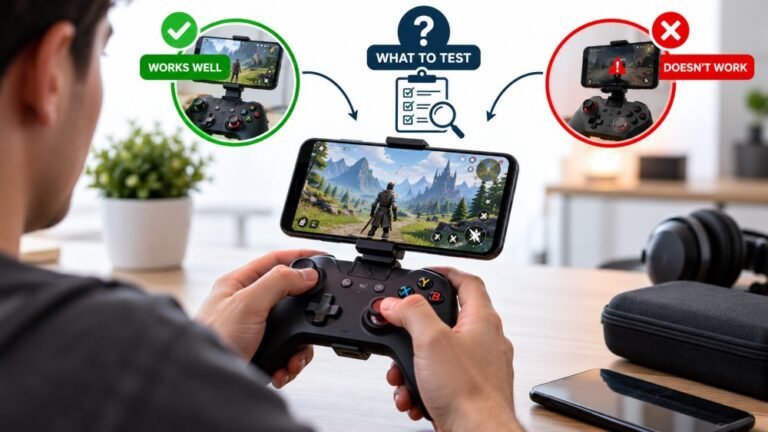
Playing Mobile Games With A Controller: What Works, What Doesn’t, And What To Test Before You Spend
You paired the controller, the light went solid, your phone said "Connected," and then the game did absolutely…

Can someone please help, I have a tournament on Saturday and I am starting to panic a bit. My DualSense pairs with my laptop over Bluetooth, the light bar does its thing, Windows says connected, and then about five to ten seconds later it just drops. Reconnects if I press PS again then drops again. Over the cable it is rock solid, zero problems, so I know the pad itself is OK. I have removed and re-paired it probably fifteen times. Please tell me there is something I have not tried.
A pair that holds for five to ten seconds then drops is nearly always a stale pairing record or a Bluetooth adapter power-saving setting, not the controller. Both are quick to fix and the cable workaround is reliable for Saturday.

First, the practical bit since you have a deadline: wired works and wired is tournament-legal nearly everywhere, so you have a guaranteed fallback. Now the actual fix, because this one is usually solvable in ten minutes.
A connection that establishes and then dies on a short, repeatable timer is characteristic. A genuine range or interference problem is erratic, dropping after different intervals and often recovering on its own. A consistent five to ten seconds points at one of two things. The first is a stale pairing record: the controller and the adapter each keep a link key, and if they disagree the connection authenticates, fails a check, and tears down a few seconds later. Re-pairing without removing the device first does not clear this, which is why fifteen attempts changed nothing. You have to remove the device from Windows, reset the controller so it discards its side, and pair fresh.
The second is Windows power management. Bluetooth adapters, especially on laptops, have a setting that lets Windows turn the radio off to save power, and with an always-streaming device like a gamepad it can cut a connection almost immediately after it forms. It is a single checkbox in Device Manager and it is worth clearing on any laptop you game on.
Work through the steps in order. Do the reset and the clean re-pair as one operation rather than skipping between them, because doing half of it leaves the mismatched key in place.
Tested on: DualSense CFI-ZCT1W firmware 0460 on Windows 11 24H2 across three Bluetooth adapters: Intel AX211, Realtek RTL8852BE and a Broadcom USB dongle. Fault reproduced by leaving a stale pairing record in place and by re-enabling adapter power saving.
Checked by Devon Miller on . How we verify answers
Bluetooth And Wireless Test Engineer at Gamepad Tester
Liam works on Bluetooth Low Energy and wireless input. Most pairing complaints are not really pairing problems: they are packet drops, signal jitter or interference from a crowded 2.4GHz band, and they look completely different on a trace than they do to the player. He tests how controllers behave over distance, through walls, alongside other wireless devices, and on the proprietary dongles that several brands ship. On Gamepad Tester he answers the pairing and dropout questions and verifies fixes over both Bluetooth and adapter connections.
 Calder WrightFront-End Web Architect And Gamepad API Lead
 Elena RostovaHardware Diagnostics Engineer
 Garrett LindsayHardware Reviewer And Input Performance Specialist
 Venom’s Tech (Abhishek)Peripheral Reviewer And Tech Journalist
 Chloe HendersonHall Effect And Thumbstick Analyst
 Thiago AlvesHardware Repair Educator
 Devon MillerLow Latency And Input Timing Engineer
 Nadia BrooksEsports Performance Consultant
Each answer is written by the specialist who owns that part of the hardware, tested on a real controller, and checked by a second team member. How we verify answers
Answers are free general guidance from the Gamepad Tester Team and the community. Opening a controller or replacing a thumbstick module can void your warranty, so check the maker's support or warranty first. Battery and soldering work carries a real risk of damage or injury.
Every test runs in your own browser with the Gamepad API. No sign up, no download, and your controller data never leaves your device.
You paired the controller, the light went solid, your phone said "Connected," and then the game did absolutely…
There is a particular kind of bad session that never gets diagnosed. You lose a duel you should have won. Your car…
Every button test came back clean, every stick calibration passed without a single flag, and yet every fifteen or…
The newest replies from players and the Gamepad Tester Team.