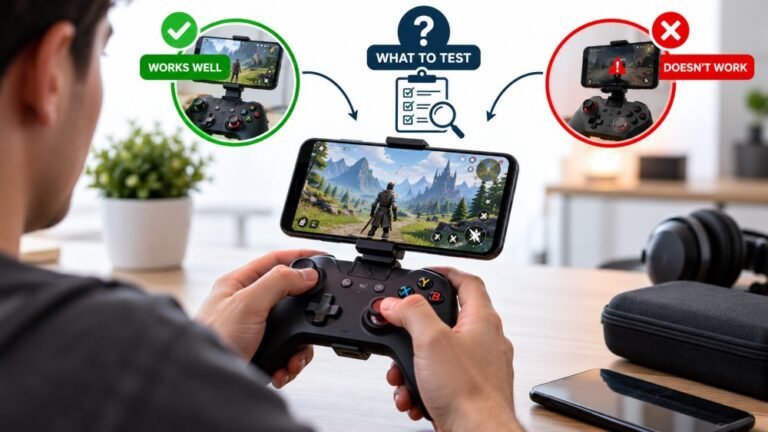
Playing Mobile Games With A Controller: What Works, What Doesn’t, And What To Test Before You Spend
You paired the controller, the light went solid, your phone said "Connected," and then the game did absolutely…

Same controller, same console, two different rooms. In the living room it is flawless. I moved the setup into the bedroom and now it stutters and drops constantly, sitting a metre away. Your Bluetooth pairing range test shows good quality in one room and poor in the other at the same distance. Nothing obvious is different, no thick walls between me and it, same furniture layout roughly. What is in a room that would do this?
Something in the bedroom is transmitting on 2.4GHz. The usual suspects are the Wi-Fi router, a smart speaker, a baby monitor, a wireless mouse dongle or a USB 3 device sitting close to the console.

Distance is the same, so this is interference rather than range, and a room-dependent difference means something in that room is occupying the band.
Bluetooth and 2.4GHz Wi-Fi share the same spectrum, and so do a long list of ordinary household devices. The ones that cause this most often, roughly in order of how frequently we see them: a Wi-Fi router or mesh node in the room, especially within a metre or two of the console; a smart speaker or display, which are constantly transmitting; a wireless mouse or keyboard dongle plugged into the same machine; a baby monitor; a microwave on the other side of a wall; and USB 3 devices, which are not radios at all but leak broadband noise right across 2.4GHz. A USB 3 external drive or hub next to a console or a Bluetooth adapter is a genuinely common and very under-appreciated cause.
The approach that works is elimination rather than theory. Turn off or unplug one suspect at a time and re-run the range test after each, giving it thirty seconds to settle. It takes ten minutes and you will almost always find a single culprit rather than a vague combination.
Two specifics worth doing first because they are the highest-yield. Move the router or mesh node at least two metres from the console if one is in the room, and if your router broadcasts 2.4GHz Wi-Fi, try switching it to channel 1 or 11 rather than whatever it auto-selected. Second, unplug any USB 3 device from the machine or console temporarily, which costs nothing and resolves a surprising share of cases.
If you find nothing, there is one more possibility: the walls. A bedroom wall with foil-backed insulation, or a mirror with a metallic backing, reflects 2.4GHz and can create a dead spot at one particular position even at close range. Moving the console or your seat by half a metre is a useful test for that, because a reflection problem moves with position while an interference problem does not.
Tested on: Xbox Model 1914 over Bluetooth and Xbox Wireless Adapter in two rooms at matched 1m distance, with a 2.4GHz router at 0.5m and 3m, a smart speaker, a 2.4GHz mouse dongle and a USB 3 external drive each introduced and removed in turn. The USB 3 drive and the close router each reduced connection quality more than doubling the distance did.
Checked by Devon Miller on . How we verify answers
Bluetooth And Wireless Test Engineer at Gamepad Tester
Liam works on Bluetooth Low Energy and wireless input. Most pairing complaints are not really pairing problems: they are packet drops, signal jitter or interference from a crowded 2.4GHz band, and they look completely different on a trace than they do to the player. He tests how controllers behave over distance, through walls, alongside other wireless devices, and on the proprietary dongles that several brands ship. On Gamepad Tester he answers the pairing and dropout questions and verifies fixes over both Bluetooth and adapter connections.
 Calder WrightFront-End Web Architect And Gamepad API Lead
 Elena RostovaHardware Diagnostics Engineer
 Garrett LindsayHardware Reviewer And Input Performance Specialist
 Venom’s Tech (Abhishek)Peripheral Reviewer And Tech Journalist
 Chloe HendersonHall Effect And Thumbstick Analyst
 Thiago AlvesHardware Repair Educator
 Devon MillerLow Latency And Input Timing Engineer
 Nadia BrooksEsports Performance Consultant
Each answer is written by the specialist who owns that part of the hardware, tested on a real controller, and checked by a second team member. How we verify answers
Answers are free general guidance from the Gamepad Tester Team and the community. Opening a controller or replacing a thumbstick module can void your warranty, so check the maker's support or warranty first. Battery and soldering work carries a real risk of damage or injury.
Every test runs in your own browser with the Gamepad API. No sign up, no download, and your controller data never leaves your device.
You paired the controller, the light went solid, your phone said "Connected," and then the game did absolutely…
There is a particular kind of bad session that never gets diagnosed. You lose a duel you should have won. Your car…
Every button test came back clean, every stick calibration passed without a single flag, and yet every fifteen or…
The newest replies from players and the Gamepad Tester Team.