Starting A Gamepad Blog On WordPress? Don’t Forget These HostGator Coupons
Plenty of controller blogs start the same way. You fix your own stick drift, write up what worked, and realize you…

I really want to avoid returns later. What should I check right after unboxing my new Steam Deck OLED to confirm the screen, buttons and sticks are all good? I've heard horror stories about stick drift and dead pixels showing up after the return window. I have Unboxed 30 days.
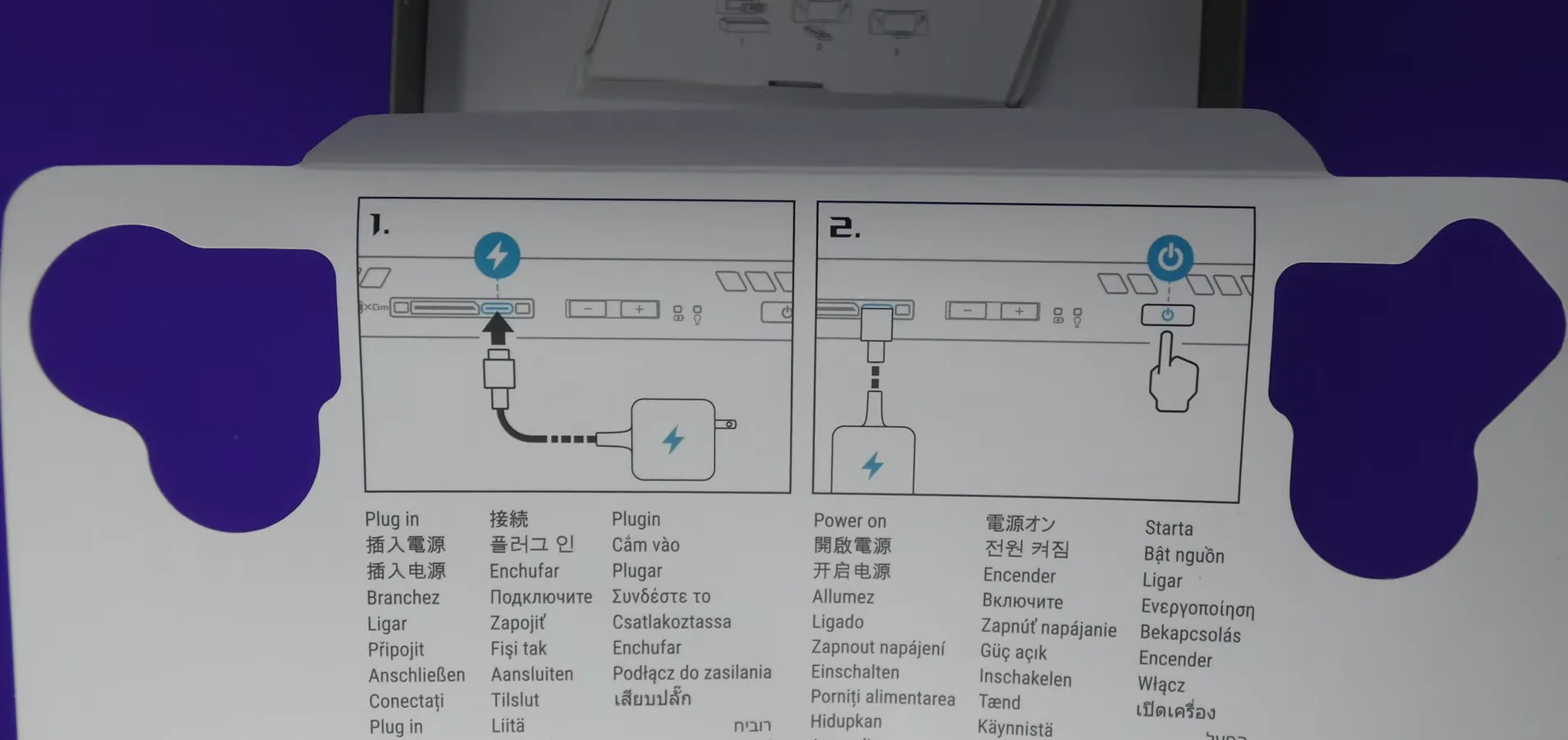
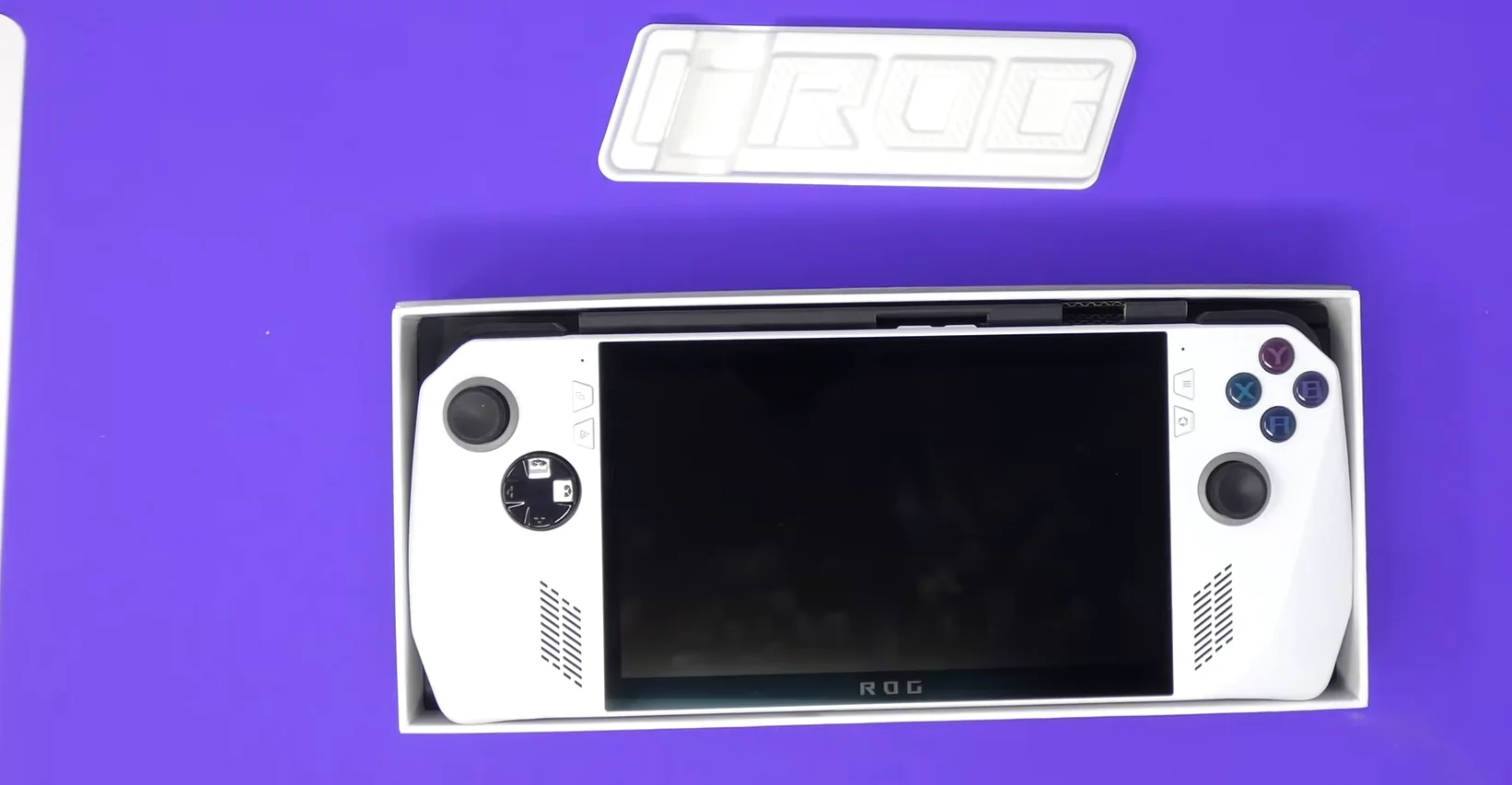
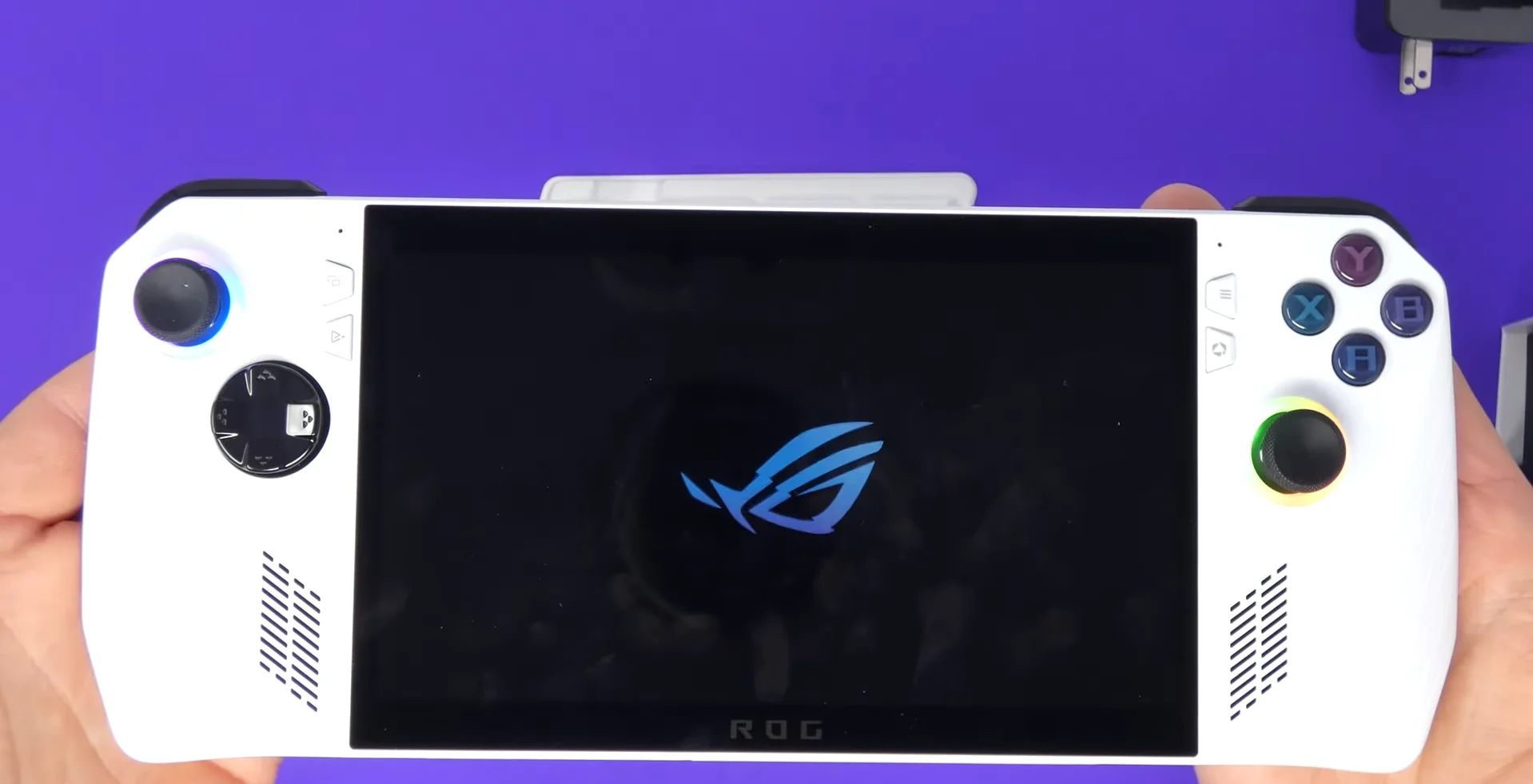
Do a structured check in the first few days: the screen on solid colours, every button, stick resting values and range, triggers, then audio, charging and fan noise. Steam's own controller test covers the inputs in Game Mode. Re-test the sticks after a week.

Smart to do this early. A structured check in the first few days catches nearly everything that would otherwise surface after the window closes. Here is the order I use for tournament hardware, adapted for a handheld.
Screen first. Show solid full-screen colours: black, white, red, green and blue. On black, look for lit dots; on white, look for dark dots. An OLED has no backlight to bleed, but do look for uneven tint in dark greys.
Then inputs: every button, both sticks, both triggers, the D-pad, the back buttons and the trackpads. For each stick, check two things. The resting value with hands off should sit within about plus or minus 0.02 on a new unit, and the full range should reach the edge evenly as you rotate slowly. Triggers should sweep smoothly from 0 to full. Steam's controller settings in Game Mode have a test screen that shows all of this, and our browser tests work in Desktop Mode if you prefer exact numbers.
Then the rest: speakers at moderate volume for buzzing, the headphone jack, the microphone, Wi-Fi and Bluetooth, charging from flat with the supplied charger, and fan noise during twenty minutes of a demanding game.
Write the results down with dates. If anything is borderline, such as a stick resting at 0.04, re-test a week later. A value that is climbing should go back while you still can.
Tested on: Applies to Steam Deck OLED in SteamOS Game Mode and Desktop Mode. Stick thresholds match our stick drift guides; input checks use Steam's built-in controller test screen.
Checked by Lucas Rocha on . How we verify answers
Esports Performance Consultant at Gamepad Tester
Nadia works with competitive players on the hardware side of performance. Before a tournament a pad needs more than a working-not-working check: she profiles input latency across the exact connection the player will use, confirms both sticks read consistently through their full range, and checks that nothing drifts once the controller is warm. A pad that passes is cleared for play; one that does not is replaced rather than argued about. On Gamepad Tester she answers the competitive and performance questions, and reviews answers that tell a player their controller is good enough.
 Calder WrightFront-End Web Architect And Gamepad API Lead
 Elena RostovaHardware Diagnostics Engineer
 Garrett LindsayHardware Reviewer And Input Performance Specialist
 Venom’s Tech (Abhishek)Peripheral Reviewer And Tech Journalist
 Chloe HendersonHall Effect And Thumbstick Analyst
 Thiago AlvesHardware Repair Educator
 Devon MillerLow Latency And Input Timing Engineer
 Liam DaviesBluetooth And Wireless Test Engineer
Each answer is written by the specialist who owns that part of the hardware, tested on a real controller, and checked by a second team member. How we verify answers
Answers are free general guidance from the Gamepad Tester Team and the community. Opening a controller or replacing a thumbstick module can void your warranty, so check the maker's support or warranty first. Battery and soldering work carries a real risk of damage or injury.
Every test runs in your own browser with the Gamepad API. No sign up, no download, and your controller data never leaves your device.
Plenty of controller blogs start the same way. You fix your own stick drift, write up what worked, and realize you…
If you play games on a PC, whether that means ranked matches every night or a slow campaign on the weekend, you know…
Sony has not announced the PlayStation 6. That is the honest starting point, because almost everything circulating…
The newest replies from players and the Gamepad Tester Team.