How Data Is Changing the Way Players and Fans Watch Esports
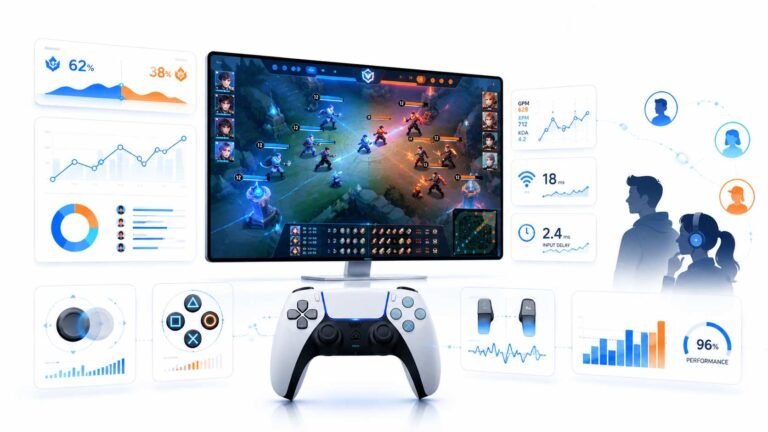
Esports viewing has changed a lot. Fans no longer watch only for big kills, clutch rounds, final scores, or highlight…

I have a FreeSync monitor and just upgraded to an NVIDIA graphics card. Can I still use variable refresh? Your G-Sync and FreeSync test shows tearing when I move the frame rate slider.
Yes, most FreeSync monitors work with NVIDIA cards as G-Sync Compatible. Turn on FreeSync in the monitor's menu, connect with DisplayPort where possible, then in the NVIDIA control panel enable G-Sync for the monitor and apply.

Most FreeSync monitors work with NVIDIA cards using the VESA Adaptive-Sync standard that both brands support. NVIDIA calls this G-Sync Compatible.
Setup steps:
Monitor first. In the monitor's own menu, turn on FreeSync or adaptive sync. This is easy to miss, and nothing works without it.
Connection. Use DisplayPort if you can. Variable refresh over HDMI works on some newer setups, but DisplayPort is the most reliable route with NVIDIA.
NVIDIA control panel. Open it, go to the display section for setting up G-Sync, tick the option to enable G-Sync or G-Sync Compatible, choose whether it applies to full screen only or windowed and full screen, select your monitor, and apply. If the monitor is not officially certified, you may need to tick the option to enable settings for the selected display model.
Then test. In our test, move the frame rate slider below your refresh rate. Motion should stay smooth without a tearing line. In games, turn on the G-Sync indicator or the monitor's refresh counter to confirm.
If you see flicker at low frame rates or in loading screens, that is a common VRR side effect on some monitors; a frame cap helps.
Tested on: Applies to FreeSync monitors with NVIDIA graphics on Windows 11. Settings per the NVIDIA control panel; options vary by driver version.
Checked by Devon Miller on . How we verify answers
Linux And Input Subsystem Engineer at Gamepad Tester
Lucas works on the Linux input subsystem. He follows how evdev registers a controller, how Steam Input sits on top of it and where the two disagree with the browser's view of the same device, which is the usual reason a pad behaves differently on a Steam Deck or a Linux desktop than on Windows. His testing targets parity: the same controller should produce the same reading on every operating system, and where it does not, the difference should be documented. On Gamepad Tester he handles the Linux and Steam Deck questions.
 Calder WrightFront-End Web Architect And Gamepad API Lead
 Elena RostovaHardware Diagnostics Engineer
 Garrett LindsayHardware Reviewer And Input Performance Specialist
 Venom’s Tech (Abhishek)Peripheral Reviewer And Tech Journalist
 Chloe HendersonHall Effect And Thumbstick Analyst
 Thiago AlvesHardware Repair Educator
 Devon MillerLow Latency And Input Timing Engineer
 Liam DaviesBluetooth And Wireless Test Engineer
Each answer is written by the specialist who owns that part of the hardware, tested on a real controller, and checked by a second team member. How we verify answers
Answers are free general guidance from the Gamepad Tester Team and the community. Opening a controller or replacing a thumbstick module can void your warranty, so check the maker's support or warranty first. Battery and soldering work carries a real risk of damage or injury.
Every test runs in your own browser with the Gamepad API. No sign up, no download, and your controller data never leaves your device.
Esports viewing has changed a lot. Fans no longer watch only for big kills, clutch rounds, final scores, or highlight…
If you have ever watched a video that looked choppy, played a game that felt sluggish, or noticed that scrolling on…
Content creators, marketers, and businesses are finding creating images and videos more and more effortless via AI. As…
The newest replies from players and the Gamepad Tester Team.