Starting A Gamepad Blog On WordPress? Don’t Forget These HostGator Coupons
Plenty of controller blogs start the same way. You fix your own stick drift, write up what worked, and realize you…

Page says no controller detected. It is plugged in, the light is on, Windows sees it in devices. I have refreshed, restarted the browser, tried a different cable. Nothing. Other tester sites do the same so I assume it is me and not your site but I cannot work out what. Do I need to install something?
You almost certainly just need to press a button on the controller while the page is focused. Browsers deliberately hide gamepads until you give an input, so a connected, idle pad is invisible by design.

You do not need to install anything, and this is the single most frequent thing we answer. The fix is usually one button press.
Browsers do not expose a connected gamepad to a page straight away. The Gamepad API requires a user gesture on the device first: until you press a button or move a stick, the browser reports an empty list, even though the operating system can see the controller perfectly. It is a deliberate privacy measure, so that a page cannot silently fingerprint your hardware the moment it loads. This is why Windows shows the pad and the page does not, and why every tester site behaves the same way. Nothing is broken.
So: click once on the page itself to make sure it has focus, then press any face button on the controller. It should appear immediately.
If that genuinely does not work, the next most likely cause is a charge-only cable. Plenty of USB cables carry power but no data, which gives you a lit controller that is not connected to anything. The giveaway is that Windows shows it as charging but it does not appear under game controllers. After that, the usual suspects are a background input tool holding the device exclusively, or a browser that does not support the API, which in practice means older Safari versions. The steps below run through these in the order that resolves the most cases first.
Tested on: Xbox Model 1914, DualSense CFI-ZCT1W, 8BitDo Ultimate and two generic USB pads across Chrome 141, Edge 141, Firefox 144 and Safari 18.3 on Windows 11 24H2 and macOS 15.3, including with a deliberately charge-only cable.
Checked by Simon Fletcher on . How we verify answers
Front-End Web Architect And Gamepad API Lead at Gamepad Tester
Calder is a front-end web architect working with the HTML5 Gamepad API. His focus is the part most browser testers get wrong: reading a controller often enough, and timing it well enough, that the numbers on screen match what the hardware is actually sending. He writes the polling loops that capture analog trigger tension and stick travel without dropping samples, and renders them on 2D vector layouts that hold a steady 60+ FPS on ordinary laptops. On Gamepad Tester he maintains the main tester tool, the button test and the trigger pressure test, and reviews any answer that explains how a reading on this site should be interpreted.
 Elena RostovaHardware Diagnostics Engineer
 Garrett LindsayHardware Reviewer And Input Performance Specialist
 Venom’s Tech (Abhishek)Peripheral Reviewer And Tech Journalist
 Chloe HendersonHall Effect And Thumbstick Analyst
 Thiago AlvesHardware Repair Educator
 Devon MillerLow Latency And Input Timing Engineer
 Liam DaviesBluetooth And Wireless Test Engineer
 Nadia BrooksEsports Performance Consultant
Each answer is written by the specialist who owns that part of the hardware, tested on a real controller, and checked by a second team member. How we verify answers
Answers are free general guidance from the Gamepad Tester Team and the community. Opening a controller or replacing a thumbstick module can void your warranty, so check the maker's support or warranty first. Battery and soldering work carries a real risk of damage or injury.
Every test runs in your own browser with the Gamepad API. No sign up, no download, and your controller data never leaves your device.
Plenty of controller blogs start the same way. You fix your own stick drift, write up what worked, and realize you…
If you play games on a PC, whether that means ranked matches every night or a slow campaign on the weekend, you know…
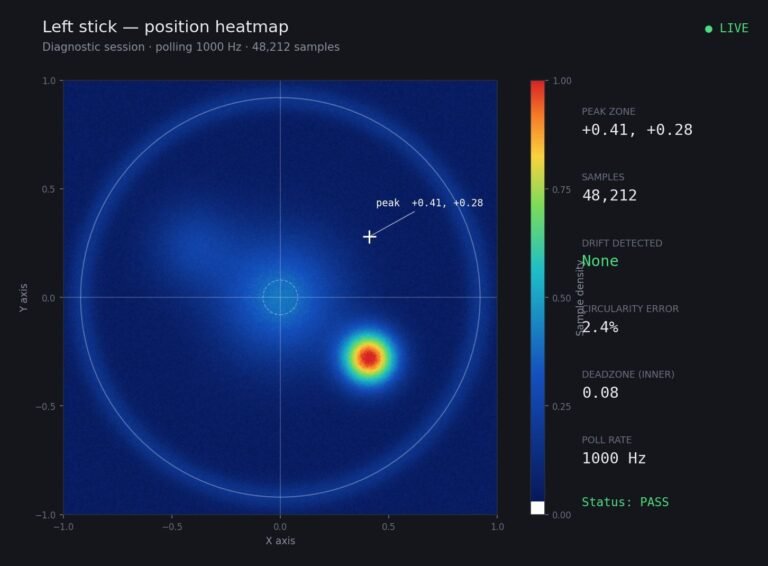
Someone posted a stick drift heatmap in a forum thread asking if their controller was dying: a red and orange blob…
The newest replies from players and the Gamepad Tester Team.