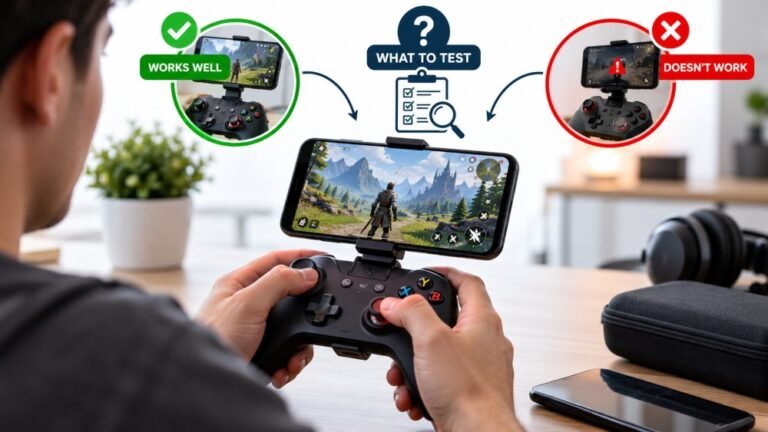
Playing Mobile Games With A Controller: What Works, What Doesn’t, And What To Test Before You Spend
You paired the controller, the light went solid, your phone said "Connected," and then the game did absolutely…

Trying to connect My Xbox One Controller Has Bluetooth to my phone to play some games and it just won't show up in Bluetooth. My other Xbox controller, the newer one, connects fine. Is it because not all Xbox controllers have Bluetooth? How do I tell which one I've got without guessing?
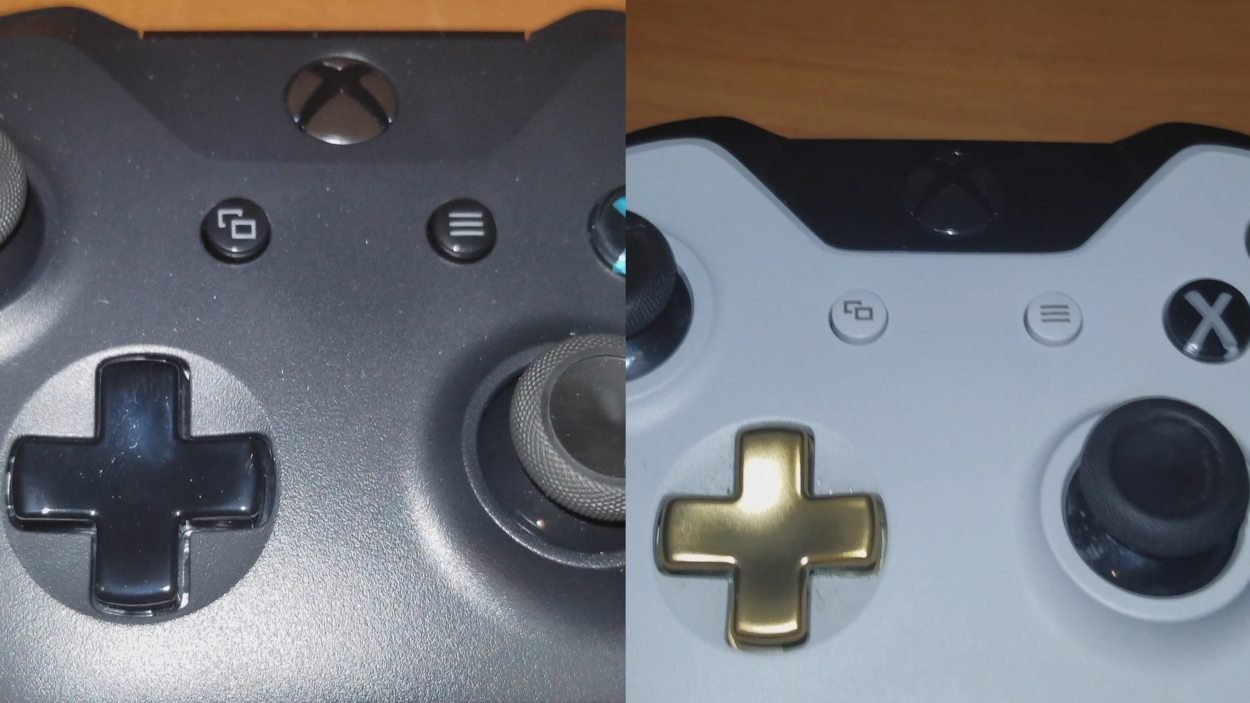
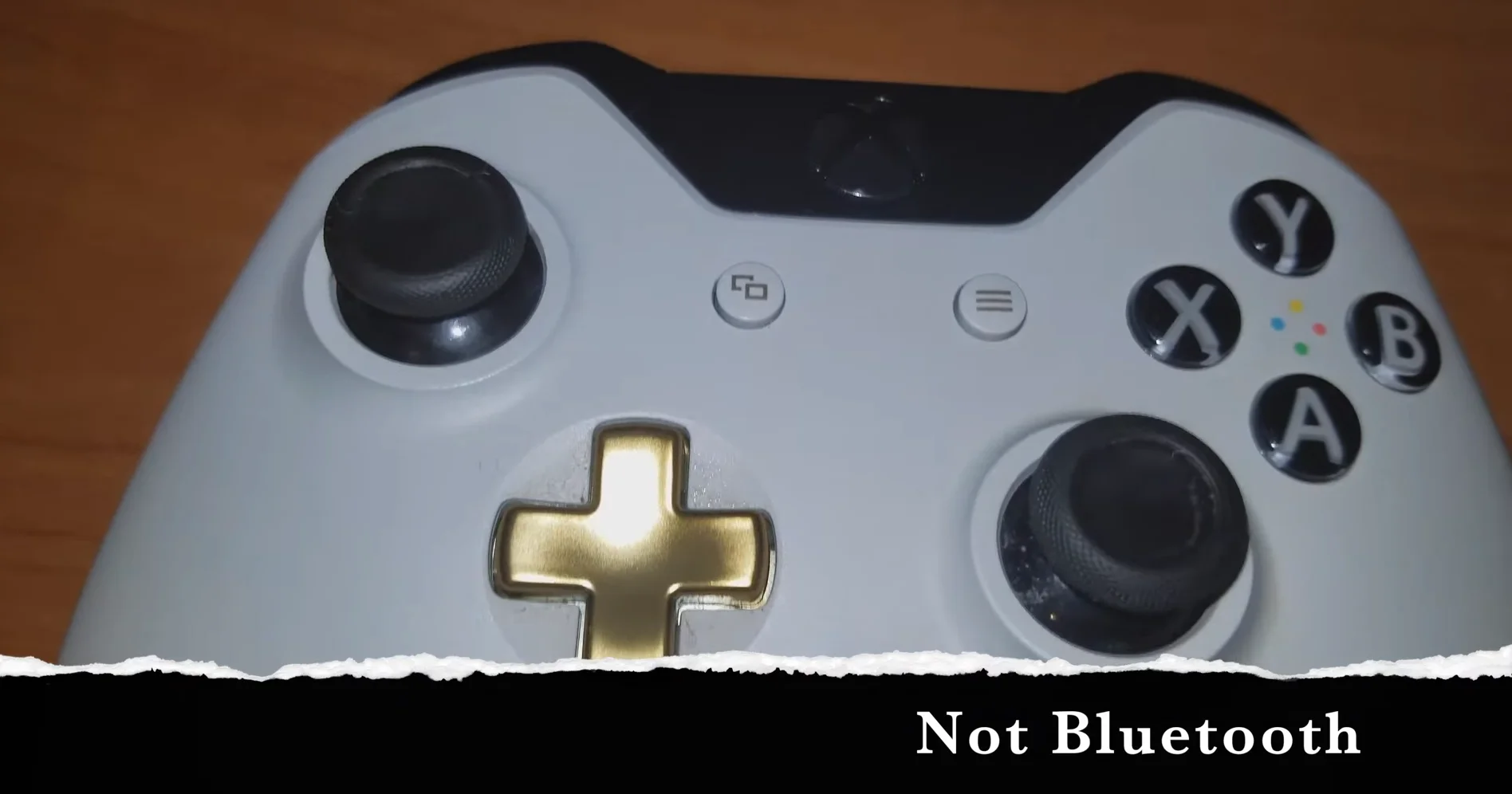
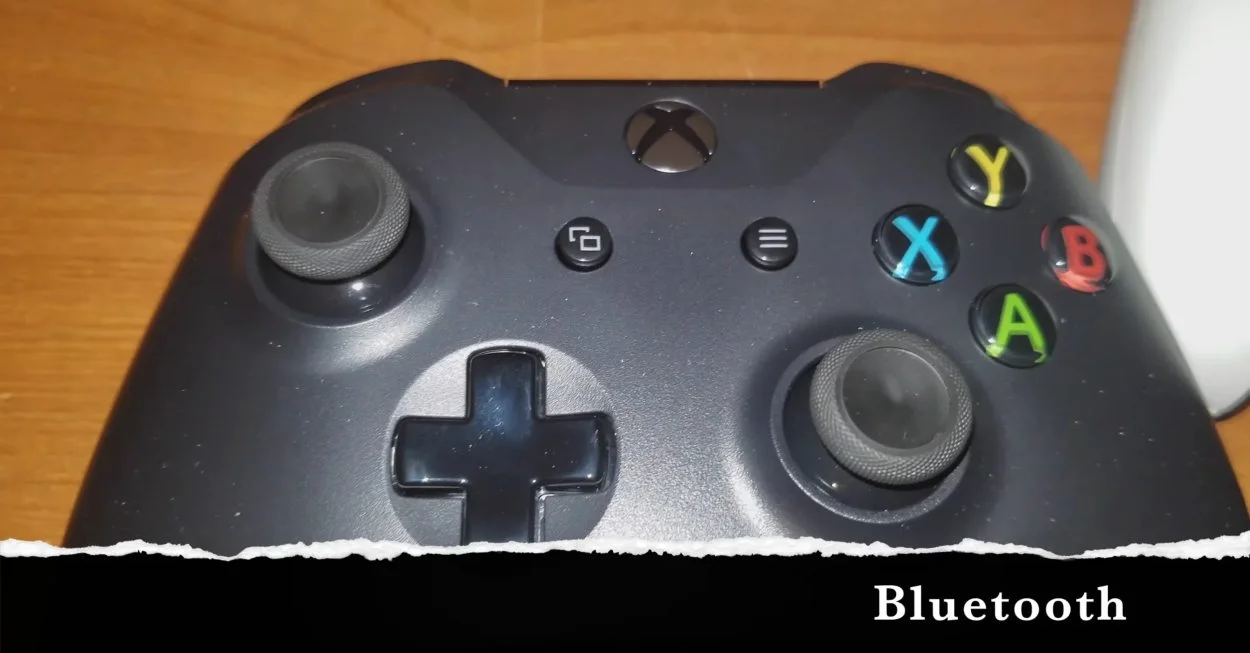
Not all Xbox One controllers have Bluetooth. Look at the plastic around the Xbox button: if it is part of the same face plate as the rest of the front, it has Bluetooth. If it sits in a separate piece joined to the bumper section, it does not. The model number in the battery compartment confirms it.

You have guessed right: the original Xbox One controllers have no Bluetooth at all. Bluetooth arrived with the model 1708 controller, released alongside the Xbox One S in 2016, and every Xbox Series controller since has it too.
The fastest check is visual. On a Bluetooth controller, the plastic around the Xbox button is part of the same face plate as the rest of the front, with no seam around it. On the older controllers, the Xbox button sits in a separate piece of plastic that belongs to the top section with the bumpers, so you can see a clear seam.
To be certain, open the battery cover and read the label. Models 1537 and 1697 have no Bluetooth. Model 1708 does, and so does the Xbox Series controller, model 1914. Among Elite controllers, the first Elite (model 1698) has no Bluetooth and the Elite Series 2 (model 1797) does.
If yours turns out to be an older model, it is still useful. Many Android phones accept it over a USB cable with an OTG adapter, and on a Windows PC it works with a cable or the Xbox Wireless Adapter. For a phone over Bluetooth, though, you will need the newer controller.
Tested on: Applies to Xbox One controller models 1537, 1697 and 1708, Xbox Series model 1914 and Elite models, on Android 16 and Windows 11. Model and Bluetooth details checked against Macworld's Xbox controller pairing guide and Xbox support.
Checked by Chris Evans Jr. on . How we verify answers
Bluetooth And Wireless Test Engineer at Gamepad Tester
Liam works on Bluetooth Low Energy and wireless input. Most pairing complaints are not really pairing problems: they are packet drops, signal jitter or interference from a crowded 2.4GHz band, and they look completely different on a trace than they do to the player. He tests how controllers behave over distance, through walls, alongside other wireless devices, and on the proprietary dongles that several brands ship. On Gamepad Tester he answers the pairing and dropout questions and verifies fixes over both Bluetooth and adapter connections.
 Calder WrightFront-End Web Architect And Gamepad API Lead
 Elena RostovaHardware Diagnostics Engineer
 Garrett LindsayHardware Reviewer And Input Performance Specialist
 Venom’s Tech (Abhishek)Peripheral Reviewer And Tech Journalist
 Chloe HendersonHall Effect And Thumbstick Analyst
 Thiago AlvesHardware Repair Educator
 Devon MillerLow Latency And Input Timing Engineer
 Nadia BrooksEsports Performance Consultant
Each answer is written by the specialist who owns that part of the hardware, tested on a real controller, and checked by a second team member. How we verify answers
Answers are free general guidance from the Gamepad Tester Team and the community. Opening a controller or replacing a thumbstick module can void your warranty, so check the maker's support or warranty first. Battery and soldering work carries a real risk of damage or injury.
Every test runs in your own browser with the Gamepad API. No sign up, no download, and your controller data never leaves your device.
You paired the controller, the light went solid, your phone said "Connected," and then the game did absolutely…
There is a particular kind of bad session that never gets diagnosed. You lose a duel you should have won. Your car…
Every button test came back clean, every stick calibration passed without a single flag, and yet every fifteen or…
The newest replies from players and the Gamepad Tester Team.