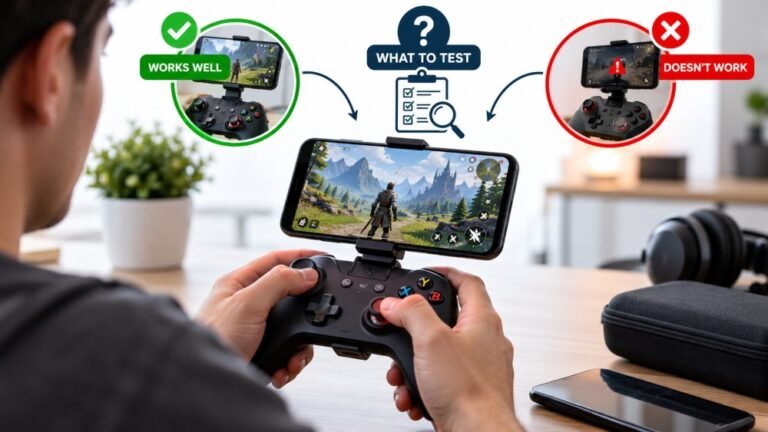
Playing Mobile Games With A Controller: What Works, What Doesn’t, And What To Test Before You Spend
You paired the controller, the light went solid, your phone said "Connected," and then the game did absolutely…

Testing my Logitech wheel and pedals in your gamepad tester. The wheel axis works, but the pedals rest at -1 or 1 instead of 0, and one game thinks I'm always braking. Is something broken or am I reading it wrong?
Pedals resting at -1 or 1 is normal; many wheels report each pedal from one end of its range to the other. A game reading constant braking usually needs its pedal axes calibrated or inverted, or the combined pedals setting changed in the wheel software.

You are reading it right, and nothing is broken. A steering axis rests in the middle at 0. Pedals do not have a middle; they go from released to fully pressed. Many wheels report a pedal as one full axis, so released is -1 and fully pressed is 1, or the reverse. In the tester, a pedal resting at -1 and moving smoothly to 1 as you press is healthy.
The game that thinks you are always braking is interpreting the axis the other way round, or expects released to be 0. That is a game setting. Look in the game's controller or wheel settings for pedal calibration, axis inversion, or a full range or half range option, and calibrate the brake there.
The wheel software can matter too. Logitech's software has a combined pedals option that merges accelerator and brake into a single axis for older games. Most modern racing games expect separate pedals, so combined mode can confuse them.
Use the tester as the reference: press each pedal slowly and confirm the value moves smoothly across its whole range with no jumps. Jumps or dead spots would point to a worn pedal sensor; smooth movement means the hardware is fine and only the game needs setting up.
Tested on: Applies to USB racing wheels and pedals on Windows 11 with Chrome or Edge. Axis behaviour per the W3C Gamepad specification's non-standard mapping.
Checked by Vikram Singh on . How we verify answers
Retro And Adapter Hardware Specialist at Gamepad Tester
Graham works on legacy input hardware. Older controllers reach a browser through a USB adapter, and the adapter decides what the browser sees: button order changes, axes arrive as buttons, D-pads report as hats, and two adapters for the same console can behave nothing alike. He maps how the common adapters present themselves so that a player with a SNES or Sega pad can read a test result correctly instead of concluding their controller is broken. On Gamepad Tester he answers the adapter and legacy hardware questions.
 Calder WrightFront-End Web Architect And Gamepad API Lead
 Elena RostovaHardware Diagnostics Engineer
 Garrett LindsayHardware Reviewer And Input Performance Specialist
 Venom’s Tech (Abhishek)Peripheral Reviewer And Tech Journalist
 Chloe HendersonHall Effect And Thumbstick Analyst
 Thiago AlvesHardware Repair Educator
 Devon MillerLow Latency And Input Timing Engineer
 Liam DaviesBluetooth And Wireless Test Engineer
Each answer is written by the specialist who owns that part of the hardware, tested on a real controller, and checked by a second team member. How we verify answers
Answers are free general guidance from the Gamepad Tester Team and the community. Opening a controller or replacing a thumbstick module can void your warranty, so check the maker's support or warranty first. Battery and soldering work carries a real risk of damage or injury.
Every test runs in your own browser with the Gamepad API. No sign up, no download, and your controller data never leaves your device.
You paired the controller, the light went solid, your phone said "Connected," and then the game did absolutely…
Gaming and trading look like separate worlds until you sit down and do both. One rewards reaction speed, pattern…
The Xbox Elite Series 2 seemed amazing for the first two weeks. Interchangeable thumbsticks, adjustable trigger locks…
The newest replies from players and the Gamepad Tester Team.