How Data Is Changing the Way Players and Fans Watch Esports
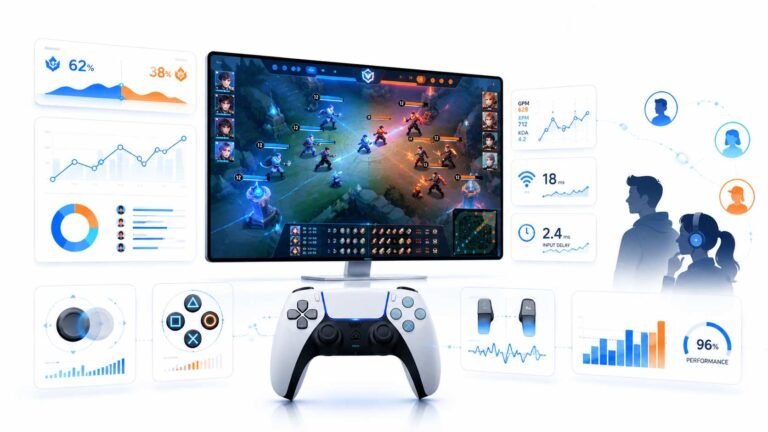
Esports viewing has changed a lot. Fans no longer watch only for big kills, clutch rounds, final scores, or highlight…

My 144 Hz monitor's refresh rate test doesn't settle. It bounces between around 138 and 144. Is the monitor unstable, or is the test wrong?
Small fluctuations usually come from the browser, not the monitor. Background tabs, extensions, power saving or variable refresh can make the browser skip or delay frames. Close other tabs, keep the test window focused, set a fixed refresh rate and wait for the average to settle.

A monitor running at 144 Hz refreshes at exactly that rate, so your monitor is almost certainly fine. The fluctuation comes from how a browser measures it.
The test counts how often the browser draws a new frame. If the browser is delayed, by another tab, an extension, a background app or the PC briefly being busy, some frames are late or skipped, and the reading dips.
Variable refresh can also cause this. With G-Sync or FreeSync active on the desktop or in the browser, the display's refresh rate can follow the browser's frame rate, so the reading wanders. For testing, set the browser to fixed refresh in the graphics driver, or turn variable refresh off temporarily.
To get a stable reading: close other tabs and heavy apps, keep the test tab focused, plug in a laptop and turn off power saving, and give the test 10 to 20 seconds to average. Make sure the browser window is on the 144 Hz monitor if you have more than one.
If the reading stays near 144 once these are handled, everything is working. If it never gets close, check that Windows is set to 144 Hz.
Tested on: Applies to high refresh monitors on Windows 11 with Chrome, Edge or Firefox. Frame timing per MDN's requestAnimationFrame documentation.
Checked by Simon Fletcher on . How we verify answers
Front-End Web Architect And Gamepad API Lead at Gamepad Tester
Calder is a front-end web architect working with the HTML5 Gamepad API. His focus is the part most browser testers get wrong: reading a controller often enough, and timing it well enough, that the numbers on screen match what the hardware is actually sending. He writes the polling loops that capture analog trigger tension and stick travel without dropping samples, and renders them on 2D vector layouts that hold a steady 60+ FPS on ordinary laptops. On Gamepad Tester he maintains the main tester tool, the button test and the trigger pressure test, and reviews any answer that explains how a reading on this site should be interpreted.
 Elena RostovaHardware Diagnostics Engineer
 Garrett LindsayHardware Reviewer And Input Performance Specialist
 Venom’s Tech (Abhishek)Peripheral Reviewer And Tech Journalist
 Chloe HendersonHall Effect And Thumbstick Analyst
 Thiago AlvesHardware Repair Educator
 Devon MillerLow Latency And Input Timing Engineer
 Liam DaviesBluetooth And Wireless Test Engineer
 Nadia BrooksEsports Performance Consultant
Each answer is written by the specialist who owns that part of the hardware, tested on a real controller, and checked by a second team member. How we verify answers
Answers are free general guidance from the Gamepad Tester Team and the community. Opening a controller or replacing a thumbstick module can void your warranty, so check the maker's support or warranty first. Battery and soldering work carries a real risk of damage or injury.
Every test runs in your own browser with the Gamepad API. No sign up, no download, and your controller data never leaves your device.
Esports viewing has changed a lot. Fans no longer watch only for big kills, clutch rounds, final scores, or highlight…
If you have ever watched a video that looked choppy, played a game that felt sluggish, or noticed that scrolling on…
Content creators, marketers, and businesses are finding creating images and videos more and more effortless via AI. As…
The newest replies from players and the Gamepad Tester Team.