How Data Is Changing the Way Players and Fans Watch Esports
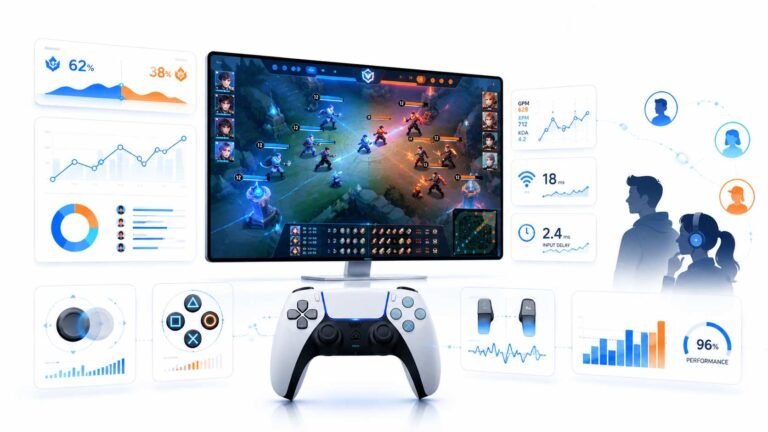
Esports viewing has changed a lot. Fans no longer watch only for big kills, clutch rounds, final scores, or highlight…

When I connect my 144 Hz monitor through my laptop's USB-C dock, Windows only offers 60 Hz and your refresh rate test confirms 60. Plugged directly into the laptop's HDMI it does 144. Is the dock the limit?
Very likely. Many docks and hubs have video outputs limited to 60 Hz at higher resolutions, or share bandwidth with USB devices. Check the dock's specs, use its DisplayPort output or a direct USB-C to DisplayPort cable, and update the dock's firmware.

The dock is the likely bottleneck. Video through a USB-C dock goes through the laptop's USB-C port in DisplayPort mode, and then through the dock's own video chips. Several things can limit refresh rate.
The dock's output. Many docks and hubs, especially budget ones, list outputs like 4K at 30 Hz or 1440p at 60 Hz. Their HDMI ports may be an older version that cannot carry 144 Hz.
Shared bandwidth. Some docks split the USB-C connection's bandwidth between video and USB devices. With fast USB devices connected, there is less left for video, limiting resolution or refresh.
The laptop port. Not every USB-C port supports video, and not every one supports high bandwidth. Thunderbolt and USB4 ports usually do more.
What to try. Check the dock's specification for supported refresh rates. Use the dock's DisplayPort output rather than HDMI if it has one. Update the dock's firmware. Or connect the monitor with a direct USB-C to DisplayPort cable from a video-capable laptop port.
After each change, check Windows display settings and run our refresh rate test.
Tested on: Applies to laptops with USB-C and Thunderbolt docks on Windows 11. Display settings per Microsoft's refresh rate support article.
Checked by Devon Miller on . How we verify answers
Embedded Systems And Firmware Programmer at Gamepad Tester
Alistair is an embedded systems programmer. He writes custom firmware for third-party PC gamepads and builds input-parsing test rigs on microcontrollers such as the Arduino and Raspberry Pi Pico, which means he can see what a controller is sending at the wire level rather than guessing from what the operating system reports. That is usually the fastest way to settle whether a fault is in the pad, the driver or the browser. On Gamepad Tester he answers the firmware and driver questions, including the ones where an update has broken a working controller.
 Calder WrightFront-End Web Architect And Gamepad API Lead
 Elena RostovaHardware Diagnostics Engineer
 Garrett LindsayHardware Reviewer And Input Performance Specialist
 Venom’s Tech (Abhishek)Peripheral Reviewer And Tech Journalist
 Chloe HendersonHall Effect And Thumbstick Analyst
 Thiago AlvesHardware Repair Educator
 Devon MillerLow Latency And Input Timing Engineer
 Liam DaviesBluetooth And Wireless Test Engineer
Each answer is written by the specialist who owns that part of the hardware, tested on a real controller, and checked by a second team member. How we verify answers
Answers are free general guidance from the Gamepad Tester Team and the community. Opening a controller or replacing a thumbstick module can void your warranty, so check the maker's support or warranty first. Battery and soldering work carries a real risk of damage or injury.
Every test runs in your own browser with the Gamepad API. No sign up, no download, and your controller data never leaves your device.
Esports viewing has changed a lot. Fans no longer watch only for big kills, clutch rounds, final scores, or highlight…
If you have ever watched a video that looked choppy, played a game that felt sluggish, or noticed that scrolling on…
Content creators, marketers, and businesses are finding creating images and videos more and more effortless via AI. As…
The newest replies from players and the Gamepad Tester Team.