How Data Is Changing the Way Players and Fans Watch Esports
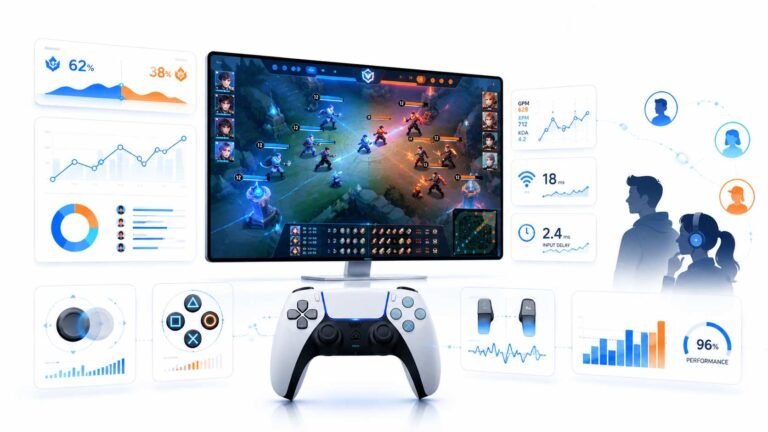
Esports viewing has changed a lot. Fans no longer watch only for big kills, clutch rounds, final scores, or highlight…

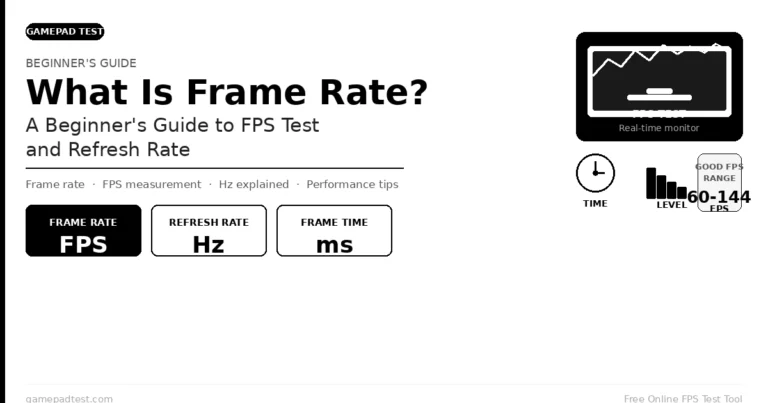
I keep mixing up FPS and Hz. Your FPS test and refresh rate test show similar numbers. What's the actual difference, and why does it matter for gaming?
FPS is how many frames your PC or browser produces each second. Hz is how many times the monitor refreshes each second. You see smooth motion when both are high and in step. A 144 Hz monitor needs around 144 FPS to show its full smoothness.

They are two halves of the same picture.
Frames per second, FPS, is how many new images your PC produces each second, whether a game, a video player or a browser. It depends on your graphics card, the game settings and how busy the PC is.
Hertz, Hz, is how many times per second the monitor refreshes its picture. A 60 Hz monitor updates 60 times a second; a 144 Hz monitor 144 times.
Why both matter. The monitor can only show new frames that the PC has made. If your game runs at 80 FPS on a 144 Hz monitor, you see about 80 new images a second, not 144. If the game runs at 200 FPS on a 60 Hz monitor, the monitor still only shows 60 a second, though higher FPS can still slightly reduce input lag.
When FPS and Hz do not line up, you can get screen tearing or uneven motion. Variable refresh, G-Sync and FreeSync, solves that by making the monitor's Hz follow the game's FPS.
Our two tests show both sides: the refresh rate test measures the display's Hz as the browser sees it, and the FPS test shows how many frames the browser produces. On a healthy setup, they match.
Tested on: General explanation of frame rate and refresh rate. Browser frame timing per MDN's requestAnimationFrame documentation.
Checked by Calder Wright on . How we verify answers
Technical Content Strategist at Gamepad Tester
Fiona writes the technical guides. Controller diagnostics carry a lot of vocabulary that means nothing to the person holding the pad, from circularity error and polling rate to deadzone tolerance, and a reading nobody can interpret is not a diagnosis. Her work is explaining those concepts in plain language, in the order a player actually needs them, without softening the numbers into vagueness. On Gamepad Tester she edits the guides and the Q&A answers for clarity before they are published.
 Calder WrightFront-End Web Architect And Gamepad API Lead
 Elena RostovaHardware Diagnostics Engineer
 Garrett LindsayHardware Reviewer And Input Performance Specialist
 Venom’s Tech (Abhishek)Peripheral Reviewer And Tech Journalist
 Chloe HendersonHall Effect And Thumbstick Analyst
 Thiago AlvesHardware Repair Educator
 Devon MillerLow Latency And Input Timing Engineer
 Liam DaviesBluetooth And Wireless Test Engineer
Each answer is written by the specialist who owns that part of the hardware, tested on a real controller, and checked by a second team member. How we verify answers
Answers are free general guidance from the Gamepad Tester Team and the community. Opening a controller or replacing a thumbstick module can void your warranty, so check the maker's support or warranty first. Battery and soldering work carries a real risk of damage or injury.
Every test runs in your own browser with the Gamepad API. No sign up, no download, and your controller data never leaves your device.
Esports viewing has changed a lot. Fans no longer watch only for big kills, clutch rounds, final scores, or highlight…
If you have ever watched a video that looked choppy, played a game that felt sluggish, or noticed that scrolling on…
Bilibili Gaming defeated G2 Esports 3-1 in São Paulo on March 22, 2026, to win an international League of Legends…
The newest replies from players and the Gamepad Tester Team.