How Data Is Changing the Way Players and Fans Watch Esports
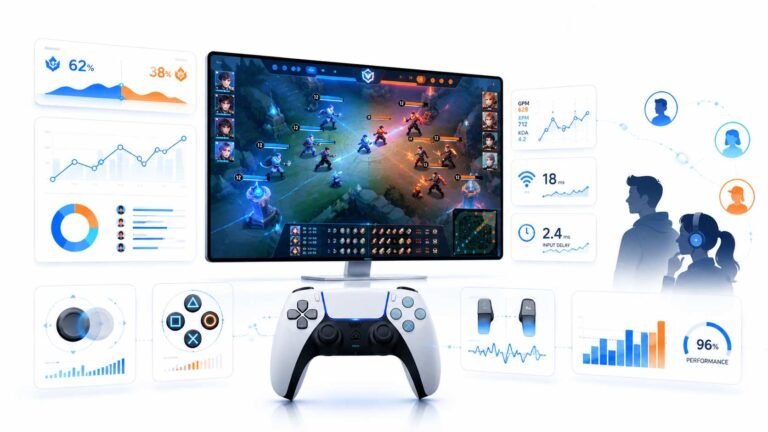
Esports viewing has changed a lot. Fans no longer watch only for big kills, clutch rounds, final scores, or highlight…

When watching films with subtitles on my LED TV, the black bars around the subtitles light up grey and the text glows. Your blooming test shows halos too. Can I fix it?
Bright subtitles in black bars light up the local dimming zones behind them, so the bars turn grey and the text blooms. Lower the local dimming setting, move subtitles into the picture area if your player allows it, or choose a less bright subtitle colour.

Subtitles are the hardest case for local dimming. The black bars above and below a film are pure black, so the TV dims those zones fully. Then bright white subtitles appear in the bars, and the zones behind them light up. Because each zone covers an area much larger than the text, the black bar around the subtitles turns grey and the text has a halo. When the subtitle disappears, the bar goes black again, which can be distracting.
Options to reduce it:
Local dimming level. Set the TV's local dimming to low or medium. Blacks get slightly less deep, but the bar stays more even.
Subtitle position. Many players and streaming apps let you move subtitles up into the picture area, where the zones are already lit by the film, so there is no sudden glow in the bar.
Subtitle colour and size. Grey or slightly smaller, less bright subtitles reduce the effect.
Picture mode. Some film or filmmaker modes handle local dimming more gently.
OLED TVs do not have this problem, since each pixel is its own light, which is one reason they are popular for films with subtitles.
Tested on: Applies to LED and mini-LED TVs with local dimming. Setting names vary by manufacturer.
Checked by Simon Fletcher on . How we verify answers
Low Level Systems Programmer at Gamepad Tester
Gabriel is a low-level C programmer working on desktop input architecture. He builds native tooling that samples stick and trigger telemetry at sub-millisecond intervals, below the rate a browser can reach, which gives a reference measurement to compare a web test against. When a browser reading looks wrong, his capture is how the team confirms whether the controller, the operating system or the page is at fault. On Gamepad Tester he provides the reference measurements behind the latency and drift answers.
 Calder WrightFront-End Web Architect And Gamepad API Lead
 Elena RostovaHardware Diagnostics Engineer
 Garrett LindsayHardware Reviewer And Input Performance Specialist
 Venom’s Tech (Abhishek)Peripheral Reviewer And Tech Journalist
 Chloe HendersonHall Effect And Thumbstick Analyst
 Thiago AlvesHardware Repair Educator
 Devon MillerLow Latency And Input Timing Engineer
 Liam DaviesBluetooth And Wireless Test Engineer
Each answer is written by the specialist who owns that part of the hardware, tested on a real controller, and checked by a second team member. How we verify answers
Answers are free general guidance from the Gamepad Tester Team and the community. Opening a controller or replacing a thumbstick module can void your warranty, so check the maker's support or warranty first. Battery and soldering work carries a real risk of damage or injury.
Every test runs in your own browser with the Gamepad API. No sign up, no download, and your controller data never leaves your device.
Esports viewing has changed a lot. Fans no longer watch only for big kills, clutch rounds, final scores, or highlight…
If you have ever watched a video that looked choppy, played a game that felt sluggish, or noticed that scrolling on…
Content creators, marketers, and businesses are finding creating images and videos more and more effortless via AI. As…
The newest replies from players and the Gamepad Tester Team.