How Data Is Changing the Way Players and Fans Watch Esports
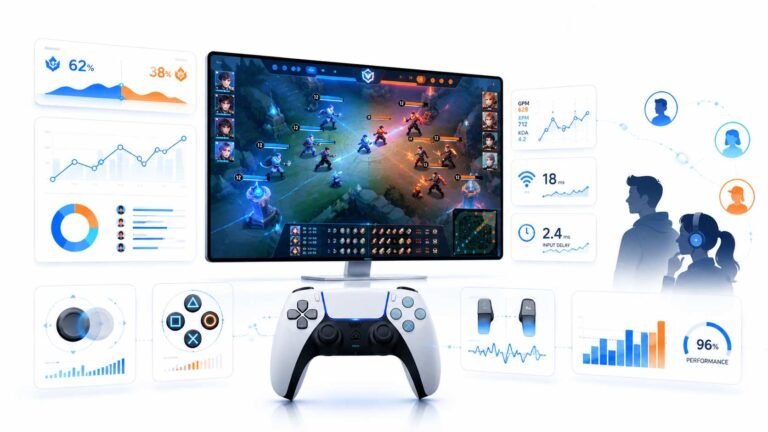
Esports viewing has changed a lot. Fans no longer watch only for big kills, clutch rounds, final scores, or highlight…

I used a custom resolution to set my 60 Hz monitor to 75 Hz. Your refresh rate test now reads 75, but I've read some monitors skip frames when overclocked. How do I check, and is it safe?
A test reading 75 shows the PC is sending 75 Hz, not that the monitor displays every frame. Frame skipping is checked by photographing a moving frame counter with a camera shutter long enough to catch several frames. Small overclocks are usually harmless, but they are outside the specification and may affect warranty.

Your refresh rate test reading 75 confirms the PC is sending 75 frames a second. But some monitors accept a higher refresh signal and quietly drop some frames, displaying fewer than they receive. Then you get no smoothness benefit, and sometimes worse judder.
The usual check is a frame skipping test: a pattern of boxes that light up one per frame in sequence. Take a photo with a camera shutter around a tenth of a second, so it captures several frames. If every box in sequence appears lit, no frames were skipped. If boxes are missing in a regular pattern, the monitor is skipping. Phone cameras with a pro or manual mode can do this.
Safety: small overclocks such as 60 to 75 Hz on panels that accept them are commonly done and usually harmless. But they are outside the manufacturer's specification, some monitors behave oddly, and warranty may not cover problems. If the screen flickers, shows artefacts or goes black, revert immediately; Windows usually reverts unconfirmed changes after a few seconds.
If frames are skipped, try a smaller step, such as 70 Hz, or go back to 60. Many monitors simply cannot go higher.
Tested on: Applies to monitors driven with custom refresh rates on Windows 11. Overclocking is outside manufacturer specifications.
Checked by Calder Wright on . How we verify answers
Embedded Systems And Firmware Programmer at Gamepad Tester
Alistair is an embedded systems programmer. He writes custom firmware for third-party PC gamepads and builds input-parsing test rigs on microcontrollers such as the Arduino and Raspberry Pi Pico, which means he can see what a controller is sending at the wire level rather than guessing from what the operating system reports. That is usually the fastest way to settle whether a fault is in the pad, the driver or the browser. On Gamepad Tester he answers the firmware and driver questions, including the ones where an update has broken a working controller.
 Calder WrightFront-End Web Architect And Gamepad API Lead
 Elena RostovaHardware Diagnostics Engineer
 Garrett LindsayHardware Reviewer And Input Performance Specialist
 Venom’s Tech (Abhishek)Peripheral Reviewer And Tech Journalist
 Chloe HendersonHall Effect And Thumbstick Analyst
 Thiago AlvesHardware Repair Educator
 Devon MillerLow Latency And Input Timing Engineer
 Liam DaviesBluetooth And Wireless Test Engineer
Each answer is written by the specialist who owns that part of the hardware, tested on a real controller, and checked by a second team member. How we verify answers
Answers are free general guidance from the Gamepad Tester Team and the community. Opening a controller or replacing a thumbstick module can void your warranty, so check the maker's support or warranty first. Battery and soldering work carries a real risk of damage or injury.
Every test runs in your own browser with the Gamepad API. No sign up, no download, and your controller data never leaves your device.
Esports viewing has changed a lot. Fans no longer watch only for big kills, clutch rounds, final scores, or highlight…
If you have ever watched a video that looked choppy, played a game that felt sluggish, or noticed that scrolling on…
Content creators, marketers, and businesses are finding creating images and videos more and more effortless via AI. As…
The newest replies from players and the Gamepad Tester Team.