How Data Is Changing the Way Players and Fans Watch Esports
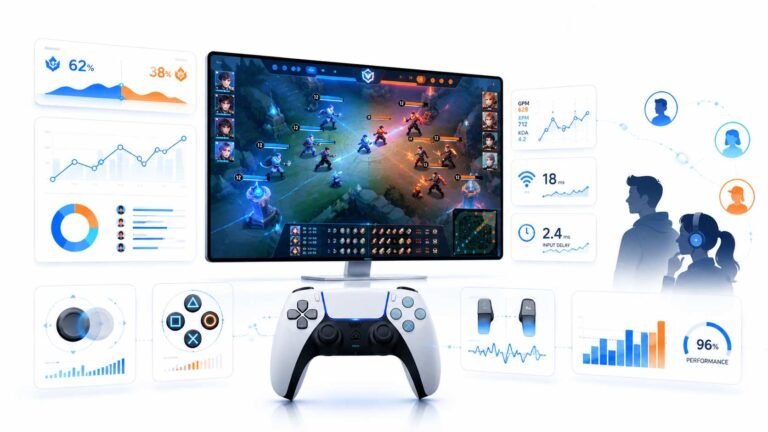
Esports viewing has changed a lot. Fans no longer watch only for big kills, clutch rounds, final scores, or highlight…

People say turn V-Sync off for less input lag, but then I get tearing. Your input lag test feels slightly slower with V-Sync on. Is the difference real, and what's the best compromise?
Yes, traditional V-Sync can add noticeable lag, especially when the frame rate hits the refresh rate and frames queue up. Variable refresh with a frame cap slightly below the refresh rate gives no tearing with much less lag. Without variable refresh, a frame cap or low latency modes reduce V-Sync's lag.

The difference is real. Traditional V-Sync makes the graphics card wait for the monitor's next refresh before showing a new frame. That stops tearing, but when the game runs as fast as the refresh rate or faster, finished frames queue up waiting their turn, which adds delay between your input and what you see. In fast games, many players can feel it.
The best compromise today is variable refresh, G-Sync or FreeSync, with a frame cap a few frames below your refresh rate, for example around 140 on a 144 Hz monitor. The monitor follows the game, so there is no tearing, and because the cap keeps the frame rate inside the variable refresh range, frames do not queue the way they do with plain V-Sync.
Without variable refresh, options include a frame cap close to the refresh rate with V-Sync, or low latency modes in the graphics driver and games, which limit how many frames queue up.
Competitive players sometimes run uncapped with V-Sync off and accept tearing for the lowest possible lag.
Our input lag test measures your whole chain including reaction time, so run it several times with each setting and compare averages.
Tested on: Applies to PC gaming on Windows 11. Timing per MDN's requestAnimationFrame documentation; game behaviour varies.
Checked by Calder Wright on . How we verify answers
Low Latency And Input Timing Engineer at Gamepad Tester
Devon is a low latency engineer. On a browser-based latency test the easiest mistake is measuring the wrong thing: network round trips, render queues and browser throttling can all add milliseconds that have nothing to do with the controller. His work is isolating the input path so that what the test reports is the hardware delay, and documenting the conditions under which the reading is trustworthy. On Gamepad Tester he owns the latency test and the input lag topic, and checks any answer that quotes a millisecond figure.
 Calder WrightFront-End Web Architect And Gamepad API Lead
 Elena RostovaHardware Diagnostics Engineer
 Garrett LindsayHardware Reviewer And Input Performance Specialist
 Venom’s Tech (Abhishek)Peripheral Reviewer And Tech Journalist
 Chloe HendersonHall Effect And Thumbstick Analyst
 Thiago AlvesHardware Repair Educator
 Liam DaviesBluetooth And Wireless Test Engineer
 Nadia BrooksEsports Performance Consultant
Each answer is written by the specialist who owns that part of the hardware, tested on a real controller, and checked by a second team member. How we verify answers
Answers are free general guidance from the Gamepad Tester Team and the community. Opening a controller or replacing a thumbstick module can void your warranty, so check the maker's support or warranty first. Battery and soldering work carries a real risk of damage or injury.
Every test runs in your own browser with the Gamepad API. No sign up, no download, and your controller data never leaves your device.
Esports viewing has changed a lot. Fans no longer watch only for big kills, clutch rounds, final scores, or highlight…
If you have ever watched a video that looked choppy, played a game that felt sluggish, or noticed that scrolling on…
Content creators, marketers, and businesses are finding creating images and videos more and more effortless via AI. As…
The newest replies from players and the Gamepad Tester Team.