How Data Is Changing the Way Players and Fans Watch Esports
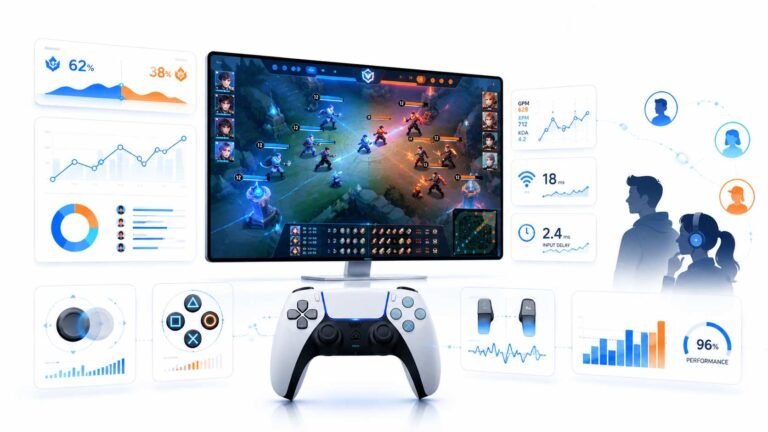
Esports viewing has changed a lot. Fans no longer watch only for big kills, clutch rounds, final scores, or highlight…

I play console and PC games on my home projector. It looks great but aiming feels sluggish compared with my monitor. Your input lag test average is clearly higher on the projector. What settings help?
Projectors add lag through picture processing, just like TVs. Turn on the projector's game or low latency mode, turn off frame interpolation and image enhancements, and on 4K projectors consider whether pixel shifting adds delay. Use 1080p at 120 Hz if your projector offers a faster gaming mode.

Projectors can be very good for gaming, but like TVs they do a lot of processing by default, and that adds input lag.
Game or low latency mode. Most modern projectors have one, sometimes called fast mode or a gaming picture mode. It switches off much of the processing and can reduce lag dramatically. Some projectors only allow it at certain resolutions or refresh rates.
Motion processing off. Frame interpolation or motion smoothing adds lag and artefacts. Turn it off for games, along with noise reduction and other image enhancements.
Resolution and refresh. Many 4K projectors use pixel shifting to create a 4K image from a lower resolution chip, and some add lag in their 4K mode. Many also offer a faster 1080p mode at 120 Hz or higher specifically for gaming, with much lower lag. For fast shooters, that mode often feels far better.
Keystone and corrections. Digital keystone, lens shift emulation and warping can add processing; use physical placement and lens shift instead where possible.
Run our input lag test several times after each change and compare averages with your monitor. Game mode plus a faster refresh mode should close much of the gap.
Tested on: Applies to home projectors used with PCs and consoles. Settings names vary by manufacturer.
Checked by Devon Miller on . How we verify answers
QA And Test Automation Lead at Gamepad Tester
Tyler leads test automation. Before each change to the tools here goes live, his pipelines drive simulated inputs through the pages across multiple browsers and desktop environments and compare the readings against known-good baselines. It catches the regressions manual testing misses: a button index that shifts, an axis that stops updating, a layout that breaks at one viewport. On Gamepad Tester he signs off releases of the test tools and handles the answers where the tool itself, rather than the controller, is behaving oddly.
 Calder WrightFront-End Web Architect And Gamepad API Lead
 Elena RostovaHardware Diagnostics Engineer
 Garrett LindsayHardware Reviewer And Input Performance Specialist
 Venom’s Tech (Abhishek)Peripheral Reviewer And Tech Journalist
 Chloe HendersonHall Effect And Thumbstick Analyst
 Thiago AlvesHardware Repair Educator
 Devon MillerLow Latency And Input Timing Engineer
 Liam DaviesBluetooth And Wireless Test Engineer
Each answer is written by the specialist who owns that part of the hardware, tested on a real controller, and checked by a second team member. How we verify answers
Answers are free general guidance from the Gamepad Tester Team and the community. Opening a controller or replacing a thumbstick module can void your warranty, so check the maker's support or warranty first. Battery and soldering work carries a real risk of damage or injury.
Every test runs in your own browser with the Gamepad API. No sign up, no download, and your controller data never leaves your device.
Esports viewing has changed a lot. Fans no longer watch only for big kills, clutch rounds, final scores, or highlight…
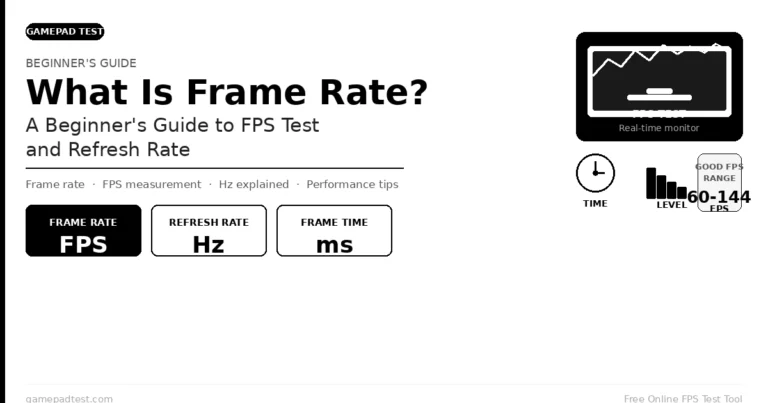
If you have ever watched a video that looked choppy, played a game that felt sluggish, or noticed that scrolling on…
Content creators, marketers, and businesses are finding creating images and videos more and more effortless via AI. As…
The newest replies from players and the Gamepad Tester Team.