

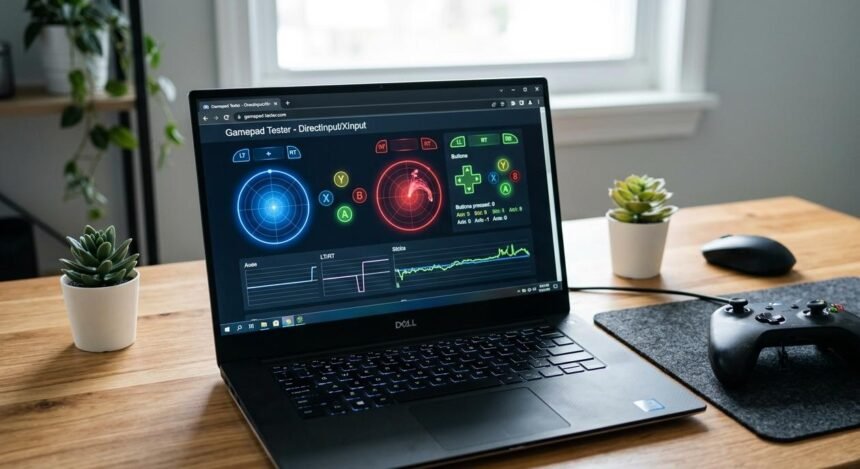
Someone in a Discord server insisted their wireless controller ran at a 1000Hz polling rate, the same figure printed on the box, and refused to believe otherwise without downloading a piece of software neither of us trusted. There is a much simpler way to check your controller’s polling rate that does not require installing anything, and it takes about two minutes using tools already sitting on your computer. Reading your controller’s polling rate correctly, without extra software, turns out to be far easier than most players assume.
What Polling Rate Actually Means
Polling rate explained simply, before anything else: it is how many times per second your controller reports its current state to your computer or console. A controller polling at 250Hz sends an update every 4 milliseconds. One polling at 1000Hz sends an update every millisecond. Higher polling rate means the system checks your inputs more frequently, which can reduce the small window between when you physically move the stick or press a button and when that action is reflected on screen.
Controller response time is affected by polling rate but is not the same thing. Response time includes polling rate plus every other link in the chain: the wireless or USB transmission delay, the game engine’s own input processing, and the frame you are viewing when the input lands. A higher polling rate genuinely helps, but it is one piece of a longer chain, not the entire chain by itself.
This distinction matters because marketing tends to isolate polling rate as the single number that defines how responsive a controller feels, when in practice it is closer to one ingredient in a recipe with several others. A controller with an excellent polling rate can still feel sluggish if the game itself has a high processing delay before it acts on that input, and a controller with a modest polling rate can feel perfectly responsive in a well-optimized game with minimal processing overhead elsewhere in the chain.
Wireless controller polling rate claims on packaging are worth treating with mild skepticism, and checking your controller’s polling rate yourself is the only way to know for certain, specifically because the advertised number frequently reflects a best-case scenario under ideal conditions, not what you will actually get during a real session with other wireless devices nearby competing for the same 2.4GHz spectrum.
How to Check Your Controller’s Polling Rate Without Installing Anything
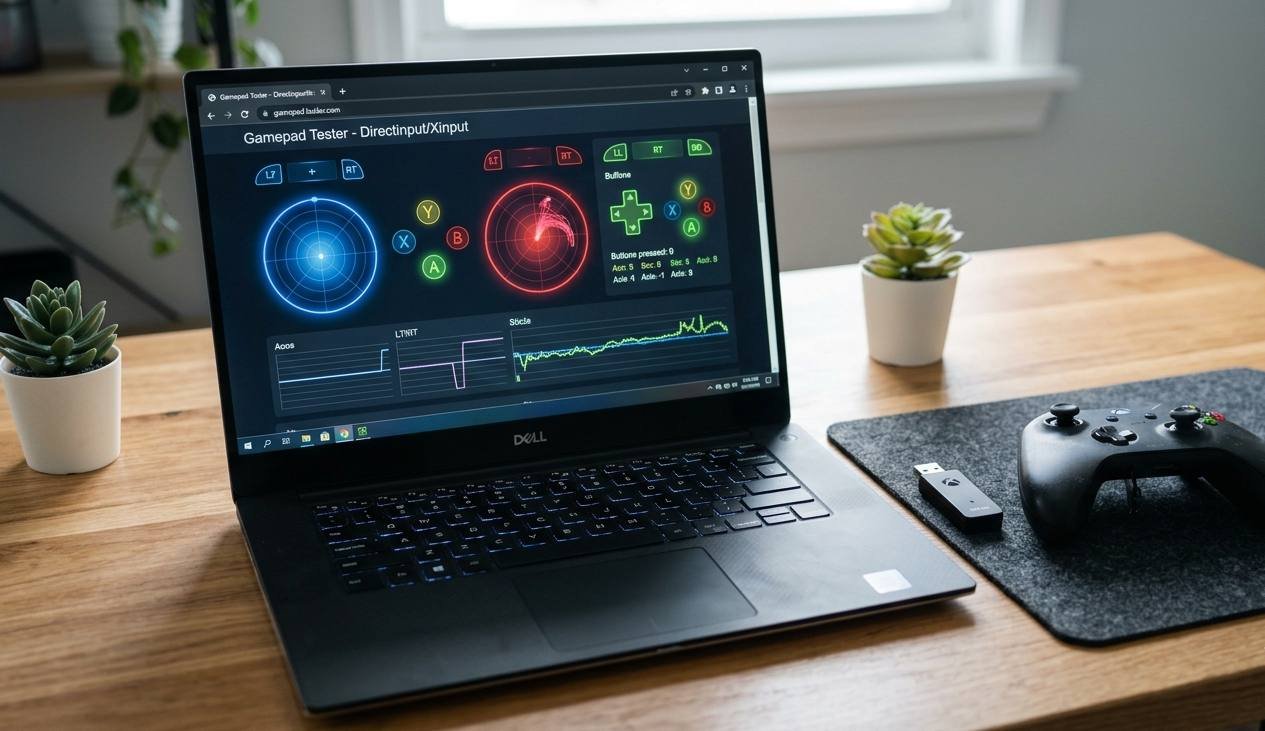
The most reliable no-install method uses a browser-based gamepad tester. Most modern browsers support the Gamepad API natively, which several free websites use to display real-time input data including timing information, all running entirely in your browser tab with nothing downloaded to your system. Connect your controller, open one of these sites, and move a stick or press a button rapidly while watching the reported update frequency.
On Windows specifically, the built-in game controller settings panel, accessible by searching “set up USB game controllers” in the Start menu, shows basic input testing including button and axis response, though it does not display a precise Hz rating or a full breakdown of input polling frequency, the way a dedicated browser tool does. It is still useful as a sanity check that your controller is being recognized correctly at all before you dig into more detailed testing.
For a rough manual measurement without any tool at all, rapid-tap a single button as fast as you physically can for exactly ten seconds while counting your taps, then compare that count against what appears in any input display capable of showing a running total. If your tap count and the display’s registered count match closely, your input polling frequency is comfortably keeping up with your fastest realistic input rate, which is really the entire point of checking your controller’s polling rate in the first place, which for the overwhelming majority of players is well under even a conservative 125Hz polling rate.
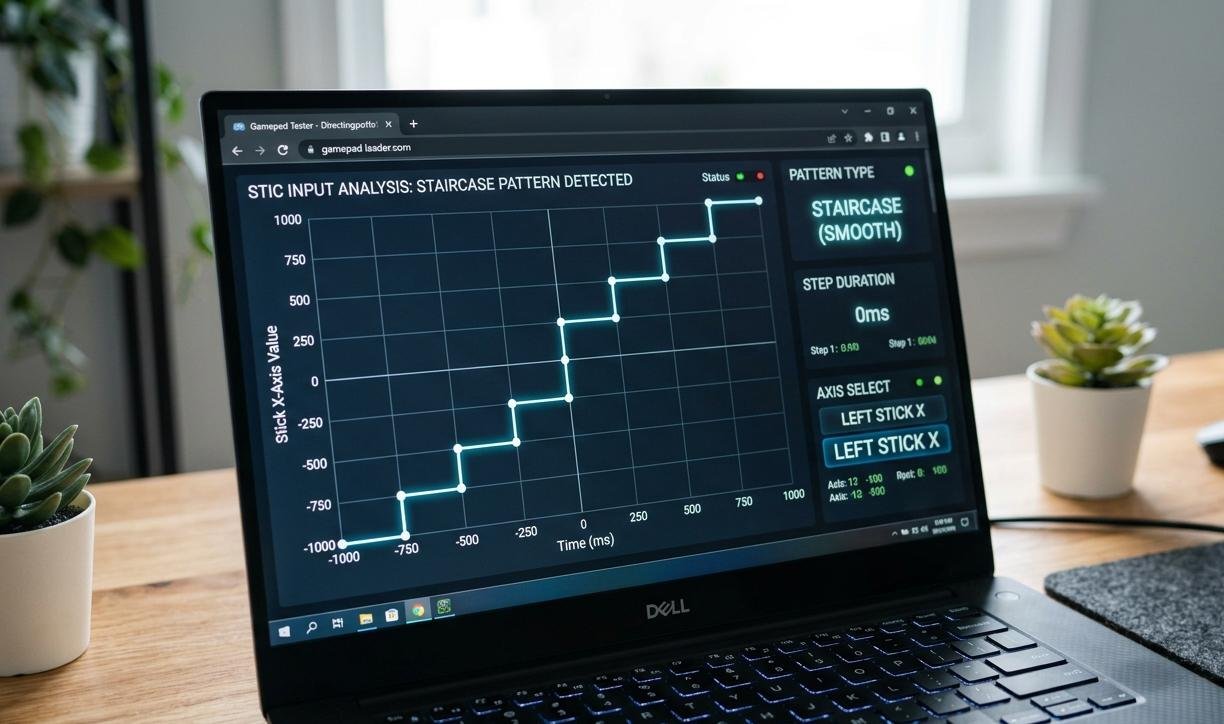
There is also a visual method worth trying if a browser tool displays raw axis values numerically rather than just a moving graph. Flick a stick sharply from center to full extension and watch how many distinct intermediate values register during that single motion. A higher polling rate shows a smoother staircase of values as the stick travels. A lower polling rate shows fewer, more widely spaced jumps, since the system is reporting less frequently and therefore capturing fewer positions along the same physical movement.
What to Actually Do With Your Polling Rate Reading
Polling rate explained in practical terms: for most players, the honest answer is that polling rate differences above 250Hz are not something you will consciously feel during actual gameplay. The difference between 250Hz and 1000Hz is a matter of a few milliseconds, well below most players’ perceptual threshold in anything other than the highest level of competitive twitch-reflex play. If your reading comes back anywhere near your controller’s advertised number, there is nothing further to chase here.
If your reading comes back significantly lower than advertised, particularly on a wireless connection, the fix is rarely the controller itself. Switch to a wired connection or the manufacturer’s dedicated 2.4GHz USB dongle if one is available, since generic Bluetooth connections frequently produce a lower wireless controller polling rate than a dedicated wireless receiver built specifically for gaming. Moving physically closer to your wireless receiver and removing other 2.4GHz devices from the immediate area, particularly other wireless controllers, keyboards, or mice, can also meaningfully improve a controller response time that is underperforming its rated number.
If you play competitively at a level where single-digit millisecond differences genuinely matter, a wired connection is the simplest and most reliable way to guarantee your controller polling rate stays consistent, since wired connections do not suffer from the same variable interference that wireless connections do regardless of how good the wireless technology claims to be.
Quick Checklist — Checking Controller Polling Rate
- Use a browser-based gamepad tester that relies on the Gamepad API, no download required.
- Check Windows’ built-in USB game controller settings panel as a basic sanity check on Hz rating controller behavior.
- Try the manual rapid-tap comparison method if you have no access to any testing tool.
- Treat printed polling rate numbers on packaging as best-case, not guaranteed, figures.
- Switch to a wired connection or dedicated USB receiver if your wireless reading comes back low.
- Remove nearby 2.4GHz devices if your wireless controller’s reading is inconsistent.
- Remember that polling rate differences above 250Hz are imperceptible for most players in most games.
- Only chase maximum polling rate if you play at a competitive level in which milliseconds genuinely matter.
Your controller’s polling rate is worth checking once, out of curiosity or to rule out a real problem. It is rarely worth obsessing over past that point, since the number on the box was never the whole story to begin with.