How Data Is Changing the Way Players and Fans Watch Esports
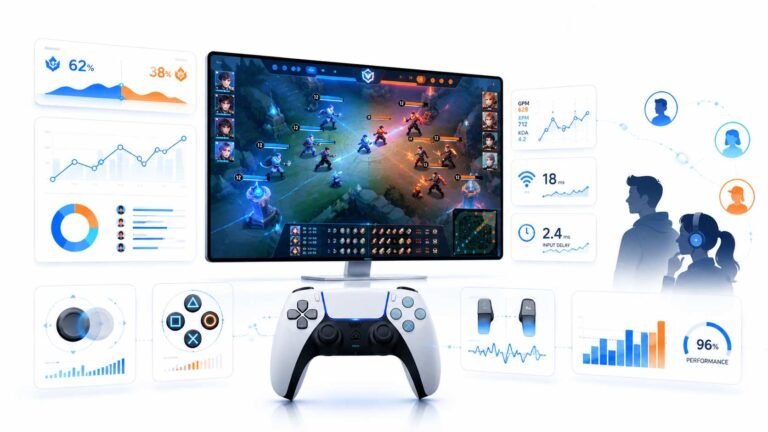
Esports viewing has changed a lot. Fans no longer watch only for big kills, clutch rounds, final scores, or highlight…

Playing on my TV, fast motion in games looks smeared and sometimes soap-opera smooth. Your response time test on the TV looks blurrier than on my monitor. Which motion settings should I change?
Turn on game mode for the HDMI input, which disables most processing and lowers lag. Turn off motion smoothing or interpolation for games, since it adds lag and artefacts. If the TV supports 120 Hz and variable refresh, use them. A low blur reduction setting can sharpen motion at the cost of brightness.

TVs have a lot of motion processing designed for films and sport, and most of it works against games.
Game mode first. Enable game mode for the HDMI input your PC or console uses. It switches off much of the processing and reduces input lag dramatically. Some TVs switch automatically when a console asks for it.
Motion smoothing off. Motion interpolation, the feature that creates the soap-opera look, invents in-between frames. In games it adds lag and can create smeared artefacts around moving objects. Turn it off for games.
High refresh and variable refresh. If your TV supports 120 Hz and variable refresh, enable them for the input and set your PC or console to output 120 Hz. Motion becomes clearer and smoother.
Blur reduction. Some TVs offer a blur reduction or black frame insertion option that strobes the image to sharpen motion. It reduces brightness and some people notice flicker, so try it at low levels.
Then compare our response time test on the TV again. It will not match a fast monitor exactly, but game mode with 120 Hz should make it much cleaner.
Tested on: Applies to LED, mini-LED and OLED TVs used for gaming. Setting names vary by manufacturer.
Checked by Simon Fletcher on . How we verify answers
Front-End Performance Engineer at Gamepad Tester
Isabela works on graphics performance. A test that polls a controller continuously and repaints an SVG on every frame can saturate a budget phone's CPU, and once the frame rate drops the readings stop being trustworthy. Her work is keeping the overlays and animations cheap: minimal repaints, fewer live nodes, and a render path that degrades gracefully instead of stuttering. On Gamepad Tester she is responsible for the performance of the tools on mobile and low-end devices.
 Calder WrightFront-End Web Architect And Gamepad API Lead
 Elena RostovaHardware Diagnostics Engineer
 Garrett LindsayHardware Reviewer And Input Performance Specialist
 Venom’s Tech (Abhishek)Peripheral Reviewer And Tech Journalist
 Chloe HendersonHall Effect And Thumbstick Analyst
 Thiago AlvesHardware Repair Educator
 Devon MillerLow Latency And Input Timing Engineer
 Liam DaviesBluetooth And Wireless Test Engineer
Each answer is written by the specialist who owns that part of the hardware, tested on a real controller, and checked by a second team member. How we verify answers
Answers are free general guidance from the Gamepad Tester Team and the community. Opening a controller or replacing a thumbstick module can void your warranty, so check the maker's support or warranty first. Battery and soldering work carries a real risk of damage or injury.
Every test runs in your own browser with the Gamepad API. No sign up, no download, and your controller data never leaves your device.
Esports viewing has changed a lot. Fans no longer watch only for big kills, clutch rounds, final scores, or highlight…
If you have ever watched a video that looked choppy, played a game that felt sluggish, or noticed that scrolling on…
Content creators, marketers, and businesses are finding creating images and videos more and more effortless via AI. As…
The newest replies from players and the Gamepad Tester Team.