How Data Is Changing the Way Players and Fans Watch Esports
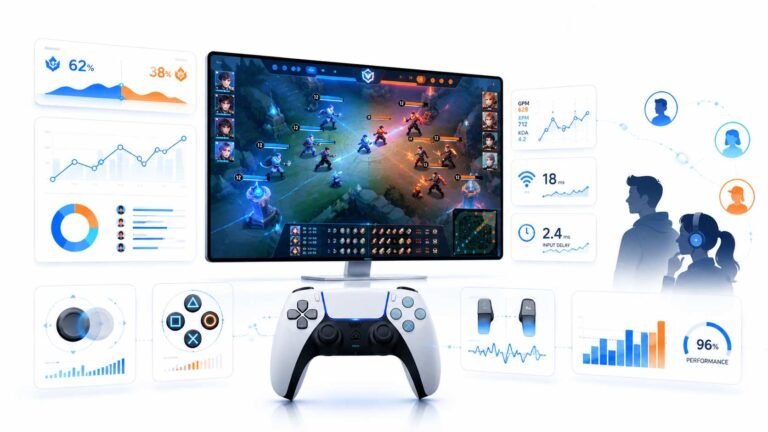
Esports viewing has changed a lot. Fans no longer watch only for big kills, clutch rounds, final scores, or highlight…

My iPad Pro has a 120Hz ProMotion screen and scrolling feels smooth, but your refresh rate test in Safari says 60. Is ProMotion not working, or is it Safari?
ProMotion is likely fine; Safari has historically limited web animations to around 60 frames per second to save power, with a feature flag that changes it. Low Power Mode also caps ProMotion at 60. Check both, and compare with another browser.

Your smooth scrolling suggests ProMotion works. The 60 reading comes from how the browser draws web content.
Our refresh rate test measures how often the browser updates the page. On ProMotion devices, Safari has historically preferred updating web pages at around 60 frames per second to save battery, even though system scrolling runs at 120. Safari includes a setting in its advanced feature flags, labelled along the lines of prefer page rendering updates near 60fps. Turning it off lets web content run at the higher rate. Look under Settings, Apps, Safari, Advanced, Feature Flags; menus move between iOS versions.
Low Power Mode also caps ProMotion displays at 60Hz system-wide. Check it is off, and that the iPad is not in a power saving state.
Accessibility's Limit Frame Rate option also caps the display at 60. Make sure it is off if you want 120.
Then run the test again, keeping the page still for a few seconds. On iPadOS, the screen may also lower its rate when nothing is moving, so a moving test gives the clearest reading.
Tested on: Applies to iPad Pro and ProMotion iPhones with iOS 26. Feature flag names and locations can change between versions.
Checked by Priya Patel on . How we verify answers
Mobile Browser Compatibility Engineer at Gamepad Tester
Chris works on mobile web input. Phone browsers are the hardest place to test a controller: a Bluetooth clip-on pad may connect to the phone but stay invisible to the page, iOS and Android expose the Gamepad API at different moments, and a backgrounded tab stops polling entirely. He works through those cases so a mobile player gets the same test result a desktop player would. On Gamepad Tester he answers the mobile questions, including controllers that pair with a phone but send no input to the browser.
 Calder WrightFront-End Web Architect And Gamepad API Lead
 Elena RostovaHardware Diagnostics Engineer
 Garrett LindsayHardware Reviewer And Input Performance Specialist
 Venom’s Tech (Abhishek)Peripheral Reviewer And Tech Journalist
 Chloe HendersonHall Effect And Thumbstick Analyst
 Thiago AlvesHardware Repair Educator
 Devon MillerLow Latency And Input Timing Engineer
 Liam DaviesBluetooth And Wireless Test Engineer
Each answer is written by the specialist who owns that part of the hardware, tested on a real controller, and checked by a second team member. How we verify answers
Answers are free general guidance from the Gamepad Tester Team and the community. Opening a controller or replacing a thumbstick module can void your warranty, so check the maker's support or warranty first. Battery and soldering work carries a real risk of damage or injury.
Every test runs in your own browser with the Gamepad API. No sign up, no download, and your controller data never leaves your device.
Esports viewing has changed a lot. Fans no longer watch only for big kills, clutch rounds, final scores, or highlight…
If you have ever watched a video that looked choppy, played a game that felt sluggish, or noticed that scrolling on…
Content creators, marketers, and businesses are finding creating images and videos more and more effortless via AI. As…
The newest replies from players and the Gamepad Tester Team.