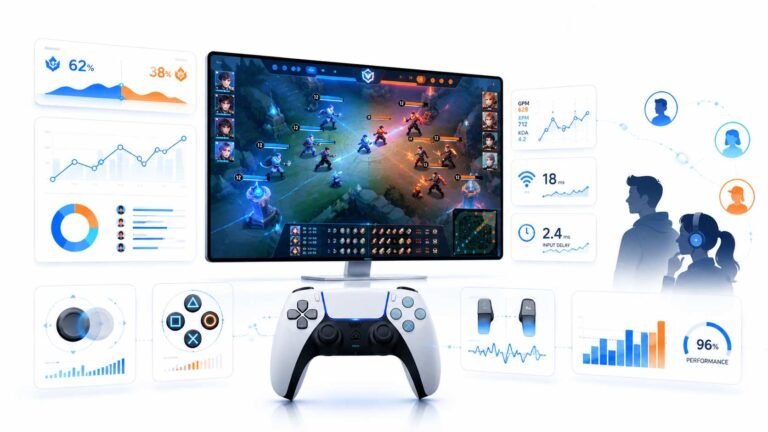
How Data Is Changing the Way Players and Fans Watch Esports
Esports viewing has changed a lot. Fans no longer watch only for big kills, clutch rounds, final scores, or highlight…

Windows offers both 60 and 59.94 Hz for my monitor and your refresh rate test reads about 59.9 or 60 depending on the setting. Does the small difference matter? Which should I pick?
It barely matters. 59.94 Hz is a video standard inherited from television, used so video plays without dropped frames; 60 Hz is the usual PC rate. For general use and games, choose 60 Hz. For watching broadcast or video content, 59.94 can avoid an occasional skipped frame. A reading within about a tenth of a hertz is normal.

The difference is tiny and comes from television history. Broadcast video in many regions runs at 29.97 or 59.94 frames per second rather than exactly 30 or 60, a quirk from when colour was added to TV signals. Displays and graphics cards offer 59.94 Hz so that video at that rate plays perfectly in step, without the occasional skipped or repeated frame.
For PC use and gaming, 60 Hz is the normal choice, and you will not notice any difference in smoothness between the two.
For watching video, matching the content's frame rate can avoid a very small judder once every several seconds. Most people never notice it, and many media apps handle it automatically.
On your test readings: our refresh rate test measures how often the browser draws frames, which follows the display's rate. A reading of 59.9 on the 59.94 setting, and 60.0 on the 60 setting, is exactly what we would expect. Small variations of a tenth of a hertz are normal measurement noise.
If your monitor supports higher rates, such as 144 Hz, those are the ones to pick for games.
Tested on: Applies to monitors and TVs on Windows 11. Frame timing per MDN's requestAnimationFrame documentation.
Checked by Calder Wright on . How we verify answers
Low Latency And Input Timing Engineer at Gamepad Tester
Devon is a low latency engineer. On a browser-based latency test the easiest mistake is measuring the wrong thing: network round trips, render queues and browser throttling can all add milliseconds that have nothing to do with the controller. His work is isolating the input path so that what the test reports is the hardware delay, and documenting the conditions under which the reading is trustworthy. On Gamepad Tester he owns the latency test and the input lag topic, and checks any answer that quotes a millisecond figure.
 Calder WrightFront-End Web Architect And Gamepad API Lead
 Elena RostovaHardware Diagnostics Engineer
 Garrett LindsayHardware Reviewer And Input Performance Specialist
 Venom’s Tech (Abhishek)Peripheral Reviewer And Tech Journalist
 Chloe HendersonHall Effect And Thumbstick Analyst
 Thiago AlvesHardware Repair Educator
 Liam DaviesBluetooth And Wireless Test Engineer
 Nadia BrooksEsports Performance Consultant
Each answer is written by the specialist who owns that part of the hardware, tested on a real controller, and checked by a second team member. How we verify answers
Answers are free general guidance from the Gamepad Tester Team and the community. Opening a controller or replacing a thumbstick module can void your warranty, so check the maker's support or warranty first. Battery and soldering work carries a real risk of damage or injury.
Every test runs in your own browser with the Gamepad API. No sign up, no download, and your controller data never leaves your device.
Esports viewing has changed a lot. Fans no longer watch only for big kills, clutch rounds, final scores, or highlight…
If you have ever watched a video that looked choppy, played a game that felt sluggish, or noticed that scrolling on…
Bilibili Gaming defeated G2 Esports 3-1 in São Paulo on March 22, 2026, to win an international League of Legends…
The newest replies from players and the Gamepad Tester Team.