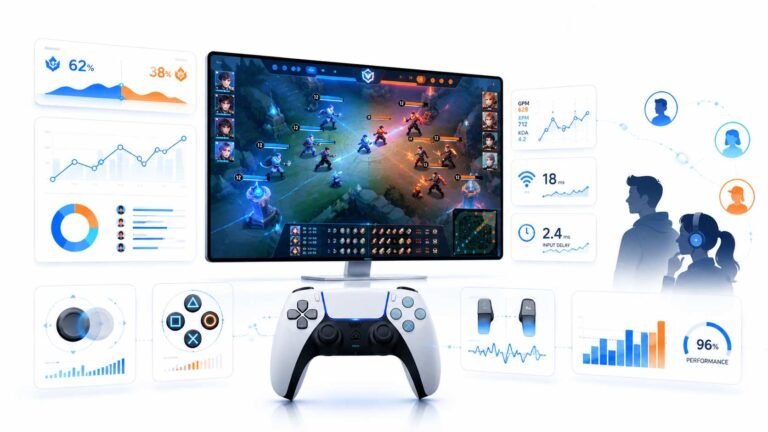
How Data Is Changing the Way Players and Fans Watch Esports
Esports viewing has changed a lot. Fans no longer watch only for big kills, clutch rounds, final scores, or highlight…

My OLED TV and some monitors offer black frame insertion. When I turn it on, your motion blur test looks sharper but the screen is darker and sometimes flickers at 60 Hz. What is it doing?
Black frame insertion shows each frame for part of the refresh, then a black period, instead of holding the image. Your eyes see less smear, so motion looks sharper. The costs are lower brightness and possible visible flicker, especially at 60 Hz. Use it for content at steady high frame rates if you do not notice flicker.

Black frame insertion, BFI, is the OLED and TV equivalent of backlight strobing.
Normally, a display holds each frame on screen for the whole refresh period. As your eyes follow moving objects, the held image smears across your vision, which is sample and hold motion blur. BFI shows each frame for only part of the period and then shows black, so your eyes get a shorter flash of each image. Motion looks noticeably sharper, which is what our motion blur test shows.
The trade-offs:
Brightness. The screen is dark for part of each frame, so overall brightness drops, sometimes a lot.
Flicker. At 60 Hz, the black periods happen 60 times a second, which many people can see as flicker and some find tiring. At 120 Hz it is much less noticeable.
Consistency. BFI looks best with steady frame rates. With fluctuating frame rates or variable refresh, many displays turn it off or it looks uneven.
When to use it: for sports, fast films and games at steady 120 frames per second if you do not notice flicker. Leave it off for HDR content where brightness matters, and if it causes any discomfort.
Tested on: Applies to OLED TVs and monitors with black frame insertion. Behaviour reflects how BFI reduces sample and hold blur.
Checked by Devon Miller on . How we verify answers
Front-End Web Architect And Gamepad API Lead at Gamepad Tester
Calder is a front-end web architect working with the HTML5 Gamepad API. His focus is the part most browser testers get wrong: reading a controller often enough, and timing it well enough, that the numbers on screen match what the hardware is actually sending. He writes the polling loops that capture analog trigger tension and stick travel without dropping samples, and renders them on 2D vector layouts that hold a steady 60+ FPS on ordinary laptops. On Gamepad Tester he maintains the main tester tool, the button test and the trigger pressure test, and reviews any answer that explains how a reading on this site should be interpreted.
 Elena RostovaHardware Diagnostics Engineer
 Garrett LindsayHardware Reviewer And Input Performance Specialist
 Venom’s Tech (Abhishek)Peripheral Reviewer And Tech Journalist
 Chloe HendersonHall Effect And Thumbstick Analyst
 Thiago AlvesHardware Repair Educator
 Devon MillerLow Latency And Input Timing Engineer
 Liam DaviesBluetooth And Wireless Test Engineer
 Nadia BrooksEsports Performance Consultant
Each answer is written by the specialist who owns that part of the hardware, tested on a real controller, and checked by a second team member. How we verify answers
Answers are free general guidance from the Gamepad Tester Team and the community. Opening a controller or replacing a thumbstick module can void your warranty, so check the maker's support or warranty first. Battery and soldering work carries a real risk of damage or injury.
Every test runs in your own browser with the Gamepad API. No sign up, no download, and your controller data never leaves your device.
Esports viewing has changed a lot. Fans no longer watch only for big kills, clutch rounds, final scores, or highlight…
If you have ever watched a video that looked choppy, played a game that felt sluggish, or noticed that scrolling on…
Content creators, marketers, and businesses are finding creating images and videos more and more effortless via AI. As…
The newest replies from players and the Gamepad Tester Team.