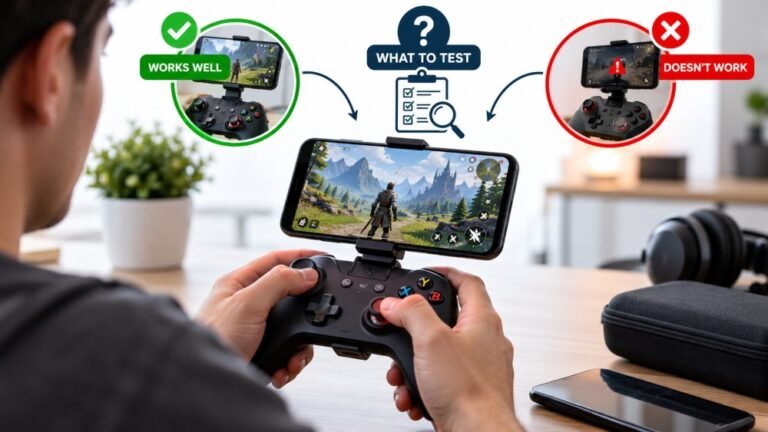
Playing Mobile Games With A Controller: What Works, What Doesn’t, And What To Test Before You Spend
You paired the controller, the light went solid, your phone said "Connected," and then the game did absolutely…

Using RetroArch on PC with a cheap SNES style USB controller. The buttons are all over the place: B does what A should, start doesn't open the menu, and the D-pad works in menus but not in games. Your tester shows all buttons working fine. Where do I fix this?
The controller is fine; RetroArch has no ready profile for it, so the layout is guessed. Bind the buttons once under RetroArch's input settings for port 1, save the profile, and choose whether confirm and cancel follow Nintendo or Xbox positions.

Your tester result settles the hardware question: every button works. The mix-up is in RetroArch's mapping.
RetroArch uses a virtual controller called the RetroPad and automatically loads profiles for controllers it recognises. Cheap unbranded pads often have no profile, so RetroArch guesses, and the guess is wrong. The fix is to bind your buttons once yourself.
Go to the input settings, open the binds for port 1, and set each RetroPad button by pressing the matching button on your controller. Pay attention to the D-pad: some cheap pads report it as a hat or an axis, so bind it by pressing the directions rather than assuming. Then save the controller profile so RetroArch loads it automatically next time.
On A and B: SNES-style pads put A on the right and B at the bottom, like Nintendo. RetroArch has an option to swap the OK and cancel buttons in menus, so pick the behaviour that feels natural to you.
If games still ignore input after binding, check that each core uses the same port and that you have not saved a per-core remap that overrides your binds.
Tested on: Applies to RetroArch on Windows 11 with generic USB controllers. Button identity per the W3C Gamepad specification's non-standard mapping.
Checked by Marcus Vance on . How we verify answers
Fighting Game Hardware Analyst at Gamepad Tester
Matheus analyses hardware for the fighting game community, where a few milliseconds and a single simultaneous-input conflict decide whether a combo comes out. He tests arcade fightsticks, leverless hitbox-style controllers and custom builds for execution window errors, SOCD conflicts, missed simultaneous presses and the button-rollover limits that only appear under fast input. On Gamepad Tester he answers the questions about fightsticks and leverless pads, and the ones where a controller tests perfectly but still drops inputs in a game.
 Calder WrightFront-End Web Architect And Gamepad API Lead
 Elena RostovaHardware Diagnostics Engineer
 Garrett LindsayHardware Reviewer And Input Performance Specialist
 Venom’s Tech (Abhishek)Peripheral Reviewer And Tech Journalist
 Chloe HendersonHall Effect And Thumbstick Analyst
 Thiago AlvesHardware Repair Educator
 Devon MillerLow Latency And Input Timing Engineer
 Liam DaviesBluetooth And Wireless Test Engineer
Each answer is written by the specialist who owns that part of the hardware, tested on a real controller, and checked by a second team member. How we verify answers
Answers are free general guidance from the Gamepad Tester Team and the community. Opening a controller or replacing a thumbstick module can void your warranty, so check the maker's support or warranty first. Battery and soldering work carries a real risk of damage or injury.
Every test runs in your own browser with the Gamepad API. No sign up, no download, and your controller data never leaves your device.
You paired the controller, the light went solid, your phone said "Connected," and then the game did absolutely…
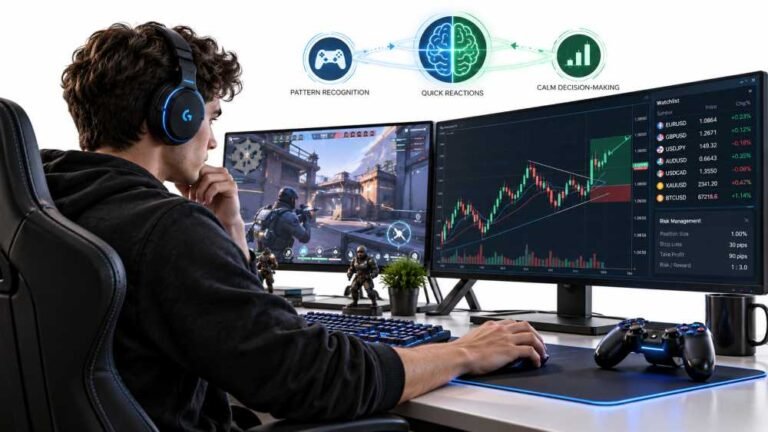
Gaming and trading look like separate worlds until you sit down and do both. One rewards reaction speed, pattern…
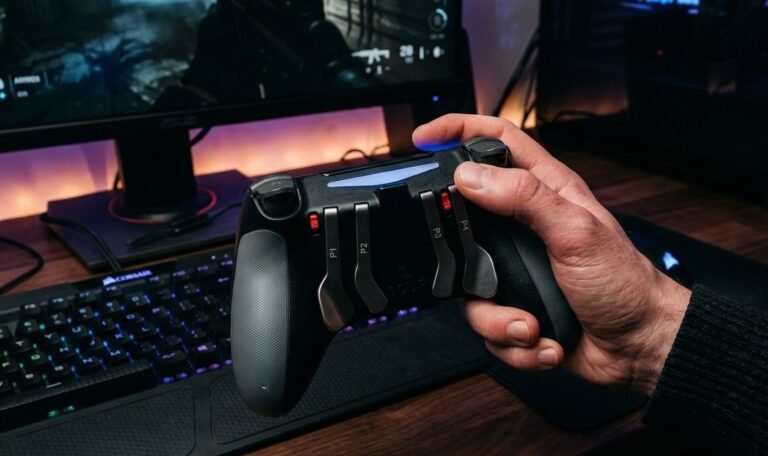
The Xbox Elite Series 2 seemed amazing for the first two weeks. Interchangeable thumbsticks, adjustable trigger locks…
The newest replies from players and the Gamepad Tester Team.