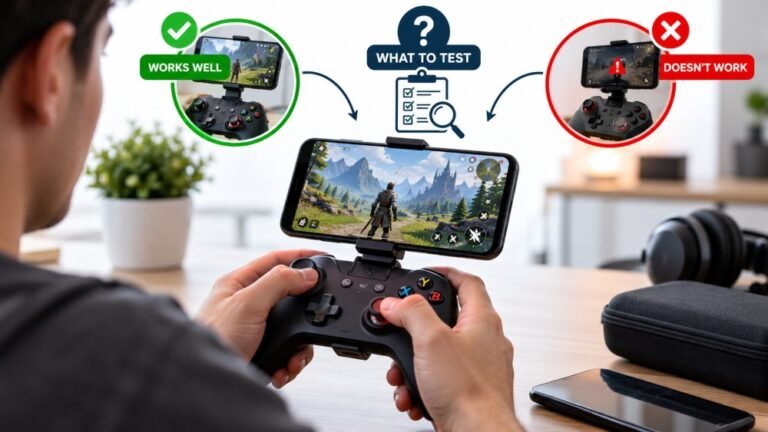
Playing Mobile Games With A Controller: What Works, What Doesn’t, And What To Test Before You Spend
You paired the controller, the light went solid, your phone said "Connected," and then the game did absolutely…

Playing a shooter on PC with my Xbox controller and aim assist doesn't seem to work at all, aiming feels like a mouse. On console it's fine. Your tester sees the controller normally. Did I break something in settings?
Aim assist only activates when the game detects controller input. If Steam Input or another tool is turning your stick into mouse movement, the game thinks you are on mouse and switches aim assist off. Use a gamepad layout, not a mouse layout, and check the game's aim assist setting.

If aiming feels like a mouse, it may literally be a mouse as far as the game is concerned.
Shooters with aim assist only switch it on when they detect controller input. If your right stick is being converted into mouse movement, the game sees mouse input and disables aim assist. The usual cause on PC is Steam Input using a layout that maps the stick to mouse, or a remapping tool doing the same. Community layouts sometimes do this deliberately.
Check Steam's controller layout for that game and make sure it is a gamepad layout where the right stick acts as a joystick, not a mouse. Or disable Steam Input for that game if the game supports your controller natively. Close other remapping tools.
Then check the game itself. Most games have an aim assist toggle and sometimes several types in the controller settings, and a few disable it in certain modes.
A quick confirmation: in many games the on-screen button prompts switch to controller icons when they detect controller input. If you see keyboard prompts while using the controller, the game is not seeing it as a controller.
Tested on: Applies to Xbox and PlayStation controllers on Windows 11 with Steam. Steam Input behaviour per Valve's documentation.
Checked by Lucas Rocha on . How we verify answers
Embedded Systems And Firmware Programmer at Gamepad Tester
Alistair is an embedded systems programmer. He writes custom firmware for third-party PC gamepads and builds input-parsing test rigs on microcontrollers such as the Arduino and Raspberry Pi Pico, which means he can see what a controller is sending at the wire level rather than guessing from what the operating system reports. That is usually the fastest way to settle whether a fault is in the pad, the driver or the browser. On Gamepad Tester he answers the firmware and driver questions, including the ones where an update has broken a working controller.
 Calder WrightFront-End Web Architect And Gamepad API Lead
 Elena RostovaHardware Diagnostics Engineer
 Garrett LindsayHardware Reviewer And Input Performance Specialist
 Venom’s Tech (Abhishek)Peripheral Reviewer And Tech Journalist
 Chloe HendersonHall Effect And Thumbstick Analyst
 Thiago AlvesHardware Repair Educator
 Devon MillerLow Latency And Input Timing Engineer
 Liam DaviesBluetooth And Wireless Test Engineer
Each answer is written by the specialist who owns that part of the hardware, tested on a real controller, and checked by a second team member. How we verify answers
Answers are free general guidance from the Gamepad Tester Team and the community. Opening a controller or replacing a thumbstick module can void your warranty, so check the maker's support or warranty first. Battery and soldering work carries a real risk of damage or injury.
Every test runs in your own browser with the Gamepad API. No sign up, no download, and your controller data never leaves your device.
You paired the controller, the light went solid, your phone said "Connected," and then the game did absolutely…
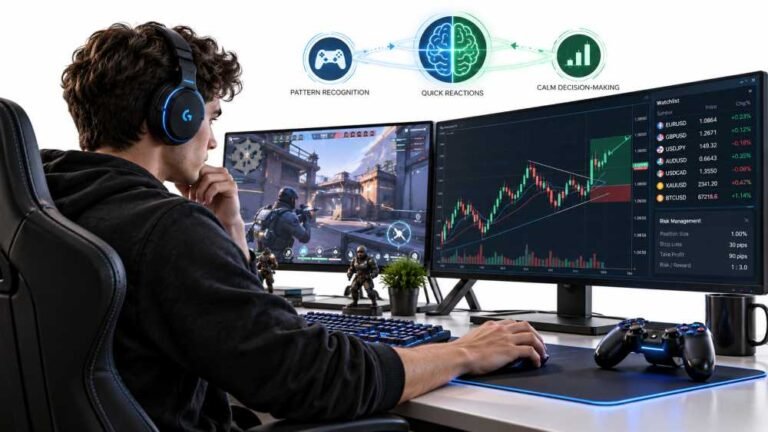
Gaming and trading look like separate worlds until you sit down and do both. One rewards reaction speed, pattern…
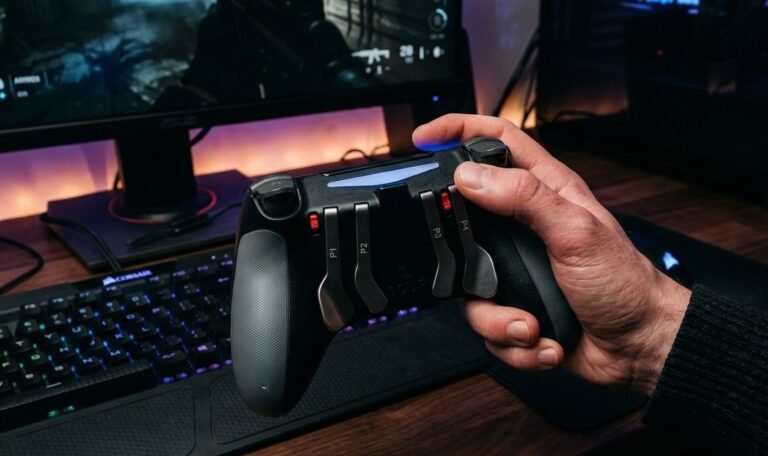
The Xbox Elite Series 2 seemed amazing for the first two weeks. Interchangeable thumbsticks, adjustable trigger locks…
The newest replies from players and the Gamepad Tester Team.