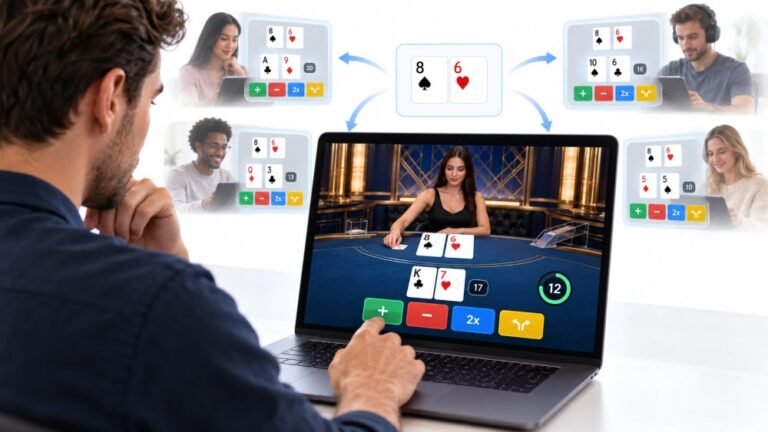
One Deal, Unlimited Inputs: How Infinite Blackjack Handles Thousands Of Decisions At Once
Every controller test starts the same way. You press a button, the screen confirms it, and for a split second you are…

On my laptop, pressing F5 changes brightness and F2 lowers volume instead of doing what they should. In games and Excel I need the real F keys. The keyboard test shows the media action not F5. How do I switch it?
Your laptop is set to use the top row for media keys by default. Turn on Fn lock, often Fn plus Esc, or change the function key behaviour in the laptop's settings app or BIOS so F1 to F12 work without holding Fn.

Many laptops ship with the top row set to media functions first: volume, brightness and so on. To get F1 to F12 you have to hold Fn. Your keyboard test result shows exactly that: the key sends the media action, not F5.
You can flip it. Most laptops have Fn lock. On many models it is Fn plus Esc, and the Esc key often has a small padlock icon or Fn label. Pressing it toggles between media keys and function keys, sometimes with a small light to show which mode is on.
If there is no Fn lock key, look in the laptop maker's settings app for a function key or hotkey mode. If it is not there either, the BIOS or firmware setup usually has an option often called action keys mode or function key behaviour.
After changing it, press F5 in the keyboard test. It should show F5. Hold Fn to reach the media functions when you need them.
Tested on: Applies to laptops on Windows 11. Key events per MDN's KeyboardEvent documentation.
Checked by Tyler Vance on . How we verify answers
Front-End Developer at Gamepad Tester
Rohan is a React and Next.js developer working on responsive interfaces that handle continuous input. Reading a controller many times a second and updating an interface at the same time is the kind of work that blocks a main thread and makes a page feel broken, so his focus is keeping input handling off the render path and the interface responsive under constant updates. On Gamepad Tester he builds and maintains the front-end around the test tools.
 Calder WrightFront-End Web Architect And Gamepad API Lead
 Elena RostovaHardware Diagnostics Engineer
 Garrett LindsayHardware Reviewer And Input Performance Specialist
 Venom’s Tech (Abhishek)Peripheral Reviewer And Tech Journalist
 Chloe HendersonHall Effect And Thumbstick Analyst
 Thiago AlvesHardware Repair Educator
 Devon MillerLow Latency And Input Timing Engineer
 Liam DaviesBluetooth And Wireless Test Engineer
Each answer is written by the specialist who owns that part of the hardware, tested on a real controller, and checked by a second team member. How we verify answers
Answers are free general guidance from the Gamepad Tester Team and the community. Opening a controller or replacing a thumbstick module can void your warranty, so check the maker's support or warranty first. Battery and soldering work carries a real risk of damage or injury.
Every test runs in your own browser with the Gamepad API. No sign up, no download, and your controller data never leaves your device.
Every controller test starts the same way. You press a button, the screen confirms it, and for a split second you are…
Is your gamepad feeling a little...lazy? Maybe your character in your favorite game isn't running when you press the…
Content creators, marketers, and businesses are finding creating images and videos more and more effortless via AI. As…
The newest replies from players and the Gamepad Tester Team.