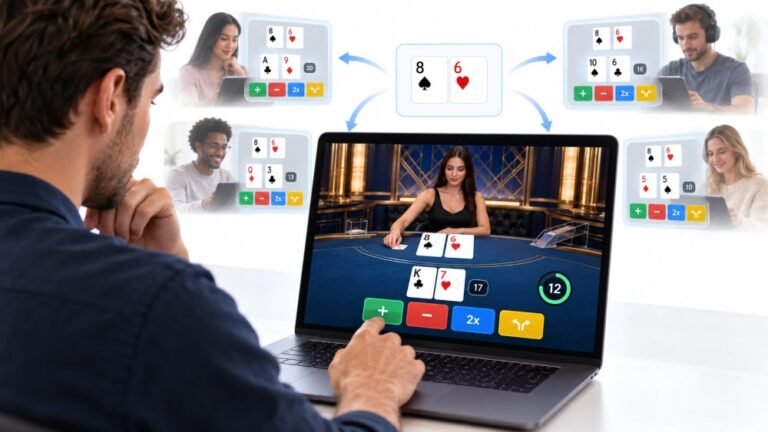
One Deal, Unlimited Inputs: How Infinite Blackjack Handles Thousands Of Decisions At Once
Every controller test starts the same way. You press a button, the screen confirms it, and for a split second you are…

My mouse is supposed to be 1000Hz and it's set to that in the software. Your polling rate test only shows about 500, sometimes jumping lower. Wireless mouse with its dongle. Is the test wrong or is my mouse not hitting 1000?
Often both are partly right. The receiver's position, a USB hub, or a power saving mode can lower the real rate, and browser measurement can under-read high rates. Move the mouse quickly and steadily, plug the receiver into a direct port near the mouse, and use Chrome for the most accurate reading.

Polling rate tests are a bit sensitive to how you test, so let me separate the real causes from measurement effects.
The measurement side. A mouse only sends reports while it is moving, so slow or jerky movement gives low, jumpy readings. Move it in quick, steady circles for a few seconds. Browsers can also group pointer events together and deliver them per display frame; Chrome provides a raw pointer event designed to report every update, which gives the most accurate browser reading.
The real causes. Wireless receivers need a clean signal: plugged into a rear port behind a metal case, or far from the mouse, they can drop reports. Use the extension adapter that came with the mouse and place the receiver near the mouse. USB hubs and some front panel ports can also limit the rate. And many wireless mice have power saving or battery modes that lower the polling rate, so check the mouse software.
If the reading reaches close to 1000 with steady movement and a well placed receiver, your mouse is fine. If it stays near 500 regardless, the setting may not be saving to the mouse, so set it again and update the mouse firmware.
Tested on: Applies to wired and wireless mice on Windows 11 with Chrome or Edge. Browser event behaviour per MDN's pointerrawupdate documentation.
Checked by Garrett Lindsay on . How we verify answers
Low Level Systems Programmer at Gamepad Tester
Gabriel is a low-level C programmer working on desktop input architecture. He builds native tooling that samples stick and trigger telemetry at sub-millisecond intervals, below the rate a browser can reach, which gives a reference measurement to compare a web test against. When a browser reading looks wrong, his capture is how the team confirms whether the controller, the operating system or the page is at fault. On Gamepad Tester he provides the reference measurements behind the latency and drift answers.
 Calder WrightFront-End Web Architect And Gamepad API Lead
 Elena RostovaHardware Diagnostics Engineer
 Garrett LindsayHardware Reviewer And Input Performance Specialist
 Venom’s Tech (Abhishek)Peripheral Reviewer And Tech Journalist
 Chloe HendersonHall Effect And Thumbstick Analyst
 Thiago AlvesHardware Repair Educator
 Devon MillerLow Latency And Input Timing Engineer
 Liam DaviesBluetooth And Wireless Test Engineer
Each answer is written by the specialist who owns that part of the hardware, tested on a real controller, and checked by a second team member. How we verify answers
Answers are free general guidance from the Gamepad Tester Team and the community. Opening a controller or replacing a thumbstick module can void your warranty, so check the maker's support or warranty first. Battery and soldering work carries a real risk of damage or injury.
Every test runs in your own browser with the Gamepad API. No sign up, no download, and your controller data never leaves your device.
Every controller test starts the same way. You press a button, the screen confirms it, and for a split second you are…
Is your gamepad feeling a little...lazy? Maybe your character in your favorite game isn't running when you press the…
Content creators, marketers, and businesses are finding creating images and videos more and more effortless via AI. As…
The newest replies from players and the Gamepad Tester Team.