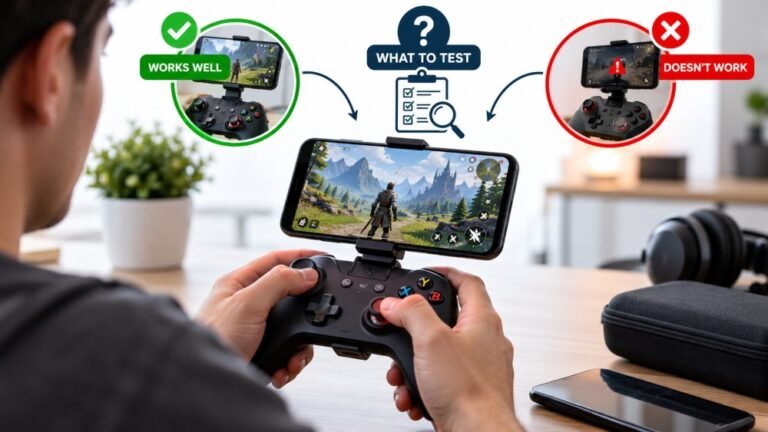
Playing Mobile Games With A Controller: What Works, What Doesn’t, And What To Test Before You Spend
You paired the controller, the light went solid, your phone said "Connected," and then the game did absolutely…

My 8BitDo controller works on my Switch but on PC some games don't see it, and on my Android phone the buttons are weird. I think there are different modes when you turn it on? Which one for which device?
Many 8BitDo controllers choose their mode by the button you hold while turning them on, or by a switch. Use X-input mode for Windows, Switch mode for the Switch, and the Android or D-input mode for Android. Check your model's manual, since combinations vary.

You are right that 8BitDo controllers have different modes, and using the wrong one explains both problems.
On many 8BitDo controllers, you pick the mode by holding a specific button while pressing Start to turn the controller on, and pair it once in each mode. Others have a mode switch on the back or bottom, or a dedicated dongle. The common modes are X-input for Windows, Switch mode for the Nintendo Switch, D-input or Android mode for Android, and a macOS mode on some models. The exact button combinations differ between models, so check your controller's manual or 8BitDo's support page for your model.
For PC, use X-input mode. The controller then appears as an Xbox-style controller, so nearly every game recognises it, and our tester shows it with a standard layout.
For Android, use the Android or D-input mode. In Switch mode, the phone may see the controller with Nintendo-style button positions, which feels wrong in Android games.
Each mode pairs separately, so pair it once in each mode with each device. After that, turning it on in the right mode reconnects to the right device.
Tested on: Applies to 8BitDo Bluetooth controllers on Windows 11, Android and Nintendo Switch. Mode behaviour per 8BitDo's controller and adapter documentation.
Checked by Matheus Lima on . How we verify answers
Open Source Contributor And Device ID Specialist at Gamepad Tester
Vikram contributes to open source Gamepad API tooling, with a focus on device identification. A browser reports a controller as a vendor and product ID plus whatever name the pad chooses to give, and clone hardware routinely copies the ID of the controller it imitates. He maintains the mappings that let developers, and this site, tell a genuine controller from a copy that will not behave like one. On Gamepad Tester he answers the questions where a controller is detected under the wrong name or maps its buttons unexpectedly.
 Calder WrightFront-End Web Architect And Gamepad API Lead
 Elena RostovaHardware Diagnostics Engineer
 Garrett LindsayHardware Reviewer And Input Performance Specialist
 Venom’s Tech (Abhishek)Peripheral Reviewer And Tech Journalist
 Chloe HendersonHall Effect And Thumbstick Analyst
 Thiago AlvesHardware Repair Educator
 Devon MillerLow Latency And Input Timing Engineer
 Liam DaviesBluetooth And Wireless Test Engineer
Each answer is written by the specialist who owns that part of the hardware, tested on a real controller, and checked by a second team member. How we verify answers
Answers are free general guidance from the Gamepad Tester Team and the community. Opening a controller or replacing a thumbstick module can void your warranty, so check the maker's support or warranty first. Battery and soldering work carries a real risk of damage or injury.
Every test runs in your own browser with the Gamepad API. No sign up, no download, and your controller data never leaves your device.
You paired the controller, the light went solid, your phone said "Connected," and then the game did absolutely…
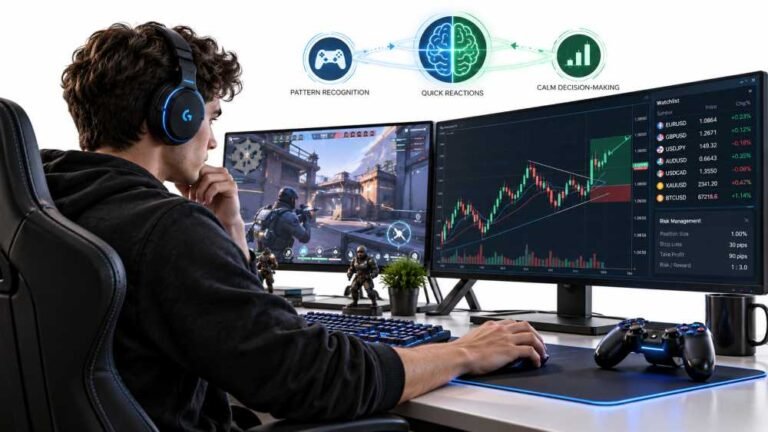
Gaming and trading look like separate worlds until you sit down and do both. One rewards reaction speed, pattern…
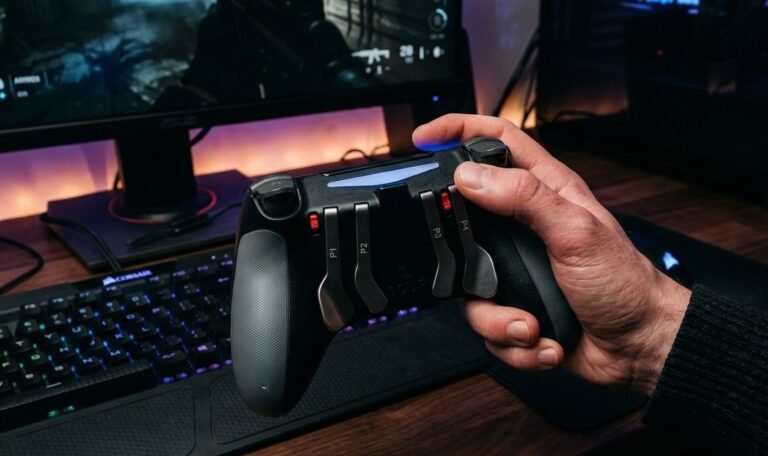
The Xbox Elite Series 2 seemed amazing for the first two weeks. Interchangeable thumbsticks, adjustable trigger locks…
The newest replies from players and the Gamepad Tester Team.