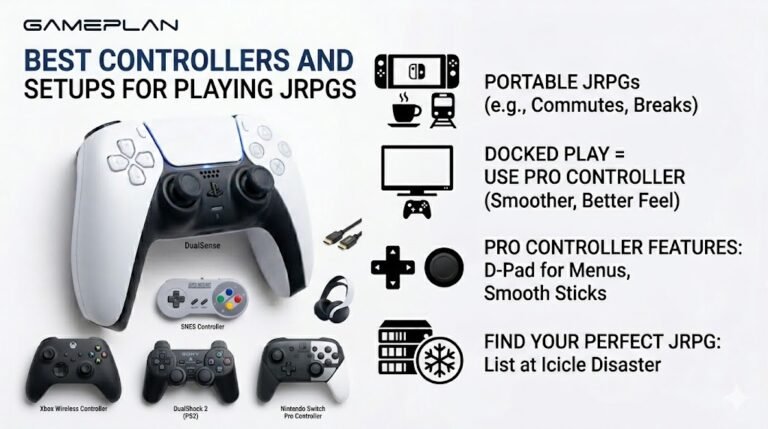
Best Controllers and Setups for Playing JRPGs
Nobody ever talks about controller ergonomics when they recommend JRPGs, and honestly, that is a mistake. These are…

My Bluetooth headphones are loud on my phone but really quiet on my Windows laptop, even with Windows at 100%. The sound test tone is quiet too. Is there a hidden volume somewhere?
Often yes: the headphones have their own volume level, separate from Windows on some setups. Press the headphones' volume up button while audio plays, check app levels in the volume mixer, and turn off any volume limit in the headphones' app.

There often is a second volume. Bluetooth headphones can keep their own volume level, and depending on the headphones and Windows, that level does not always follow the Windows slider. If the headphones' own level is low, Windows at 100 percent still sounds quiet.
While the sound test plays, press the volume up button on the headphones themselves several times. If the sound gets louder, that was it.
Then check the other levels. Open the volume mixer from the sound icon and make sure the app you are using, such as the browser, is not turned down. Check the headphones' companion app for a volume limiter or hearing protection setting. Some music apps also normalise volume.
If it is still quiet, remove the headphones from Bluetooth settings and pair them again, which resets how Windows handles their volume, and update the laptop's Bluetooth driver.
One caution: when you find the extra loudness, keep it at a comfortable level. Headphones close to the ear can damage hearing over time at high volume.
Tested on: Applies to Bluetooth headphones on Windows 11. Steps per Microsoft's sound troubleshooting guide.
Checked by Divya Nair on . How we verify answers
Bluetooth And Wireless Test Engineer at Gamepad Tester
Liam works on Bluetooth Low Energy and wireless input. Most pairing complaints are not really pairing problems: they are packet drops, signal jitter or interference from a crowded 2.4GHz band, and they look completely different on a trace than they do to the player. He tests how controllers behave over distance, through walls, alongside other wireless devices, and on the proprietary dongles that several brands ship. On Gamepad Tester he answers the pairing and dropout questions and verifies fixes over both Bluetooth and adapter connections.
 Calder WrightFront-End Web Architect And Gamepad API Lead
 Elena RostovaHardware Diagnostics Engineer
 Garrett LindsayHardware Reviewer And Input Performance Specialist
 Venom’s Tech (Abhishek)Peripheral Reviewer And Tech Journalist
 Chloe HendersonHall Effect And Thumbstick Analyst
 Thiago AlvesHardware Repair Educator
 Devon MillerLow Latency And Input Timing Engineer
 Nadia BrooksEsports Performance Consultant
Each answer is written by the specialist who owns that part of the hardware, tested on a real controller, and checked by a second team member. How we verify answers
Answers are free general guidance from the Gamepad Tester Team and the community. Opening a controller or replacing a thumbstick module can void your warranty, so check the maker's support or warranty first. Battery and soldering work carries a real risk of damage or injury.
Every test runs in your own browser with the Gamepad API. No sign up, no download, and your controller data never leaves your device.
Nobody ever talks about controller ergonomics when they recommend JRPGs, and honestly, that is a mistake. These are…
Content creators, marketers, and businesses are finding creating images and videos more and more effortless via AI. As…
Bilibili Gaming defeated G2 Esports 3-1 in São Paulo on March 22, 2026, to win an international League of Legends…
The newest replies from players and the Gamepad Tester Team.

