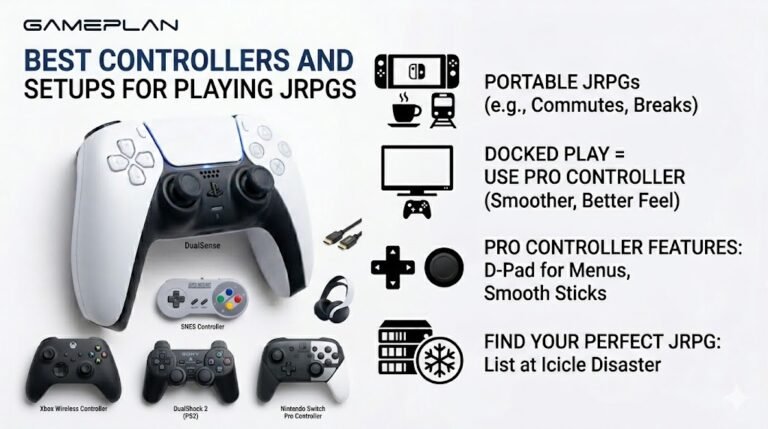
Best Controllers and Setups for Playing JRPGs
Nobody ever talks about controller ergonomics when they recommend JRPGs, and honestly, that is a mistake. These are…

Every time I join Discord or a game, my audio jumps from my headset to my monitor speakers or the other way. My mic sometimes changes too. Your sound test plays on whatever Windows picked. How do I make it stick?
Windows has two defaults, the default device and the default communication device, and apps can choose either. Set both to your headset, set the output inside Discord and games, and disable devices you never use so Windows cannot switch to them.

Windows actually keeps two defaults: a default device for general audio and a default communication device for calls. Discord and games may use either, and when a new device appears, such as a monitor waking up, Windows can make it the default.
Fix it in a few layers.
Set both defaults. In the classic Sound control panel, on the Playback tab, right-click your headset and choose Set as Default Device, then Set as Default Communication Device. Do the same on the Recording tab for the mic.
Set devices inside apps. In Discord's voice settings, choose your headset for input and output rather than default. Many games have the same option.
Disable what you do not use. If you never use the monitor's speakers, right-click them in the Playback tab and choose Disable. Windows cannot switch to a disabled device.
Also check the Communications tab, which can lower other sounds during calls; set it to do nothing if your game audio drops when you talk.
Run the sound test after a restart to confirm the headset stays selected.
Tested on: Applies to headsets and multiple audio devices on Windows 11. Steps per Microsoft's sound troubleshooting guide.
Checked by Divya Nair on . How we verify answers
QA And Test Automation Lead at Gamepad Tester
Tyler leads test automation. Before each change to the tools here goes live, his pipelines drive simulated inputs through the pages across multiple browsers and desktop environments and compare the readings against known-good baselines. It catches the regressions manual testing misses: a button index that shifts, an axis that stops updating, a layout that breaks at one viewport. On Gamepad Tester he signs off releases of the test tools and handles the answers where the tool itself, rather than the controller, is behaving oddly.
 Calder WrightFront-End Web Architect And Gamepad API Lead
 Elena RostovaHardware Diagnostics Engineer
 Garrett LindsayHardware Reviewer And Input Performance Specialist
 Venom’s Tech (Abhishek)Peripheral Reviewer And Tech Journalist
 Chloe HendersonHall Effect And Thumbstick Analyst
 Thiago AlvesHardware Repair Educator
 Devon MillerLow Latency And Input Timing Engineer
 Liam DaviesBluetooth And Wireless Test Engineer
Each answer is written by the specialist who owns that part of the hardware, tested on a real controller, and checked by a second team member. How we verify answers
Answers are free general guidance from the Gamepad Tester Team and the community. Opening a controller or replacing a thumbstick module can void your warranty, so check the maker's support or warranty first. Battery and soldering work carries a real risk of damage or injury.
Every test runs in your own browser with the Gamepad API. No sign up, no download, and your controller data never leaves your device.
Nobody ever talks about controller ergonomics when they recommend JRPGs, and honestly, that is a mistake. These are…
Content creators, marketers, and businesses are finding creating images and videos more and more effortless via AI. As…
Bilibili Gaming defeated G2 Esports 3-1 in São Paulo on March 22, 2026, to win an international League of Legends…
The newest replies from players and the Gamepad Tester Team.

