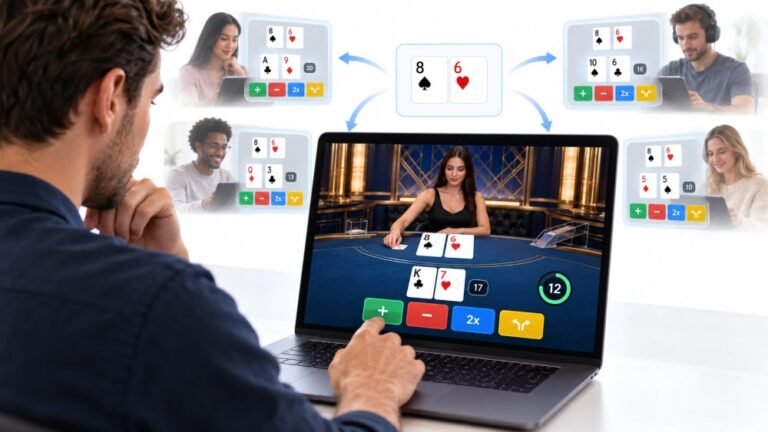
One Deal, Unlimited Inputs: How Infinite Blackjack Handles Thousands Of Decisions At Once
Every controller test starts the same way. You press a button, the screen confirms it, and for a split second you are…

My wireless keyboard often misses the first letter or two when I start typing after a pause, then it's fine. On your keyboard test, the first key press after a break sometimes doesn't show. Is it the batteries?
Wireless keyboards sleep after inactivity to save battery, and the first key press wakes them, so it may be missed. Low batteries, a distant receiver and Windows USB power saving make it worse. Fresh batteries, the receiver close by and turning off USB power saving usually help.

This is a common side effect of power saving. Wireless keyboards go into a sleep mode after a short pause to save battery. The first key press wakes the keyboard and reconnects it, and on some models that first press is used for waking rather than typed. A short delay or a missed letter is the result.
Several things make it worse. Low batteries make wake-up slower. A receiver plugged into the back of a PC, behind a metal case, has a weaker connection, so reconnecting takes longer. And Windows can put the USB port or receiver into power saving too.
Try fresh batteries or a full charge. Move the receiver to a front port or use a short USB extension so it sits near the keyboard. In Device Manager, turn off power saving on the receiver's USB hub under Power Management. If the keyboard has companion software, check for a sleep timer setting.
For Bluetooth keyboards, the same applies, with Bluetooth power saving on the adapter as an extra factor.
Our keyboard test is good for checking: pause for a minute, then press one key and see whether it appears.
Tested on: Applies to wireless and Bluetooth keyboards on Windows 11. Key events per MDN's KeyboardEvent documentation.
Checked by Rohan Sharma on . How we verify answers
Endurance Tester And Controller Reviewer at Gamepad Tester
Oliver runs endurance trials. A controller that feels excellent in the shop can lose its button feel in months, so his testing deliberately pushes mechanical face-button switches, bumpers and triggers through extended, repeated actuation to see how quickly tactility and elasticity fall away. The same approach applies to stick modules and to the rubber on the sticks themselves. On Gamepad Tester he contributes the long-term reliability side of the buying guides, and verifies answers about buttons that have gone soft, mushy or inconsistent with age.
 Calder WrightFront-End Web Architect And Gamepad API Lead
 Elena RostovaHardware Diagnostics Engineer
 Garrett LindsayHardware Reviewer And Input Performance Specialist
 Venom’s Tech (Abhishek)Peripheral Reviewer And Tech Journalist
 Chloe HendersonHall Effect And Thumbstick Analyst
 Thiago AlvesHardware Repair Educator
 Devon MillerLow Latency And Input Timing Engineer
 Liam DaviesBluetooth And Wireless Test Engineer
Each answer is written by the specialist who owns that part of the hardware, tested on a real controller, and checked by a second team member. How we verify answers
Answers are free general guidance from the Gamepad Tester Team and the community. Opening a controller or replacing a thumbstick module can void your warranty, so check the maker's support or warranty first. Battery and soldering work carries a real risk of damage or injury.
Every test runs in your own browser with the Gamepad API. No sign up, no download, and your controller data never leaves your device.
Every controller test starts the same way. You press a button, the screen confirms it, and for a split second you are…
Is your gamepad feeling a little...lazy? Maybe your character in your favorite game isn't running when you press the…
Content creators, marketers, and businesses are finding creating images and videos more and more effortless via AI. As…
The newest replies from players and the Gamepad Tester Team.