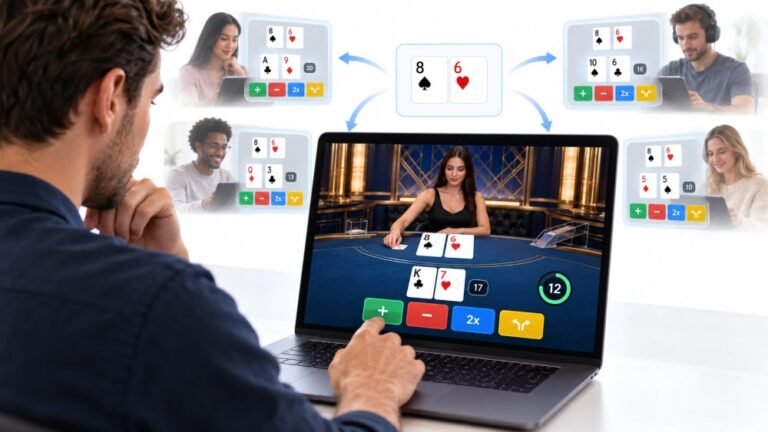
One Deal, Unlimited Inputs: How Infinite Blackjack Handles Thousands Of Decisions At Once
Every controller test starts the same way. You press a button, the screen confirms it, and for a split second you are…

The letter J keeps typing on its own, jjjjjj, even when I'm not touching it. Sometimes it stops after a while. On your keyboard test, J shows as held down. Spilled nothing that I know of. What do I do?
If the test shows the key held down when no one touches it, the switch or contact under it is stuck. Unplug the keyboard, remove the keycap if possible, clean under it with compressed air and isopropyl alcohol, and test again. If it persists, the switch needs replacing.

The keyboard test showing J as held down while nobody touches it confirms this is the keyboard, not Windows.
The key's switch or contact thinks it is pressed. Common causes are debris under the keycap pushing on it, sticky residue from a drink or food that keeps the contact closed, a keycap stuck down on its stem, or on mechanical keyboards, a failing switch.
Unplug the keyboard first, so it stops typing while you work on it. Gently remove the keycap; mechanical keycaps pull straight up, laptop and membrane keycaps need more care. Blow compressed air underneath and clean around the switch with a cotton bud lightly dampened with isopropyl alcohol. Press the switch several times while it is wet, then let it dry completely.
Plug it back in and watch J in the keyboard test. It should register only when pressed.
If it still sticks, the switch is faulty. On hot-swappable mechanical keyboards, swap the switch. On others, use the warranty or replace the keyboard. For laptops, an external keyboard keeps you working until a repair.
Tested on: Applies to mechanical, membrane and laptop keyboards on Windows 11. Key states per MDN's KeyboardEvent documentation.
Checked by Oliver Sterling on . How we verify answers
QA And Test Automation Lead at Gamepad Tester
Tyler leads test automation. Before each change to the tools here goes live, his pipelines drive simulated inputs through the pages across multiple browsers and desktop environments and compare the readings against known-good baselines. It catches the regressions manual testing misses: a button index that shifts, an axis that stops updating, a layout that breaks at one viewport. On Gamepad Tester he signs off releases of the test tools and handles the answers where the tool itself, rather than the controller, is behaving oddly.
 Calder WrightFront-End Web Architect And Gamepad API Lead
 Elena RostovaHardware Diagnostics Engineer
 Garrett LindsayHardware Reviewer And Input Performance Specialist
 Venom’s Tech (Abhishek)Peripheral Reviewer And Tech Journalist
 Chloe HendersonHall Effect And Thumbstick Analyst
 Thiago AlvesHardware Repair Educator
 Devon MillerLow Latency And Input Timing Engineer
 Liam DaviesBluetooth And Wireless Test Engineer
Each answer is written by the specialist who owns that part of the hardware, tested on a real controller, and checked by a second team member. How we verify answers
Answers are free general guidance from the Gamepad Tester Team and the community. Opening a controller or replacing a thumbstick module can void your warranty, so check the maker's support or warranty first. Battery and soldering work carries a real risk of damage or injury.
Every test runs in your own browser with the Gamepad API. No sign up, no download, and your controller data never leaves your device.
Every controller test starts the same way. You press a button, the screen confirms it, and for a split second you are…
Is your gamepad feeling a little...lazy? Maybe your character in your favorite game isn't running when you press the…
Content creators, marketers, and businesses are finding creating images and videos more and more effortless via AI. As…
The newest replies from players and the Gamepad Tester Team.