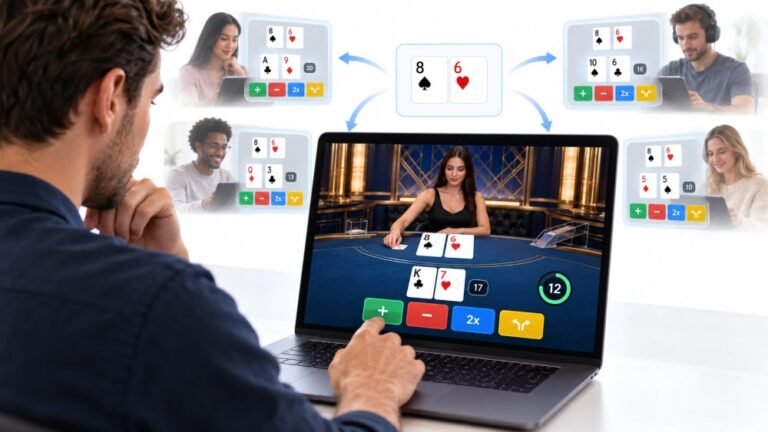
One Deal, Unlimited Inputs: How Infinite Blackjack Handles Thousands Of Decisions At Once
Every controller test starts the same way. You press a button, the screen confirms it, and for a split second you are…

My mouse feels fast on the desktop but slow in games, and different in every game. Your mouse test shows my movement on the desktop. How do sensitivity, DPI and in-game settings relate?
Your DPI is the base. Desktop speed adds the Windows pointer speed, while most games use raw input and only apply their own sensitivity. So the same DPI feels different in each place. Set a fixed DPI, then tune each game's sensitivity separately.

Three layers are involved, which is why it feels different everywhere.
DPI. The mouse reports movement at its DPI setting. This is the starting point for everything.
Desktop. Windows applies its pointer speed slider, and acceleration if Enhance pointer precision is on. So the desktop feel is DPI plus Windows settings.
Games. Most modern games use raw input, which reads the mouse directly and ignores the Windows slider and acceleration. They apply only their own sensitivity setting, and every game measures sensitivity differently. So the same DPI feels different in each game.
To make it predictable, pick one DPI and keep it; many players use 800 or 1600. Turn off Enhance pointer precision for consistency. Set the Windows pointer speed to taste for the desktop. Then tune each game's sensitivity so one full turn takes a comfortable hand movement.
To compare with friends, use eDPI, which is DPI multiplied by in-game sensitivity, within the same game. Sensitivity converter tools can translate a feel from one game to another.
Our mouse test shows desktop movement, which is useful for checking DPI and acceleration.
Tested on: Applies to mice on Windows 11 with PC games. Pointer behaviour per MDN's pointerrawupdate documentation.
Checked by Garrett Lindsay on . How we verify answers
Peripheral Reviewer And Tech Journalist at Gamepad Tester
Abhishek, known to his audience as Venom's Tech, is a tech journalist and peripheral reviewer who works at the budget end of the market, where quality control varies the most. He specialises in granular teardowns and comparisons of mobile clip-on controllers, cheap third-party pads and the stick modules inside them, which is where drift tends to appear first and earliest. On Gamepad Tester he covers the reviews and buying topic for mobile and budget hardware, and checks answers about third-party pads that behave differently from a first-party controller.
 Calder WrightFront-End Web Architect And Gamepad API Lead
 Elena RostovaHardware Diagnostics Engineer
 Garrett LindsayHardware Reviewer And Input Performance Specialist
 Chloe HendersonHall Effect And Thumbstick Analyst
 Thiago AlvesHardware Repair Educator
 Devon MillerLow Latency And Input Timing Engineer
 Liam DaviesBluetooth And Wireless Test Engineer
 Nadia BrooksEsports Performance Consultant
Each answer is written by the specialist who owns that part of the hardware, tested on a real controller, and checked by a second team member. How we verify answers
Answers are free general guidance from the Gamepad Tester Team and the community. Opening a controller or replacing a thumbstick module can void your warranty, so check the maker's support or warranty first. Battery and soldering work carries a real risk of damage or injury.
Every test runs in your own browser with the Gamepad API. No sign up, no download, and your controller data never leaves your device.
Every controller test starts the same way. You press a button, the screen confirms it, and for a split second you are…
Is your gamepad feeling a little...lazy? Maybe your character in your favorite game isn't running when you press the…
Content creators, marketers, and businesses are finding creating images and videos more and more effortless via AI. As…
The newest replies from players and the Gamepad Tester Team.