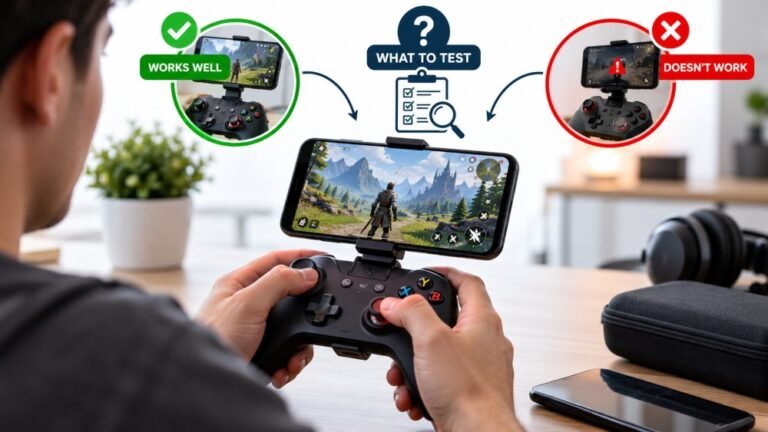
Playing Mobile Games With A Controller: What Works, What Doesn’t, And What To Test Before You Spend
You paired the controller, the light went solid, your phone said "Connected," and then the game did absolutely…

I have the Switch 2 Pro Controller and want to use it on my Windows PC. Bluetooth pairing doesn't work at all and your gamepad tester doesn't see it. Is it supported?
Yes, through Steam over a USB-C cable. Valve added support for Switch 2 controllers connected over USB on Windows in a November 2025 Steam client update. Bluetooth is not supported on PC. Steam Input can also map the GL, GR and C buttons.

It works, with one important limit: use a cable.
What changed. In November 2025, Valve added support in the Steam client for Nintendo Switch 2 controllers connected over USB on Windows. That brought the Switch 2 Pro Controller to Steam, after months where it did not work on PC.
No Bluetooth on PC. Wireless pairing is the part that does not work. Use a USB-C data cable.
Setup. Update Steam, connect the controller with a USB-C cable, then open Steam's controller settings. It should appear in the list. Steam can calibrate it there too, with the controller resting on a flat surface. For games outside Steam, add them to Steam and launch from Steam so Steam Input handles the controller.
Extra buttons. Steam Input recognises the extra rear buttons and lets you map them per game.
Why our tester does not show it. Browsers read controllers directly, and Windows does not expose this controller as a standard gamepad by itself. Launch the browser from Steam, which presents it as a standard controller, if you want to test it.
Tested on: Applies to the Switch 2 Pro Controller on Windows 11 with Steam. Support details per Nintendo Life's and PC Gamer's coverage of Valve's update.
Checked by Graham Norton-Smith on . How we verify answers
Linux And Input Subsystem Engineer at Gamepad Tester
Lucas works on the Linux input subsystem. He follows how evdev registers a controller, how Steam Input sits on top of it and where the two disagree with the browser's view of the same device, which is the usual reason a pad behaves differently on a Steam Deck or a Linux desktop than on Windows. His testing targets parity: the same controller should produce the same reading on every operating system, and where it does not, the difference should be documented. On Gamepad Tester he handles the Linux and Steam Deck questions.
 Calder WrightFront-End Web Architect And Gamepad API Lead
 Elena RostovaHardware Diagnostics Engineer
 Garrett LindsayHardware Reviewer And Input Performance Specialist
 Venom’s Tech (Abhishek)Peripheral Reviewer And Tech Journalist
 Chloe HendersonHall Effect And Thumbstick Analyst
 Thiago AlvesHardware Repair Educator
 Devon MillerLow Latency And Input Timing Engineer
 Liam DaviesBluetooth And Wireless Test Engineer
Each answer is written by the specialist who owns that part of the hardware, tested on a real controller, and checked by a second team member. How we verify answers
Answers are free general guidance from the Gamepad Tester Team and the community. Opening a controller or replacing a thumbstick module can void your warranty, so check the maker's support or warranty first. Battery and soldering work carries a real risk of damage or injury.
Every test runs in your own browser with the Gamepad API. No sign up, no download, and your controller data never leaves your device.
You paired the controller, the light went solid, your phone said "Connected," and then the game did absolutely…
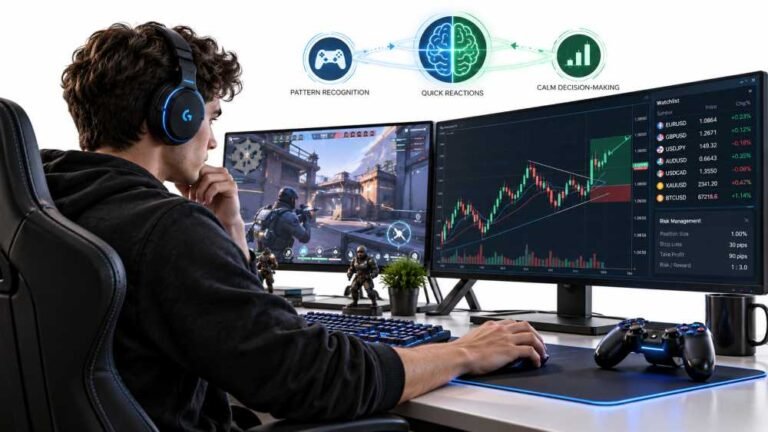
Gaming and trading look like separate worlds until you sit down and do both. One rewards reaction speed, pattern…
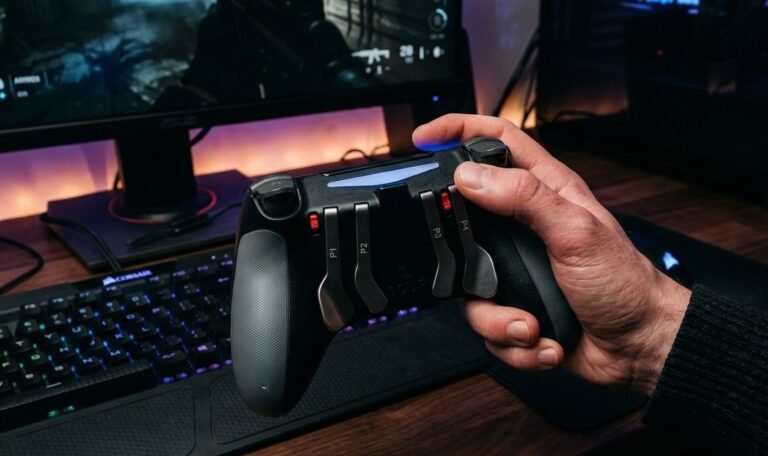
The Xbox Elite Series 2 seemed amazing for the first two weeks. Interchangeable thumbsticks, adjustable trigger locks…
The newest replies from players and the Gamepad Tester Team.