How Data Is Changing the Way Players and Fans Watch Esports
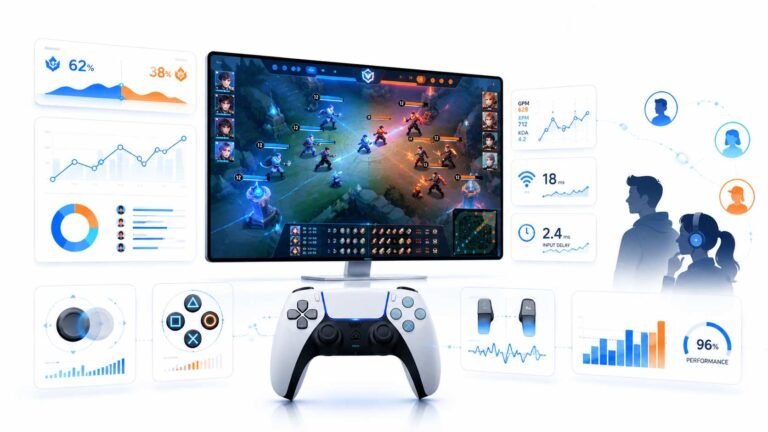
Esports viewing has changed a lot. Fans no longer watch only for big kills, clutch rounds, final scores, or highlight…

My MacBook Pro has ProMotion and I use a 144 Hz external monitor. Your refresh rate test shows 60 on the external and varies on the built-in screen. Where do I change refresh rate on macOS?
In System Settings, Displays, select the external monitor and choose its refresh rate from the Refresh Rate menu. ProMotion on the built-in screen varies automatically; Low Power Mode caps it at 60. Some browsers also limit to 60; Safari has a setting that affects this.

macOS handles refresh rate per display.
External monitor. Open System Settings, Displays, select the external monitor, and look for the Refresh Rate menu. Choose 144 Hz if it is listed. If it is not, the cable, adapter or port may not support it at your resolution; a good USB-C or Thunderbolt to DisplayPort cable usually works best.
Built-in ProMotion screen. The MacBook's built-in display changes refresh rate automatically, up to 120 Hz, depending on what is on screen. That is why our test shows varying readings there. Low Power Mode caps it at 60 Hz, and some situations, such as video playback, use lower rates on purpose.
The browser. Safari has historically included a setting, found in its developer feature flags, that prefers updates near 60 frames per second. If Safari reads 60 on a high refresh display, try Chrome to compare, or check that setting. Our test measures how often the browser draws, so browser limits show up as lower readings.
After changing the external monitor's setting, run the test on that screen with the browser window fully on it.
Tested on: Applies to Macs with macOS 26, ProMotion displays and external monitors. Browser frame timing per MDN's requestAnimationFrame documentation.
Checked by Priya Patel on . How we verify answers
UI And Visual Feedback Designer at Gamepad Tester
Marcus is a UI and UX designer specialising in controller mapping interfaces, with a background in real-time 3D and WebGL controller models. His work here is the visual side of diagnosis: an on-screen pad that matches the controller in the player's hands, button and trigger states that respond the instant an input is read, and a layout where an abnormal reading stands out without needing a legend. On Gamepad Tester he designs the tester interfaces and reviews answers that depend on reading the on-screen display correctly.
 Calder WrightFront-End Web Architect And Gamepad API Lead
 Elena RostovaHardware Diagnostics Engineer
 Garrett LindsayHardware Reviewer And Input Performance Specialist
 Venom’s Tech (Abhishek)Peripheral Reviewer And Tech Journalist
 Chloe HendersonHall Effect And Thumbstick Analyst
 Thiago AlvesHardware Repair Educator
 Devon MillerLow Latency And Input Timing Engineer
 Liam DaviesBluetooth And Wireless Test Engineer
Each answer is written by the specialist who owns that part of the hardware, tested on a real controller, and checked by a second team member. How we verify answers
Answers are free general guidance from the Gamepad Tester Team and the community. Opening a controller or replacing a thumbstick module can void your warranty, so check the maker's support or warranty first. Battery and soldering work carries a real risk of damage or injury.
Every test runs in your own browser with the Gamepad API. No sign up, no download, and your controller data never leaves your device.
Esports viewing has changed a lot. Fans no longer watch only for big kills, clutch rounds, final scores, or highlight…
If you have ever watched a video that looked choppy, played a game that felt sluggish, or noticed that scrolling on…
Content creators, marketers, and businesses are finding creating images and videos more and more effortless via AI. As…
The newest replies from players and the Gamepad Tester Team.