Playing Mobile Games With A Controller: What Works, What Doesn’t, And What To Test Before You Spend
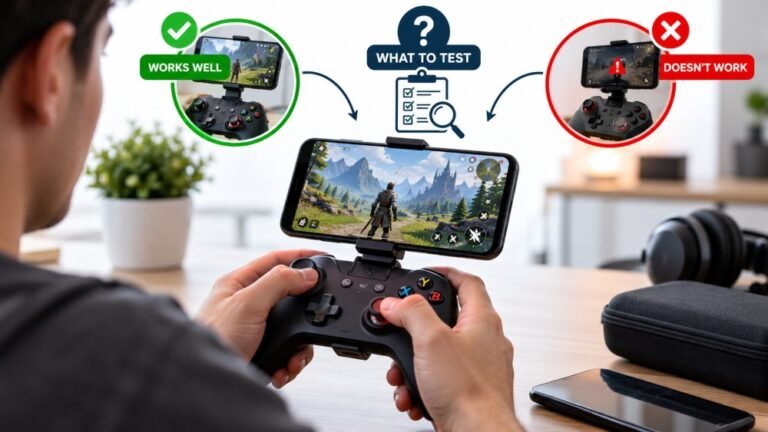
You paired the controller, the light went solid, your phone said "Connected," and then the game did absolutely…

My DS4 light bar is super bright and reflects on my monitor when I play at night on PC. On the PS4 you could dim it but on PC there's no setting. Can I turn it off or change the colour?
Windows has no setting for it, but Steam does. With Steam running, the controller settings let you change the light bar colour and brightness for PlayStation controllers. Outside Steam, some games set it themselves.

Windows itself has no control for the light bar, which is why you could not find one. The colour and brightness are set by whatever software talks to the controller.
Steam is the easiest way. With Steam running and the DualShock 4 connected, open Steam's controller settings, select the controller, and look for the light bar options. You can change the colour and lower the brightness, and on many setups turn it right down. The setting applies while Steam is managing the controller, including in games launched from Steam.
A few things affect it. Some games set the light bar themselves, for example to show health, and will override your choice while they run. When Steam is closed, the controller falls back to its default colour. And over Bluetooth, the light bar keeps glowing as part of the connection, so it cannot be completely hidden in every situation.
If reflection is the main problem and the setting is not enough, a small piece of matte tape over the light bar is a practical fix that many night-time players use.
For a DualSense the same Steam settings apply to its light bar.
Tested on: Applies to DualShock 4 and DualSense on Windows 11 with Steam. Steam Input behaviour per Valve's Steam Input documentation.
Checked by Simon Fletcher on . How we verify answers
Linux And Input Subsystem Engineer at Gamepad Tester
Lucas works on the Linux input subsystem. He follows how evdev registers a controller, how Steam Input sits on top of it and where the two disagree with the browser's view of the same device, which is the usual reason a pad behaves differently on a Steam Deck or a Linux desktop than on Windows. His testing targets parity: the same controller should produce the same reading on every operating system, and where it does not, the difference should be documented. On Gamepad Tester he handles the Linux and Steam Deck questions.
 Calder WrightFront-End Web Architect And Gamepad API Lead
 Elena RostovaHardware Diagnostics Engineer
 Garrett LindsayHardware Reviewer And Input Performance Specialist
 Venom’s Tech (Abhishek)Peripheral Reviewer And Tech Journalist
 Chloe HendersonHall Effect And Thumbstick Analyst
 Thiago AlvesHardware Repair Educator
 Devon MillerLow Latency And Input Timing Engineer
 Liam DaviesBluetooth And Wireless Test Engineer
Each answer is written by the specialist who owns that part of the hardware, tested on a real controller, and checked by a second team member. How we verify answers
Answers are free general guidance from the Gamepad Tester Team and the community. Opening a controller or replacing a thumbstick module can void your warranty, so check the maker's support or warranty first. Battery and soldering work carries a real risk of damage or injury.
Every test runs in your own browser with the Gamepad API. No sign up, no download, and your controller data never leaves your device.
You paired the controller, the light went solid, your phone said "Connected," and then the game did absolutely…
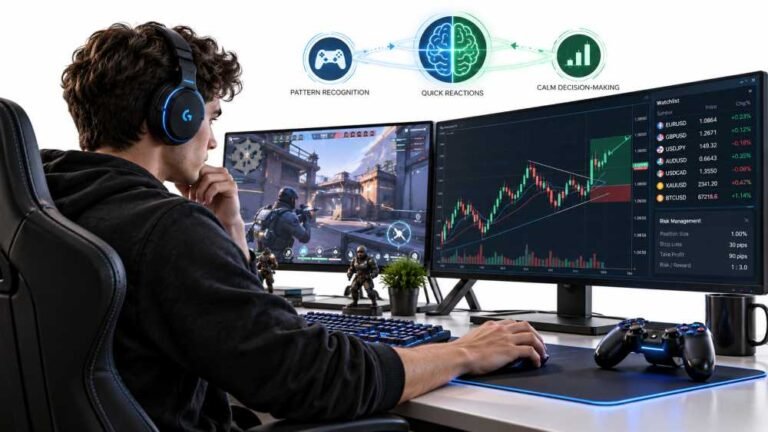
Gaming and trading look like separate worlds until you sit down and do both. One rewards reaction speed, pattern…
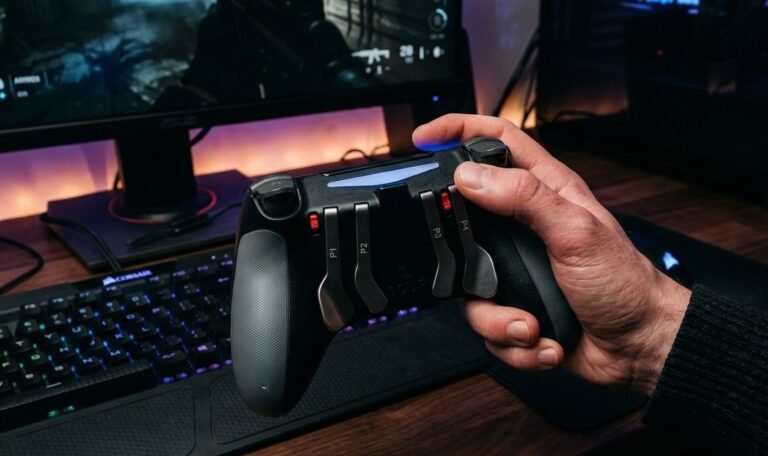
The Xbox Elite Series 2 seemed amazing for the first two weeks. Interchangeable thumbsticks, adjustable trigger locks…
The newest replies from players and the Gamepad Tester Team.