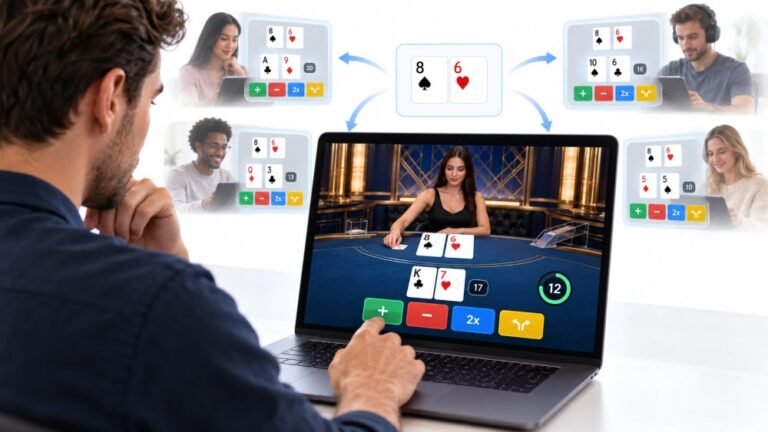
One Deal, Unlimited Inputs: How Infinite Blackjack Handles Thousands Of Decisions At Once
Every controller test starts the same way. You press a button, the screen confirms it, and for a split second you are…

The two side buttons on my mouse go back and forward in Chrome and show up in your mouse test as buttons 4 and 5. But in my game I can't bind them, pressing them does nothing in the keybind menu. Why?
Your buttons work; the test proves it. Some games do not accept mouse buttons 4 and 5 for binding, and mouse software can remap them to something else in certain profiles. Check the mouse software's profile for that game, or map the side buttons to keyboard keys and bind those keys in the game.

Your test result is the important part: the side buttons report as buttons 4 and 5, so the hardware is fine.
Two things usually cause what you see. The game may not support binding extra mouse buttons; some games only accept left, right and middle click for controls. Or the mouse software may be remapping the side buttons in a profile that switches on when the game starts, for example to a macro or to nothing. Many mouse apps automatically switch profiles per game.
Check the mouse software first. Look for the profile linked to your game and see what the side buttons are set to. Set them back to their default, or to a keyboard key.
If the game does not accept mouse buttons, mapping them to keyboard keys is a reliable workaround. In the mouse software, assign each side button to a key you do not otherwise use, such as F13 if supported, or a letter you never press. Then bind that key in the game.
After changing anything, check the side buttons in the mouse test again, and then in the game's keybind menu.
Tested on: Applies to mice with side buttons on Windows 11. Button identity per standard browser mouse events.
Checked by Venom’s Tech (Abhishek) on . How we verify answers
Front-End Developer at Gamepad Tester
Rohan is a React and Next.js developer working on responsive interfaces that handle continuous input. Reading a controller many times a second and updating an interface at the same time is the kind of work that blocks a main thread and makes a page feel broken, so his focus is keeping input handling off the render path and the interface responsive under constant updates. On Gamepad Tester he builds and maintains the front-end around the test tools.
 Calder WrightFront-End Web Architect And Gamepad API Lead
 Elena RostovaHardware Diagnostics Engineer
 Garrett LindsayHardware Reviewer And Input Performance Specialist
 Venom’s Tech (Abhishek)Peripheral Reviewer And Tech Journalist
 Chloe HendersonHall Effect And Thumbstick Analyst
 Thiago AlvesHardware Repair Educator
 Devon MillerLow Latency And Input Timing Engineer
 Liam DaviesBluetooth And Wireless Test Engineer
Each answer is written by the specialist who owns that part of the hardware, tested on a real controller, and checked by a second team member. How we verify answers
Answers are free general guidance from the Gamepad Tester Team and the community. Opening a controller or replacing a thumbstick module can void your warranty, so check the maker's support or warranty first. Battery and soldering work carries a real risk of damage or injury.
Every test runs in your own browser with the Gamepad API. No sign up, no download, and your controller data never leaves your device.
Every controller test starts the same way. You press a button, the screen confirms it, and for a split second you are…
Is your gamepad feeling a little...lazy? Maybe your character in your favorite game isn't running when you press the…
Content creators, marketers, and businesses are finding creating images and videos more and more effortless via AI. As…
The newest replies from players and the Gamepad Tester Team.