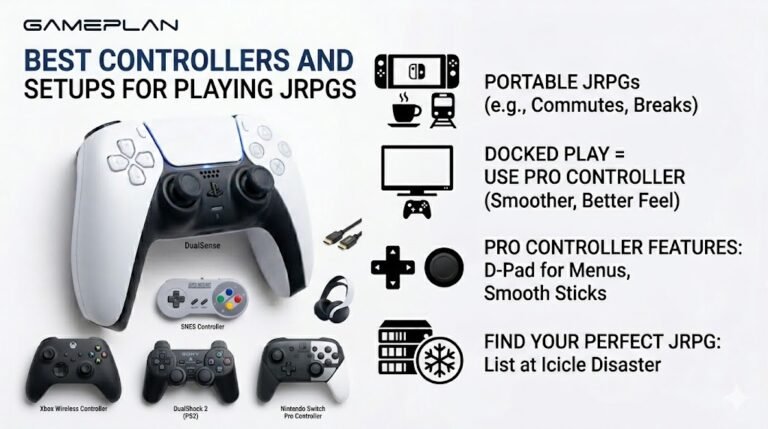
Best Controllers and Setups for Playing JRPGs
Nobody ever talks about controller ergonomics when they recommend JRPGs, and honestly, that is a mistake. These are…

When I plug my headphones into the front of my PC case, nothing happens. Sound keeps coming from my speakers. The back jack works fine. Your headphone test plays through the speakers only. How do I get the front jack working?
The front jack connects to the motherboard through an internal cable. Check it is plugged into the HD Audio header, then check the audio software for jack detection settings, and select the headphones as the output device in Windows.

Since the rear jack works, the audio chip is fine. The front panel is a separate path.
The front audio jacks connect to the motherboard with an internal cable, usually labelled HD Audio, going to a header near the bottom of the board. If it was never connected, or has worked loose, the front jack does nothing. With the PC off and unplugged, check the cable is pushed onto the header marked for front panel audio.
Then software. Many motherboards use Realtek audio, whose control app has settings for front panel jack detection and for whether front and rear outputs act as separate devices. If jack detection is off, Windows never notices the headphones. Also check Windows Sound settings: the front headphones sometimes appear as their own output device that you need to select.
If you see the device but get no sound, try updating the motherboard's audio driver from the board maker's site rather than relying on the generic driver.
Finally, use the headphone test with the front jack selected to confirm left and right both play.
Tested on: Applies to desktop PCs with front panel audio on Windows 11. Steps per Microsoft's sound troubleshooting guide.
Checked by Alistair Thorne on . How we verify answers
Low Level Systems Programmer at Gamepad Tester
Gabriel is a low-level C programmer working on desktop input architecture. He builds native tooling that samples stick and trigger telemetry at sub-millisecond intervals, below the rate a browser can reach, which gives a reference measurement to compare a web test against. When a browser reading looks wrong, his capture is how the team confirms whether the controller, the operating system or the page is at fault. On Gamepad Tester he provides the reference measurements behind the latency and drift answers.
 Calder WrightFront-End Web Architect And Gamepad API Lead
 Elena RostovaHardware Diagnostics Engineer
 Garrett LindsayHardware Reviewer And Input Performance Specialist
 Venom’s Tech (Abhishek)Peripheral Reviewer And Tech Journalist
 Chloe HendersonHall Effect And Thumbstick Analyst
 Thiago AlvesHardware Repair Educator
 Devon MillerLow Latency And Input Timing Engineer
 Liam DaviesBluetooth And Wireless Test Engineer
Each answer is written by the specialist who owns that part of the hardware, tested on a real controller, and checked by a second team member. How we verify answers
Answers are free general guidance from the Gamepad Tester Team and the community. Opening a controller or replacing a thumbstick module can void your warranty, so check the maker's support or warranty first. Battery and soldering work carries a real risk of damage or injury.
Every test runs in your own browser with the Gamepad API. No sign up, no download, and your controller data never leaves your device.
Nobody ever talks about controller ergonomics when they recommend JRPGs, and honestly, that is a mistake. These are…
Content creators, marketers, and businesses are finding creating images and videos more and more effortless via AI. As…
Bilibili Gaming defeated G2 Esports 3-1 in São Paulo on March 22, 2026, to win an international League of Legends…
The newest replies from players and the Gamepad Tester Team.

