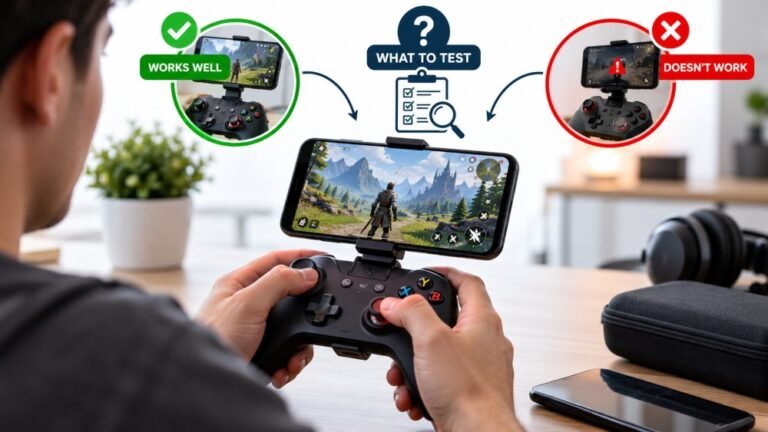
Playing Mobile Games With A Controller: What Works, What Doesn’t, And What To Test Before You Spend
You paired the controller, the light went solid, your phone said "Connected," and then the game did absolutely…

Steam Input has deadzone settings for my controller, and so do most games. Which one should I change? My stick rests at 0.03 on your test. Setting both made aiming feel mushy.
Set the deadzone in one place, ideally the game, because it is tuned for that game's movement. Leave Steam Input's deadzone at its default or minimal. Stacking both deadzones throws away too much movement, which is why aiming felt mushy.

You found the main problem already: two deadzones stack. If Steam ignores movement below one level and the game ignores movement below another, the dead area grows, and small aiming movements disappear. That is the mushy feeling.
The general rule is to set it in one place.
In the game, where possible. Game deadzones are designed for that game's aiming and movement, and they work with its response curves and aim assist. Set the game's deadzone just above your measured resting value, 0.03 for you, plus a small margin.
Keep Steam Input's deadzone at default or minimal for that game. Steam's settings are useful when a game has no deadzone option at all, or a fixed deadzone that is too small for a drifting controller. In that case, set Steam's deadzone instead and leave the game's alone.
Also check for controller firmware deadzones, as on some third-party pads, which add a third layer.
The joystick deadzone test helps you see the total effect: push slowly and note where movement starts. Then compare with how it feels in game.
Tested on: Applies to controllers with Steam Input on Windows 11. Deadzone behaviour per Valve's Steam Input documentation.
Checked by Lucas Rocha on . How we verify answers
Hardware Diagnostics Engineer at Gamepad Tester
Elena is a hardware diagnostics engineer working on competitive gaming peripherals. She designs test benches that put a number on the faults players usually describe by feel: outer deadzone error, circularity variance, uneven travel between the left and right stick, and the drift that appears only after a pad has warmed up. Her work covers custom and pro-tier hardware such as the Xbox Elite range and SCUF-style builds, where small geometry errors decide whether a shot lands. On Gamepad Tester she writes and checks the answers about deadzone readings and stick accuracy, and confirms a fix on real hardware before it is published.
 Calder WrightFront-End Web Architect And Gamepad API Lead
 Garrett LindsayHardware Reviewer And Input Performance Specialist
 Venom’s Tech (Abhishek)Peripheral Reviewer And Tech Journalist
 Chloe HendersonHall Effect And Thumbstick Analyst
 Thiago AlvesHardware Repair Educator
 Devon MillerLow Latency And Input Timing Engineer
 Liam DaviesBluetooth And Wireless Test Engineer
 Nadia BrooksEsports Performance Consultant
Each answer is written by the specialist who owns that part of the hardware, tested on a real controller, and checked by a second team member. How we verify answers
Answers are free general guidance from the Gamepad Tester Team and the community. Opening a controller or replacing a thumbstick module can void your warranty, so check the maker's support or warranty first. Battery and soldering work carries a real risk of damage or injury.
Every test runs in your own browser with the Gamepad API. No sign up, no download, and your controller data never leaves your device.
You paired the controller, the light went solid, your phone said "Connected," and then the game did absolutely…
Gaming and trading look like separate worlds until you sit down and do both. One rewards reaction speed, pattern…
The Xbox Elite Series 2 seemed amazing for the first two weeks. Interchangeable thumbsticks, adjustable trigger locks…
The newest replies from players and the Gamepad Tester Team.