

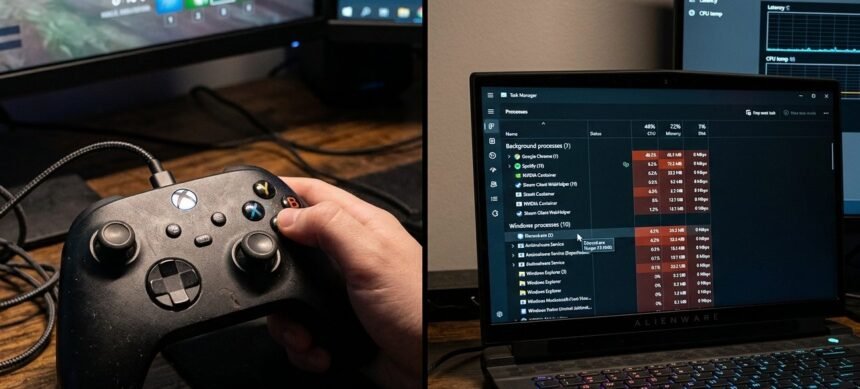
A shot fired half a second after I pulled the trigger, the same delay I had been chasing for two weeks, faulting everything from my internet connection to my monitor’s refresh rate. It turned out to be neither. It was a software input delay sitting in a background overlay app I had forgotten was even running, and once I closed it, the delay vanished completely. Telling a software input delay from a hardware one is the single most useful diagnostic skill nobody teaches you, because the fixes for each are completely different and trying the wrong one wastes real time.
What Actually Separates a Software Input Delay From a Hardware One
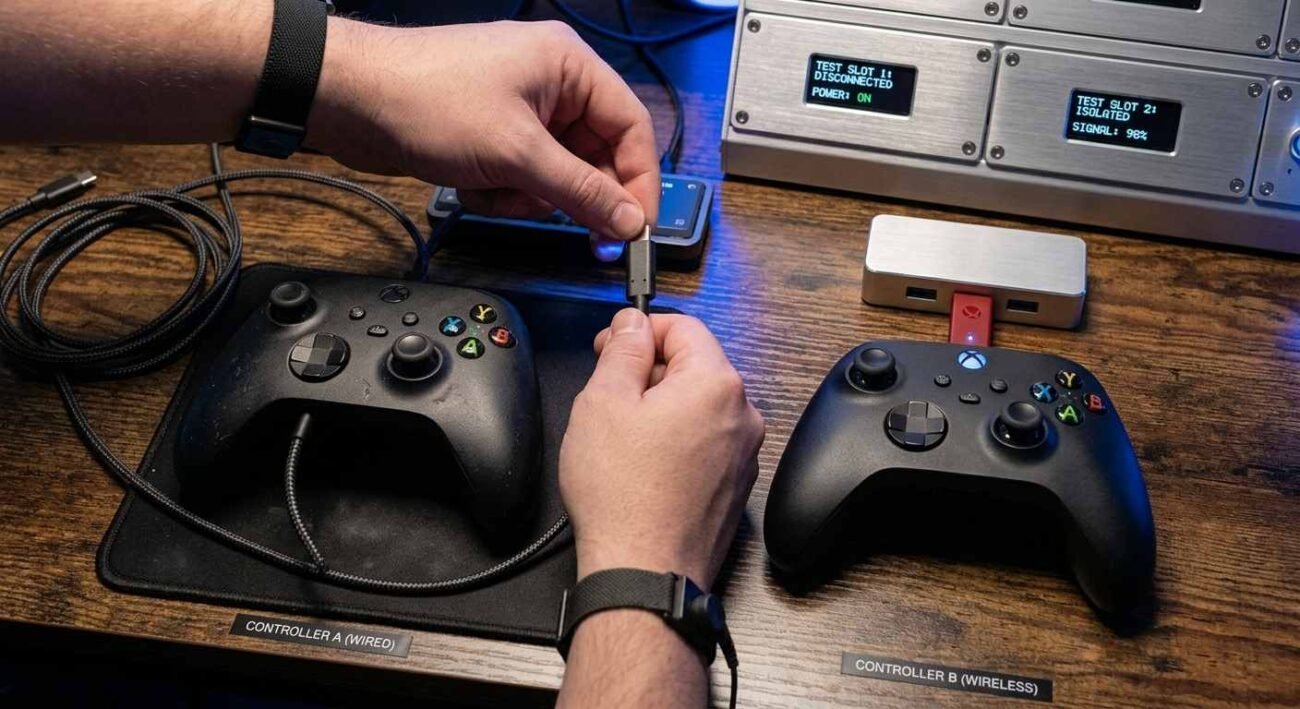
A hardware delay happens inside the physical chain between your finger and the signal reaching your system: the controller’s internal processing, the wireless or USB transmission, the receiver. A software delay happens after that signal has already arrived cleanly, somewhere in the levels of code between your operating system receiving the input and your game actually acting on it. Both produce a shot or action that feels late, which is exactly why people confuse them.
Controller input lag splits roughly into these two buckets, and the split matters because a hardware fix does nothing for a software problem and vice versa. Reinstalling drivers will not fix a worn potentiometer contact. Replacing a controller will not fix an overlay app inserting frames of processing delay before your input reaches the game. Diagnosing input delay correctly starts with figuring out which bucket you are actually dealing with, not jumping straight to a fix.
Driver-related input lag is the most common software cause, and it is also the easiest to misdiagnose as a hardware fault because it can appear and disappear seemingly at random, exactly like a genuine hardware issue would. An outdated or conflicting controller driver can add inconsistent processing delay that looks identical, from the player’s seat, to a worn analog stick contact producing similar symptoms.
There is one reliable tell that separates the two categories more often than not: steadiness across every input type. Genuine hardware faults, worn stick contacts, and a failing trigger sensor tend to affect specific inputs while leaving others completely normal, since the physical wear is localized to one component. Software delay tends to affect every input roughly equally, since it happens after the signal has already left the controller and entered a processing pipeline that treats stick movement and button presses the same way.
How to Actually Tell Which One You Have
Diagnosing input delay correctly starts here. The fastest test is switching controllers entirely, using a completely different one in the exact same game and setup where the delay shows up. If the delay disappears with a different controller, the first hardware is genuinely suspect. If the delay persists even on a controller you know works perfectly elsewhere, the problem is not the controller at all; it is somewhere in your software chain, and continuing to blame the hardware wastes time chasing the wrong fix.
Hardware latency controller checks work the opposite direction. The second test flips this around: use the suspect controller in a different game, or even in a completely different application like a browser-based gamepad tester. Hardware latency controller issues show up consistently regardless of what software is running, since the delay originates before the software layer ever gets involved. If the same controller feels perfectly responsive in one application and consistently delayed in another, the problem lives in that specific application’s software, not in the controller itself.
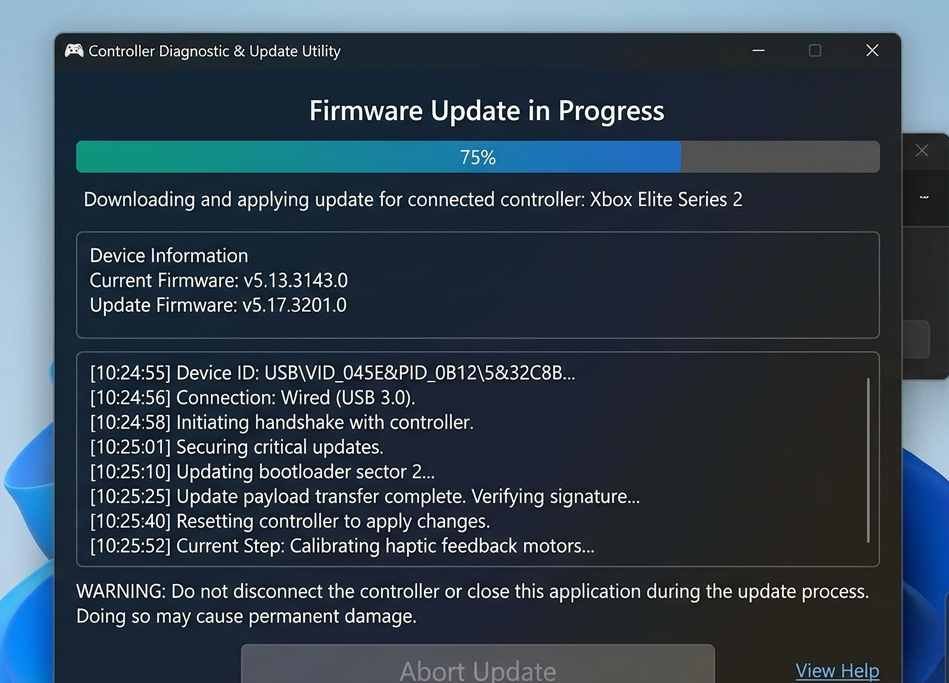
Background software is worth ruling out methodically rather than guessing. Close overlay applications one at a time: game recording software, chat overlays, performance monitors, and retest after each closure. Controller firmware delay is a real but less common cause worth checking too, and it is worth ruling out controller firmware delay before assuming a physical component has failed. Manufacturers occasionally ship firmware updates expressly addressing input delays discovered after a controller’s initial release, and an obsolete firmware version can carry a fixable software delay that looks exactly like a hardware fault until you look for a pending update.
What to Actually Do Once You Know Which Type You Have
If your testing points to a software cause, start with the simplest fixes first. Update your controller’s drivers and firmware to the latest available version, since driver-related input lag is frequently resolved in routine updates that most players never think to look for. Close background overlays and recording software during competitive sessions specifically, even ones you normally leave running without issue, since their impact can be small enough to ignore casually but large enough to matter under competitive pressure.
If your testing points to a hardware cause, the fix depends on what specifically is failing. A delay that correlates with stick movement suggests aging potentiometer contacts adding processing inconsistency at the mechanical level. A delay that is constant regardless of input type more often points to the wireless connection itself, worth testing on a wired connection before assuming the controller needs replacing entirely.
Do not skip the isolation testing even when you feel confident you already know the cause. Controller input lag causes are counterintuitive often enough that assumptions based on gut feeling send people toward the wrong fix regularly, spending money replacing hardware that was never the actual problem, or reinstalling software repeatedly when a worn component was the real culprit all along.
Keep a simple record if the delay is intermittent rather than constant, since intermittent problems are the hardest of either type to diagnose from memory alone. Note the game, the specific input affected, and whether anything else was running at the time. A pattern that only emerges after a week of notes is often invisible in the moment, and that pattern is frequently the fastest route to correctly identifying which category the problem actually belongs to.
Quick Checklist — Telling Software From Hardware Input Delay
- Swap in a different controller in the same setup; if the delay disappears, suspect the first hardware.
- Test the same controller in a different game or application; if the delay is inconsistent across software, suspect software.
- Close background overlays and recording software one at a time and retest after each.
- Update controller drivers and firmware before assuming a hardware fault.
- Check specifically whether delay correlates with stick movement versus button presses; this can hint at which component.
- Test on a wired connection to rule out wireless-specific hardware delay.
- Do not skip isolation testing based on a gut feeling about which type it is.
- Remember both types produce the identical symptom, a late-feeling input, so testing beats guessing every time.
A software input delay and a hardware one feel exactly the same in the moment your shot lands late. The only real difference is which fix actually works, and you will not know which one that is until you test rather than guess.