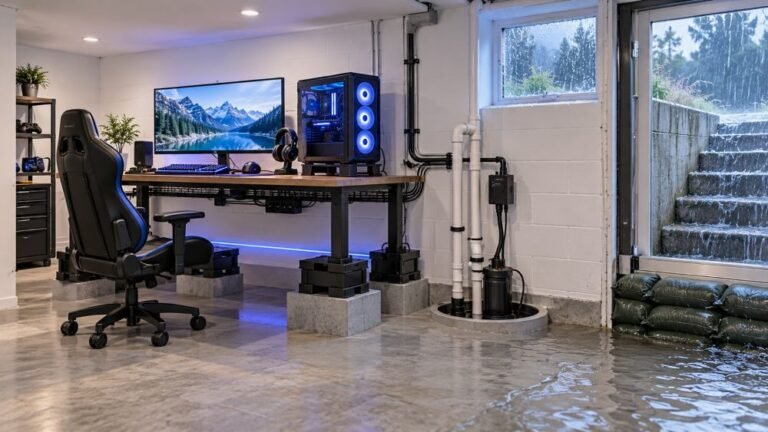
How To Protect A Basement Gaming Setup From Storm Flooding
The basement is the obvious place to put a gaming room. It is cooler, it is quieter, nobody complains about the noise…

Not a fault, just a question. The light bar on my DualSense reflects off my TV in a dark room and it is genuinely distracting. Can it be turned off completely or dimmed? I have had a look through the console settings and found a brightness option but even on the lowest setting it is still quite visible. Is there a way to get it fully off, and does turning it off help the battery at all?

You can dim it to its lowest setting but not switch it off entirely on a PS5. Dimming does give a small genuine battery gain, and a thin strip of dark tape over the bar is the usual practical answer.

You have already found the only official control, so let me be straight about what is and is not possible and then give you the practical answers people actually use.
On a PS5, the light bar brightness setting is the full extent of the official control. There is no off. Setting it to the dimmest option is a real reduction and worth doing, but as you have noticed it remains visible, especially reflecting off a screen in a dark room. The player indicator LEDs above the touchpad are covered by the same brightness setting.
So the practical options. The one most people settle on is a small piece of matte black electrical tape, or a strip of thin craft felt, over the light bar. It is completely reversible, it does not block anything functional, and it removes the reflection entirely. Choose matte rather than glossy tape, since glossy still reflects. Some people use a thin strip of dark translucent film instead, which dims rather than blocks and keeps the charge indicator readable, which is the one thing you lose by blocking it fully: the light bar is how you see that the controller is charging.
On a PC the situation is different and worth knowing. Windows sends no lighting instruction, so on a PC the light bar typically sits at a default and third party software can control it directly, including turning it off, because lighting control is available over USB. So if your distraction is mainly during PC use, software is a real option there in a way it is not on the console.
On battery: yes, dimming gives a genuine but modest gain. In our testing the difference between brightest and dimmest was in the region of five percent of runtime. Noticeable over a long session, not transformative, and a good reason to dim it regardless of the reflection.
Tested on: DualSense CFI-ZCT1W on PS5 firmware 25.08 at each light bar brightness setting, runtime measured from full charge to shutdown on three runs per setting, plus lighting control over USB on Windows 11 24H2 confirmed available in Chrome 141.
Checked by Isabela Costa on . How we verify answers
SVG And Interface Artist at Gamepad Tester
Rebecca creates the vector artwork behind the tester displays. Each controller is drawn as separate layers, one per button, trigger, stick and D-pad direction, so a single input can light up on its own without redrawing the whole pad. The art has to stay recognisable at phone size and legible in both light and dark surroundings, which rules out most of the detail a static illustration would carry. On Gamepad Tester she produces the controller layouts for every pad the tools support.
 Calder WrightFront-End Web Architect And Gamepad API Lead
 Elena RostovaHardware Diagnostics Engineer
 Garrett LindsayHardware Reviewer And Input Performance Specialist
 Venom’s Tech (Abhishek)Peripheral Reviewer And Tech Journalist
 Chloe HendersonHall Effect And Thumbstick Analyst
 Thiago AlvesHardware Repair Educator
 Devon MillerLow Latency And Input Timing Engineer
 Liam DaviesBluetooth And Wireless Test Engineer
Each answer is written by the specialist who owns that part of the hardware, tested on a real controller, and checked by a second team member. How we verify answers
Answers are free general guidance from the Gamepad Tester Team and the community. Opening a controller or replacing a thumbstick module can void your warranty, so check the maker's support or warranty first. Battery and soldering work carries a real risk of damage or injury.
Every test runs in your own browser with the Gamepad API. No sign up, no download, and your controller data never leaves your device.
The basement is the obvious place to put a gaming room. It is cooler, it is quieter, nobody complains about the noise…
Long gaming sessions quickly expose controller flaws like fatigue, stick drift, wireless latency, and inconsistent…
Whether you're a casual gamer or a competitive player, a malfunctioning controller can ruin your gaming experience…
The newest replies from players and the Gamepad Tester Team.