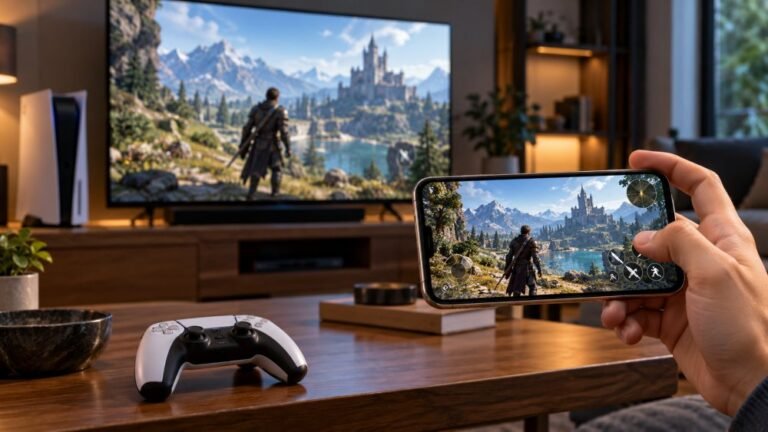
How Well Do Console Games Really Translate To Mobile Gaming?
Mobile gaming has become an increasingly popular way to enjoy video games, with smartphones now capable of running…

I want to play Xbox Cloud Gaming and GeForce NOW on my Android phone with my DualSense. It pairs but sometimes the app doesn't react to it. Your tester sees all the buttons. What do I need?
Android supports the DualSense natively on Android 12 and later, and the major cloud gaming apps support controllers. When an app ignores it, reconnect the controller before opening the app, press a button inside the app, and check for app and Android updates.

Your setup should work: Android supports the DualSense natively on Android 12 and later, and cloud gaming apps such as Xbox Cloud Gaming and GeForce NOW support controllers on phones. Your tester result shows the phone reads every button, so the controller side is fine.
When an app does not react, it is usually about timing. Some apps only check for controllers when they start or when a game launches. Connect the controller first, then open the app, then press a button inside the app before launching a game. If you connect mid-session, close and reopen the app.
Keep the apps up to date, since controller support and layouts are improved over time, and keep Android updated too.
For a smoother experience, the network matters more than the controller. Use 5GHz Wi-Fi close to the router, and avoid using Bluetooth headphones at the same time if you notice input lag, since they share the phone's Bluetooth radio.
A phone clip that holds the phone above the controller makes cloud gaming on a phone much more comfortable.
Tested on: Applies to DualSense on Android 12 and later, including Android 16, with cloud gaming apps. Android support per Sony's DualSense pairing guidance.
Checked by Simon Fletcher on . How we verify answers
Mobile And WebView Compatibility Engineer at Gamepad Tester
Priya works on WebView compatibility. A large share of mobile traffic reaches a page from inside another app's embedded browser, where viewport sizing, permissions and input handling all differ from the standalone browser on the same phone. She tests how the tools scale and behave inside Android WebView containers so a player who opens a test from a link in a chat app is not handed a broken layout or a controller the page cannot see. On Gamepad Tester she reviews the mobile tooling answers.
 Calder WrightFront-End Web Architect And Gamepad API Lead
 Elena RostovaHardware Diagnostics Engineer
 Garrett LindsayHardware Reviewer And Input Performance Specialist
 Venom’s Tech (Abhishek)Peripheral Reviewer And Tech Journalist
 Chloe HendersonHall Effect And Thumbstick Analyst
 Thiago AlvesHardware Repair Educator
 Devon MillerLow Latency And Input Timing Engineer
 Liam DaviesBluetooth And Wireless Test Engineer
Each answer is written by the specialist who owns that part of the hardware, tested on a real controller, and checked by a second team member. How we verify answers
Answers are free general guidance from the Gamepad Tester Team and the community. Opening a controller or replacing a thumbstick module can void your warranty, so check the maker's support or warranty first. Battery and soldering work carries a real risk of damage or injury.
Every test runs in your own browser with the Gamepad API. No sign up, no download, and your controller data never leaves your device.
Mobile gaming has become an increasingly popular way to enjoy video games, with smartphones now capable of running…
There is a particular kind of bad session that never gets diagnosed. You lose a duel you should have won. Your car…
Gaming does not always have to be complicated. Many players enjoy games that are easy to pick up and fun to play…
The newest replies from players and the Gamepad Tester Team.