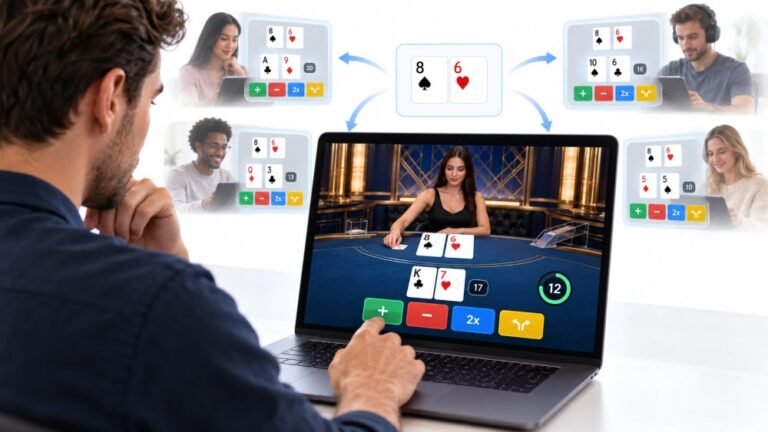
One Deal, Unlimited Inputs: How Infinite Blackjack Handles Thousands Of Decisions At Once
Every controller test starts the same way. You press a button, the screen confirms it, and for a split second you are…

I switched from a Mac and scrolling feels backwards on Windows. Your mouse test shows the wheel scrolling the opposite way to what I expect. Can I reverse it for both the touchpad and the mouse wheel?
For touchpads, Windows has a scrolling direction setting in Touchpad settings. For mouse wheels there is no simple Windows switch, but most mouse software can reverse it, and a well known registry setting called FlipFlopWheel does it too.

Mac uses natural scrolling, where content moves with your fingers, and Windows mice default the other way. You can change both.
Touchpad. Open Settings, Bluetooth & devices, Touchpad, then Scroll and zoom. Change the scrolling direction to the option where content moves down when you swipe down, which matches the Mac feel.
Mouse wheel. Windows has no simple switch for the wheel. The easiest route is the mouse's own software: many mouse apps include a reverse or natural scrolling option. If yours does not, the registry setting FlipFlopWheel under the mouse's device entry reverses the wheel; set it to 1 for the mouse and restart. Back up the registry first, or use a small trusted tool that sets it for you.
Pick one direction and stick with it for a week; your fingers adapt quickly.
Our mouse test shows the wheel's direction, so you can confirm the change: scrolling the wheel towards you should now move the scroll counter the way you expect.
Tested on: Applies to mice and touchpads on Windows 11. Settings per Windows Touchpad settings; registry change requires care.
Checked by Divya Nair on . How we verify answers
Front-End Developer at Gamepad Tester
Rohan is a React and Next.js developer working on responsive interfaces that handle continuous input. Reading a controller many times a second and updating an interface at the same time is the kind of work that blocks a main thread and makes a page feel broken, so his focus is keeping input handling off the render path and the interface responsive under constant updates. On Gamepad Tester he builds and maintains the front-end around the test tools.
 Calder WrightFront-End Web Architect And Gamepad API Lead
 Elena RostovaHardware Diagnostics Engineer
 Garrett LindsayHardware Reviewer And Input Performance Specialist
 Venom’s Tech (Abhishek)Peripheral Reviewer And Tech Journalist
 Chloe HendersonHall Effect And Thumbstick Analyst
 Thiago AlvesHardware Repair Educator
 Devon MillerLow Latency And Input Timing Engineer
 Liam DaviesBluetooth And Wireless Test Engineer
Each answer is written by the specialist who owns that part of the hardware, tested on a real controller, and checked by a second team member. How we verify answers
Answers are free general guidance from the Gamepad Tester Team and the community. Opening a controller or replacing a thumbstick module can void your warranty, so check the maker's support or warranty first. Battery and soldering work carries a real risk of damage or injury.
Every test runs in your own browser with the Gamepad API. No sign up, no download, and your controller data never leaves your device.
Every controller test starts the same way. You press a button, the screen confirms it, and for a split second you are…
Is your gamepad feeling a little...lazy? Maybe your character in your favorite game isn't running when you press the…
Content creators, marketers, and businesses are finding creating images and videos more and more effortless via AI. As…
The newest replies from players and the Gamepad Tester Team.