Playing Mobile Games With A Controller: What Works, What Doesn’t, And What To Test Before You Spend
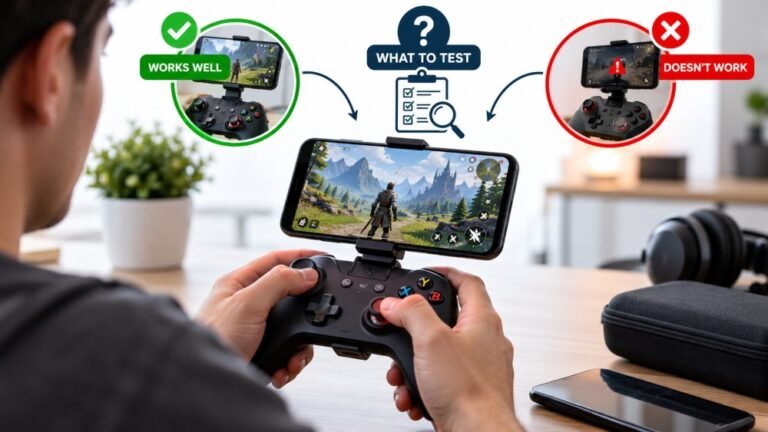
You paired the controller, the light went solid, your phone said "Connected," and then the game did absolutely…

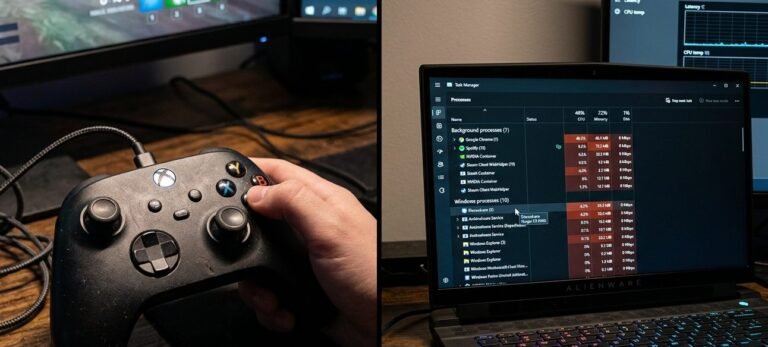
I put my PC to sleep at night and it keeps waking up. The event log points at USB and I think it's my wired Xbox controller, a tiny knock on the desk and the PC turns on. How do I stop the controller waking it?
Windows lets some USB devices wake the PC. In Device Manager, open the controller or the USB hub it is on, go to Power Management and untick Allow this device to wake the computer. You can check which device woke the PC with a quick command.

Windows allows certain USB devices to wake the computer, and a controller counts. A knock on the desk can register as a tiny stick movement or button press, which is enough.
First confirm it is the controller. Open Command Prompt and run powercfg -lastwake after the next unexpected wake; it shows the device that woke the PC. You can also list devices allowed to wake it with powercfg -devicequery wake_armed.
Then turn it off. In Device Manager, find the controller, usually under Xbox Peripherals or Human Interface Devices, open Properties and the Power Management tab, and untick Allow this device to wake the computer. If the controller has no Power Management tab, do the same on the USB Root Hub or the device the controller is plugged into, though that may also stop a keyboard on the same hub from waking the PC.
If you want the keyboard to keep waking the PC, plug the controller into a different port from the keyboard.
Unplugging the controller at night also works, but the setting is the tidy fix. Afterwards, check the controller still connects normally when the PC wakes.
Tested on: Applies to wired Xbox controllers on Windows 11. Commands and settings per Windows power management tools.
Checked by Gabriel Silva on . How we verify answers
Low Latency And Input Timing Engineer at Gamepad Tester
Devon is a low latency engineer. On a browser-based latency test the easiest mistake is measuring the wrong thing: network round trips, render queues and browser throttling can all add milliseconds that have nothing to do with the controller. His work is isolating the input path so that what the test reports is the hardware delay, and documenting the conditions under which the reading is trustworthy. On Gamepad Tester he owns the latency test and the input lag topic, and checks any answer that quotes a millisecond figure.
 Calder WrightFront-End Web Architect And Gamepad API Lead
 Elena RostovaHardware Diagnostics Engineer
 Garrett LindsayHardware Reviewer And Input Performance Specialist
 Venom’s Tech (Abhishek)Peripheral Reviewer And Tech Journalist
 Chloe HendersonHall Effect And Thumbstick Analyst
 Thiago AlvesHardware Repair Educator
 Liam DaviesBluetooth And Wireless Test Engineer
 Nadia BrooksEsports Performance Consultant
Each answer is written by the specialist who owns that part of the hardware, tested on a real controller, and checked by a second team member. How we verify answers
Answers are free general guidance from the Gamepad Tester Team and the community. Opening a controller or replacing a thumbstick module can void your warranty, so check the maker's support or warranty first. Battery and soldering work carries a real risk of damage or injury.
Every test runs in your own browser with the Gamepad API. No sign up, no download, and your controller data never leaves your device.
You paired the controller, the light went solid, your phone said "Connected," and then the game did absolutely…
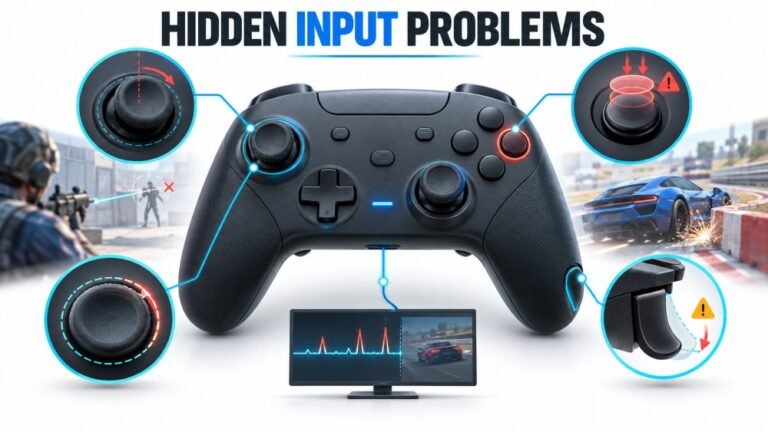
There is a particular kind of bad session that never gets diagnosed. You lose a duel you should have won. Your car…
A shot fired half a second after I pulled the trigger, the same delay I had been chasing for two weeks, faulting…
The newest replies from players and the Gamepad Tester Team.