Repairing Ghost Inputs Caused by Worn Carbon Pads
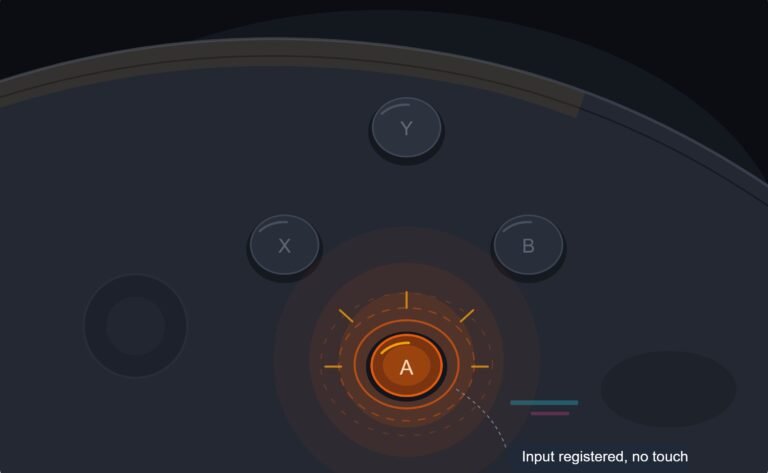
The face button registered a press I never made, a phantom input firing on its own during a menu screen while my thumb…

The bottom left area of my touchpad is dead to touch. Everywhere else works, and the click works everywhere including in the dead corner. On your touchpad test I can see my finger tracked across most of the pad and then it just stops being detected in that one region. Not a disaster since few games use the touchpad heavily, but it bothers me and I use it for the map in a couple of games. Fixable?
Click working while touch fails in one region means the capacitive layer or its ribbon connection is the fault, not the switch. Reseating the ribbon fixes a good share of these.

The detail that makes this diagnosable is that the click still works in the dead corner. Those are two separate systems and you have isolated one of them.
The click is a physical switch under the whole touchpad assembly, which is why it works everywhere regardless of the touch surface. Touch detection is a capacitive grid printed on the pad, read through a ribbon cable to the board. A region of the grid going dead points at one of three things: the ribbon not fully seated, a crack in a grid trace, or a damaged section of the capacitive layer. The fact that it is a contiguous region rather than scattered dead spots is characteristic of a trace or a connection problem, because the grid is read in rows and columns and losing one connection takes out a whole band.
Start with the ribbon, because it is free and it is the most common of the three. The touchpad ribbon on a DualSense sits under the board and is easy to disturb, so this is particularly common on controllers that have been opened before, or that have taken a knock. Reseating it properly, fully home and squarely in the connector, resolves a meaningful share of partial touchpad failures.
If reseating does not fix it, the touchpad assembly is a replaceable part and it is not expensive. It is a slightly more involved repair than a stick module because the ribbon routing is fiddly, but there is no soldering.
One thing I would not bother with: there is advice circulating about pressing firmly on the dead area or warming it. Neither does anything for a trace fault and pressing hard on a capacitive layer can crack more of it. If the ribbon is seated and the region is still dead, replace the assembly rather than trying to persuade it.
Tested on: Three DualSense CFI-ZCT1W units, one with a partially unseated touchpad ribbon, one with a cracked grid trace and one healthy control, wired USB-C on Windows 11 24H2 in Chrome 141. The unseated ribbon unit recovered fully after reseating.
Checked by Rebecca Wright on . How we verify answers
UI And Visual Feedback Designer at Gamepad Tester
Marcus is a UI and UX designer specialising in controller mapping interfaces, with a background in real-time 3D and WebGL controller models. His work here is the visual side of diagnosis: an on-screen pad that matches the controller in the player's hands, button and trigger states that respond the instant an input is read, and a layout where an abnormal reading stands out without needing a legend. On Gamepad Tester he designs the tester interfaces and reviews answers that depend on reading the on-screen display correctly.
 Calder WrightFront-End Web Architect And Gamepad API Lead
 Elena RostovaHardware Diagnostics Engineer
 Garrett LindsayHardware Reviewer And Input Performance Specialist
 Venom’s Tech (Abhishek)Peripheral Reviewer And Tech Journalist
 Chloe HendersonHall Effect And Thumbstick Analyst
 Thiago AlvesHardware Repair Educator
 Devon MillerLow Latency And Input Timing Engineer
 Liam DaviesBluetooth And Wireless Test Engineer
Each answer is written by the specialist who owns that part of the hardware, tested on a real controller, and checked by a second team member. How we verify answers
Answers are free general guidance from the Gamepad Tester Team and the community. Opening a controller or replacing a thumbstick module can void your warranty, so check the maker's support or warranty first. Battery and soldering work carries a real risk of damage or injury.
Every test runs in your own browser with the Gamepad API. No sign up, no download, and your controller data never leaves your device.
The face button registered a press I never made, a phantom input firing on its own during a menu screen while my thumb…
Android RPGs no longer feel like small games made to fill a few spare minutes. Some now offer large open worlds…
Esports viewing has changed a lot. Fans no longer watch only for big kills, clutch rounds, final scores, or highlight…
The newest replies from players and the Gamepad Tester Team.