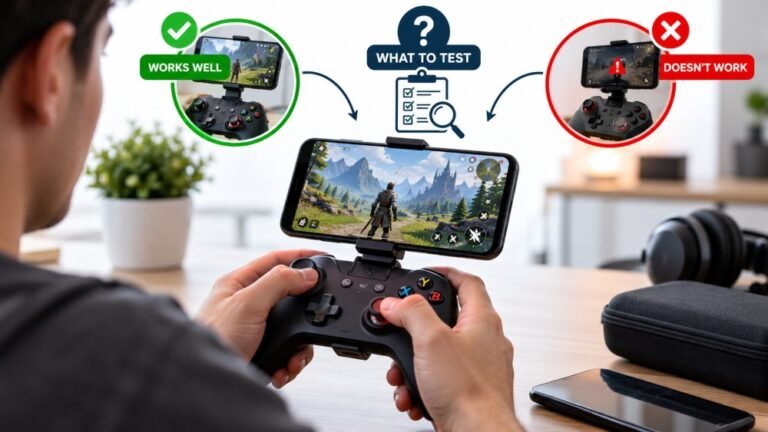
Playing Mobile Games With A Controller: What Works, What Doesn’t, And What To Test Before You Spend
You paired the controller, the light went solid, your phone said "Connected," and then the game did absolutely…

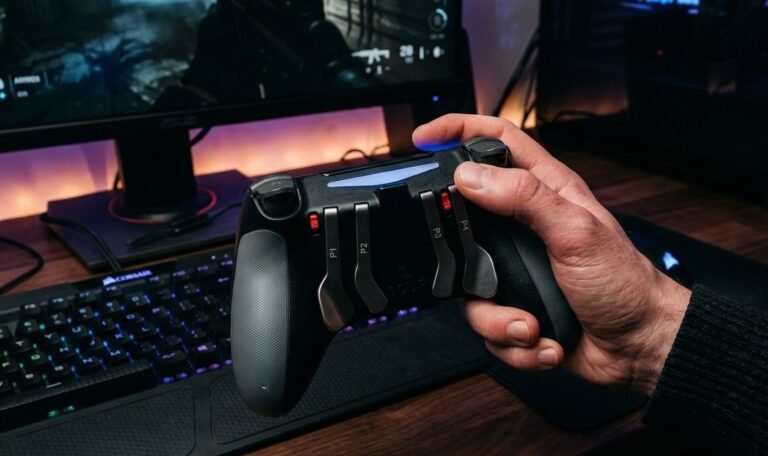
My DualSense Edge back buttons work on my PS5, but on PC they do nothing in most games. Your button test also doesn't show them as separate buttons. How do I use them on PC?
Browsers and most PC games only know the standard 17 buttons, so the back buttons do not appear separately. Use Steam Input, which supports the DualSense Edge and lets you assign the back buttons, or assign them to existing buttons in a profile on the PS5 so the controller sends those buttons on PC too.

The back buttons are extra inputs that the standard controller layout does not include. Browsers, and therefore our button test, expose the standard 17 buttons, so the back buttons have no slot to show up in. Most PC games are the same.
Two ways to use them on PC:
Steam Input. Steam supports the DualSense Edge and recognises the back buttons. In Steam's controller settings for a game, assign each back button to any action, such as jump or reload. For non-Steam games, add them to Steam and launch from Steam.
Controller profiles. The DualSense Edge stores button profiles. On a PS5, create a profile in the controller settings that maps the back buttons to existing buttons, such as Cross or Square. When that profile is active, the controller sends those buttons, so they work on PC without extra software. Switch profiles with the Fn button combination.
After setting either up, press the back buttons in our button test: with a profile mapping, you should see the assigned button light up.
Tested on: Applies to DualSense Edge on Windows 11 with Steam. Profile behaviour per Sony's DualSense Edge support information; browser layout per the W3C Gamepad specification.
Checked by Lucas Rocha on . How we verify answers
UI And Visual Feedback Designer at Gamepad Tester
Marcus is a UI and UX designer specialising in controller mapping interfaces, with a background in real-time 3D and WebGL controller models. His work here is the visual side of diagnosis: an on-screen pad that matches the controller in the player's hands, button and trigger states that respond the instant an input is read, and a layout where an abnormal reading stands out without needing a legend. On Gamepad Tester he designs the tester interfaces and reviews answers that depend on reading the on-screen display correctly.
 Calder WrightFront-End Web Architect And Gamepad API Lead
 Elena RostovaHardware Diagnostics Engineer
 Garrett LindsayHardware Reviewer And Input Performance Specialist
 Venom’s Tech (Abhishek)Peripheral Reviewer And Tech Journalist
 Chloe HendersonHall Effect And Thumbstick Analyst
 Thiago AlvesHardware Repair Educator
 Devon MillerLow Latency And Input Timing Engineer
 Liam DaviesBluetooth And Wireless Test Engineer
Each answer is written by the specialist who owns that part of the hardware, tested on a real controller, and checked by a second team member. How we verify answers
Answers are free general guidance from the Gamepad Tester Team and the community. Opening a controller or replacing a thumbstick module can void your warranty, so check the maker's support or warranty first. Battery and soldering work carries a real risk of damage or injury.
Every test runs in your own browser with the Gamepad API. No sign up, no download, and your controller data never leaves your device.
You paired the controller, the light went solid, your phone said "Connected," and then the game did absolutely…
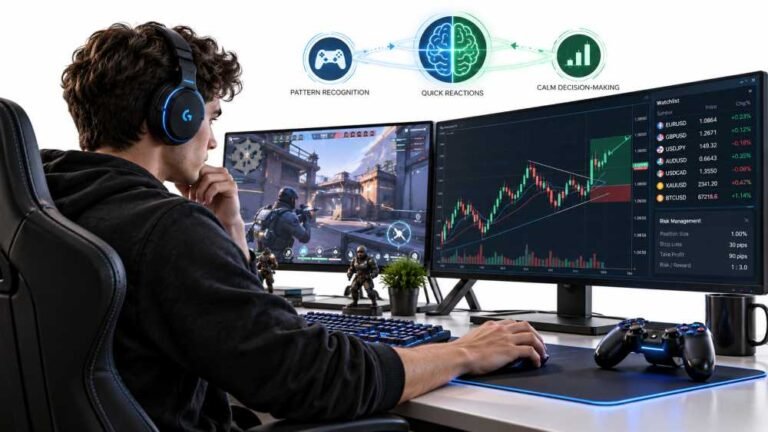
Gaming and trading look like separate worlds until you sit down and do both. One rewards reaction speed, pattern…
The Xbox Elite Series 2 seemed amazing for the first two weeks. Interchangeable thumbsticks, adjustable trigger locks…
The newest replies from players and the Gamepad Tester Team.