Repairing Ghost Inputs Caused by Worn Carbon Pads
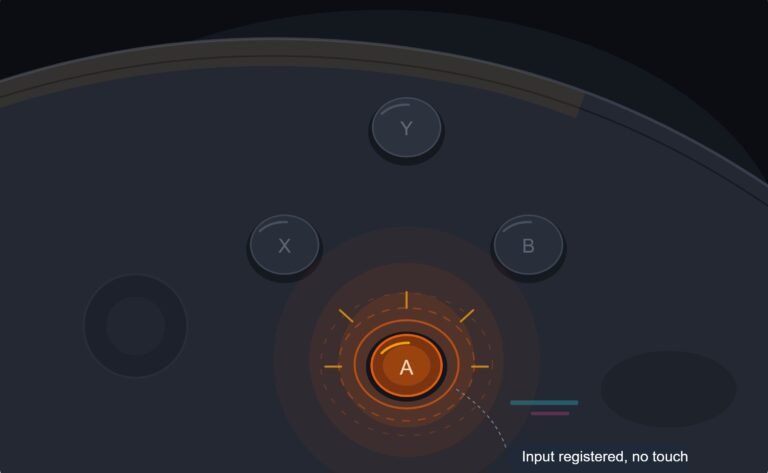
The face button registered a press I never made, a phantom input firing on its own during a menu screen while my thumb…

I must have pressed the turbo button on my cheap controller. Now holding A fires really fast instead of once, and I can't work out how to turn it off. The button test shows A flickering on and off when I hold it.
On most controllers with turbo, you hold the turbo button and press the affected button again to turn turbo off, or press a clear button. Some cycle through modes: off, turbo, auto-fire. Unplugging and reconnecting often resets turbo on budget pads too.

Your test result shows turbo clearly: holding A makes it switch on and off rapidly, which the controller is doing on purpose.
Turbo is set per button, and the common ways to turn it off are:
Toggle. Hold the turbo button and press A again. On many controllers, pressing the combination once enables turbo, twice enables auto-fire, which fires even without holding, and a third time turns it off. Watch the turbo light, if there is one, to see which mode you are in.
Clear button. Some controllers have a separate clear button. Hold clear and press A to remove turbo from that button.
Reset. Unplugging and reconnecting, or turning the controller off and on, resets turbo on many budget pads.
Check the result in our button test: holding A should now show it lit steadily, not flickering.
If no combination works, the controller's manual or listing usually describes its turbo controls, since they differ by brand. And if you never use turbo, simply avoid the button; some players put a small sticker over it.
Tested on: Applies to budget controllers with turbo and clear functions on Windows 11. Button states per the W3C Gamepad specification.
Checked by Oliver Sterling on . How we verify answers
Fighting Game Hardware Analyst at Gamepad Tester
Matheus analyses hardware for the fighting game community, where a few milliseconds and a single simultaneous-input conflict decide whether a combo comes out. He tests arcade fightsticks, leverless hitbox-style controllers and custom builds for execution window errors, SOCD conflicts, missed simultaneous presses and the button-rollover limits that only appear under fast input. On Gamepad Tester he answers the questions about fightsticks and leverless pads, and the ones where a controller tests perfectly but still drops inputs in a game.
 Calder WrightFront-End Web Architect And Gamepad API Lead
 Elena RostovaHardware Diagnostics Engineer
 Garrett LindsayHardware Reviewer And Input Performance Specialist
 Venom’s Tech (Abhishek)Peripheral Reviewer And Tech Journalist
 Chloe HendersonHall Effect And Thumbstick Analyst
 Thiago AlvesHardware Repair Educator
 Devon MillerLow Latency And Input Timing Engineer
 Liam DaviesBluetooth And Wireless Test Engineer
Each answer is written by the specialist who owns that part of the hardware, tested on a real controller, and checked by a second team member. How we verify answers
Answers are free general guidance from the Gamepad Tester Team and the community. Opening a controller or replacing a thumbstick module can void your warranty, so check the maker's support or warranty first. Battery and soldering work carries a real risk of damage or injury.
Every test runs in your own browser with the Gamepad API. No sign up, no download, and your controller data never leaves your device.
The face button registered a press I never made, a phantom input firing on its own during a menu screen while my thumb…
Android RPGs no longer feel like small games made to fill a few spare minutes. Some now offer large open worlds…
Esports viewing has changed a lot. Fans no longer watch only for big kills, clutch rounds, final scores, or highlight…
The newest replies from players and the Gamepad Tester Team.